> For the complete documentation index, see [llms.txt](https://help.1024proxy.com/llms.txt). Markdown versions of documentation pages are available by appending `.md` to page URLs; this page is available as [Markdown](https://help.1024proxy.com/integrationtutorial/fbt/how-to-set-up-1024-proxy-in-brave-browser.md).
# How to Set Up 1024 Proxy in Brave Browser
### Brave Browser Introduction
Brave Browser is a modern web browser that focuses on privacy protection and high-speed browsing performance. It is built on the Chromium engine, supports Chrome extensions, and is suitable for everyday browsing as well as users who are highly concerned about online privacy.
Its biggest feature is default ad and tracker blocking. Brave comes with built-in ad-blocking and anti-tracking mechanisms, allowing it to block advertising scripts, third-party trackers, and malicious pop-ups without installing any additional extensions. This not only improves page loading speed but also reduces the risk of personal data being collected.
### Download & Installation
Download link:
{% stepper %}
{% step %}
### Proxy Configuration
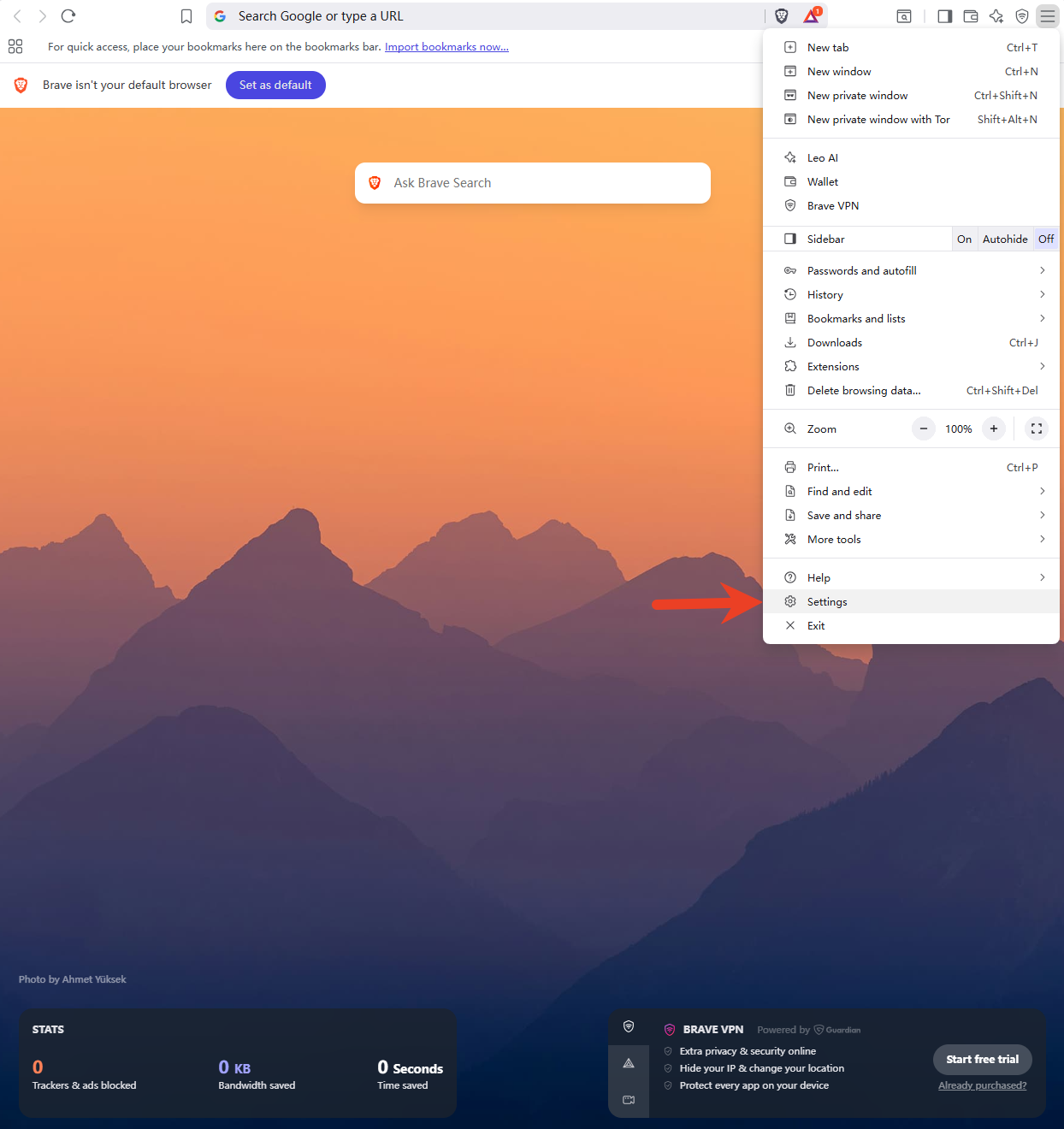
Click the three-line icon in the top-right corner to enter the Settings menu.
{% endstep %}
{% step %}
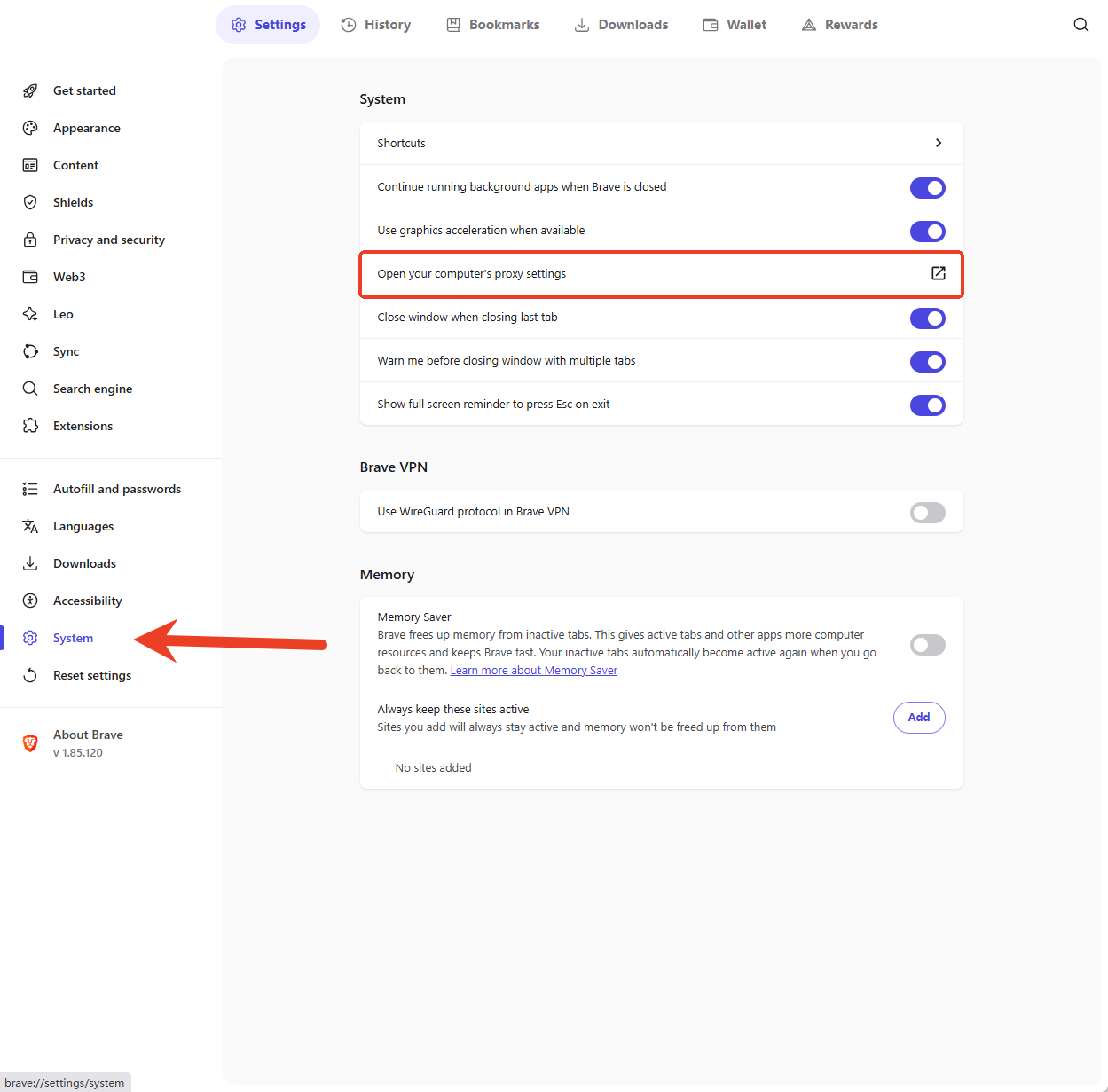
### Under System, select Open your computer’s proxy settings.
{% endstep %}
{% step %}
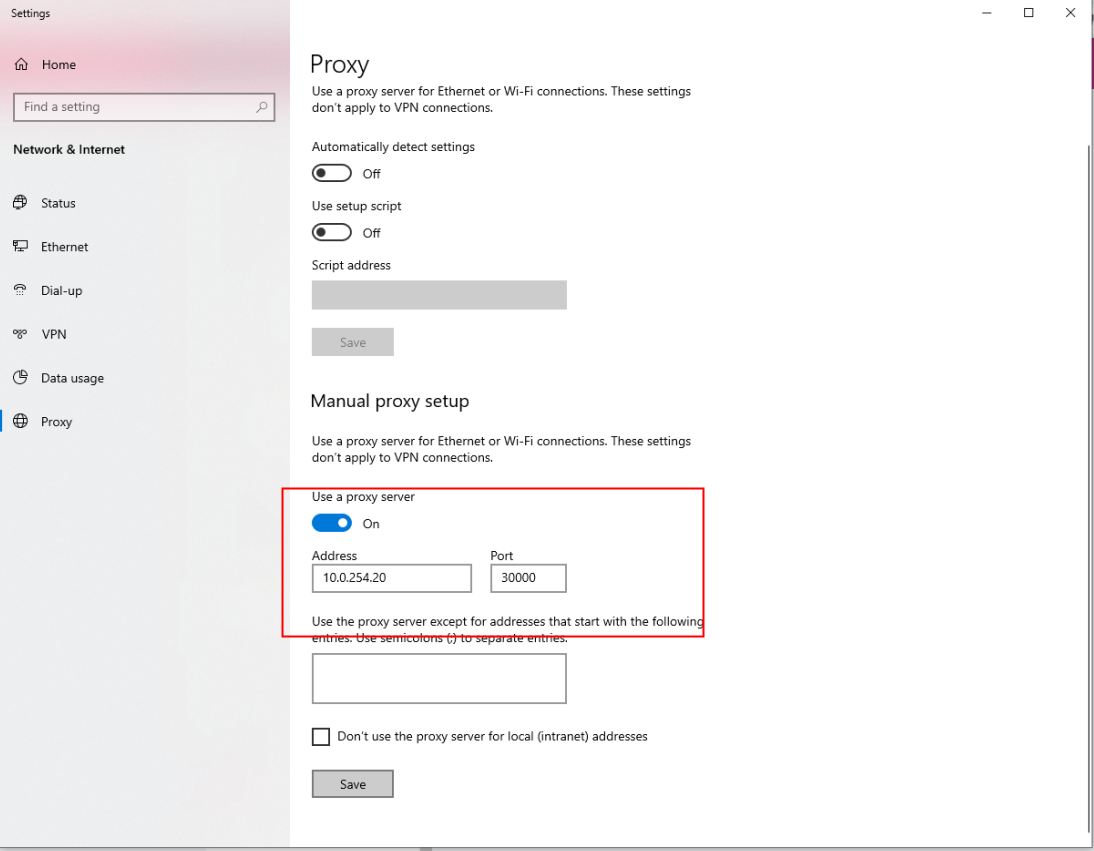
### After entering the system proxy settings, choose Manual proxy setup and click Edit.Enable the proxy server and paste the proxy information obtained from 1024Proxy into the corresponding fields.
{% endstep %}
{% step %}
### Click Save, then revisit the target website using Brave to check whether the IP is working properly.
{% endstep %}
{% endstepper %}