> For the complete documentation index, see [llms.txt](https://help.1024proxy.com/llms.txt). Markdown versions of documentation pages are available by appending `.md` to page URLs; this page is available as [Markdown](https://help.1024proxy.com/integrationtutorial/fbt/how-to-set-up-1024-proxy-in-clonbrowser-browser.md).
# How to Set Up 1024 Proxy in ClonBrowser Browser
### ClonBrowser Overview
ClonBrowser is a fingerprint browser / anti-detect browser designed to create and manage multiple isolated browser environments on a single device. By simulating different browser fingerprints, it helps prevent account linkage and reduces the risk of detection, bans, or throttling by platform anti-fraud systems.
It is commonly used in scenarios such as multi-account operations, cross-border e-commerce, social media management, advertising, affiliate marketing, and data collection, making it suitable for individuals and teams that need stable, large-scale account management.
### Download, Installation, and Account Setup
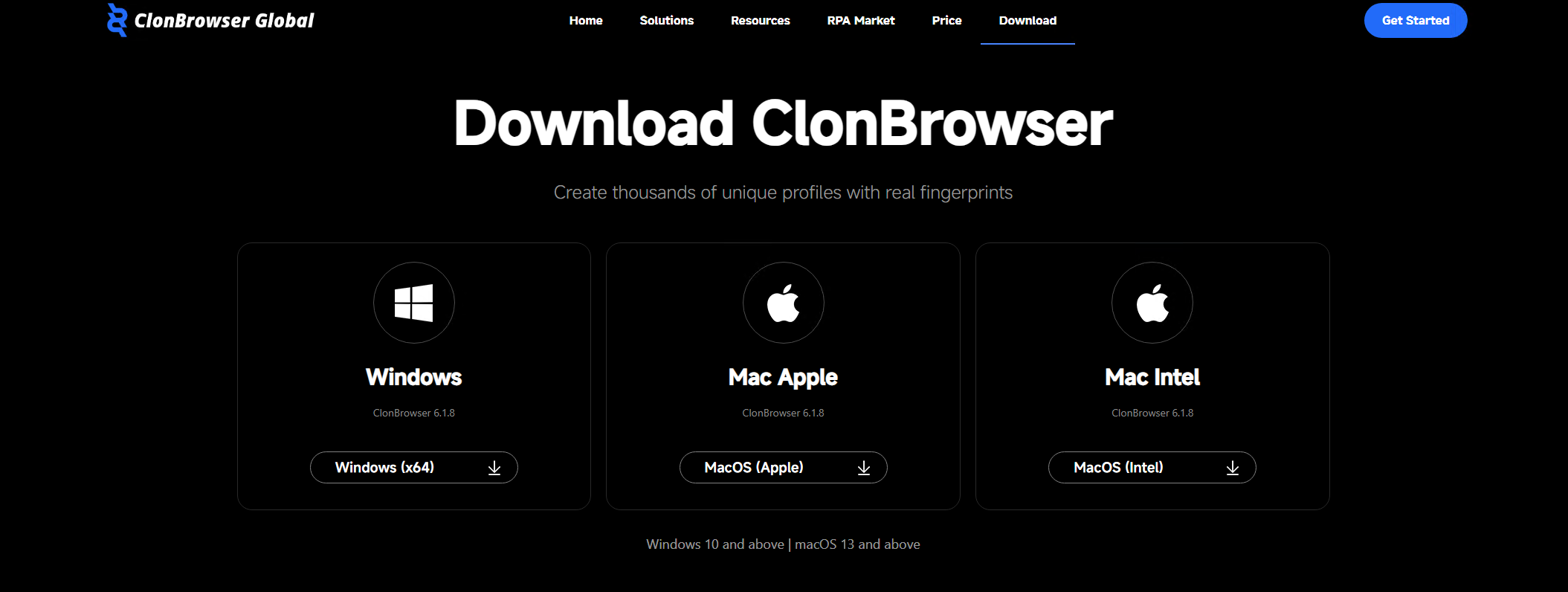
Download and install ClonBrowser, then complete account registration and login.\
{% stepper %}
{% step %}
### Create a New Browser Profile
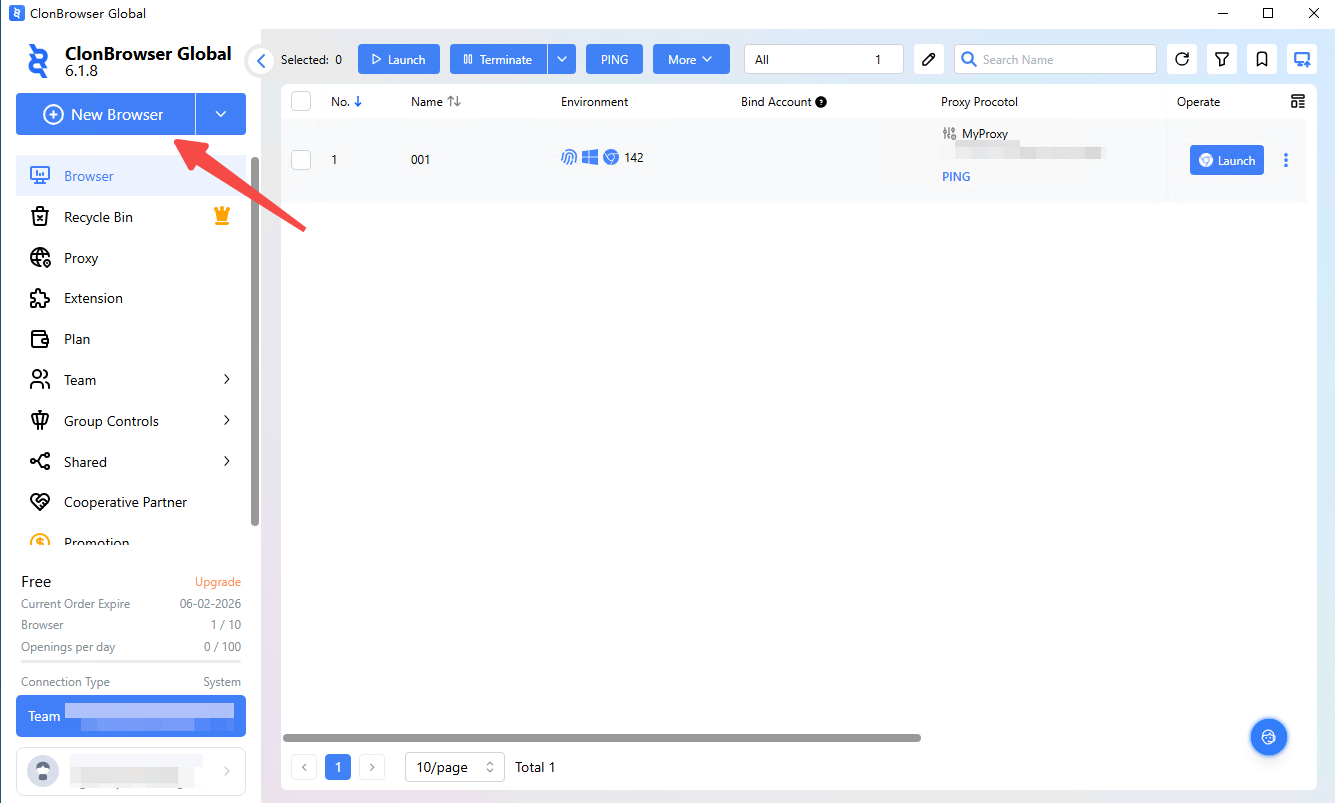
Click the New Browser button to create a new browser profile.
{% endstep %}
{% step %}
### Name the New Browser Profile
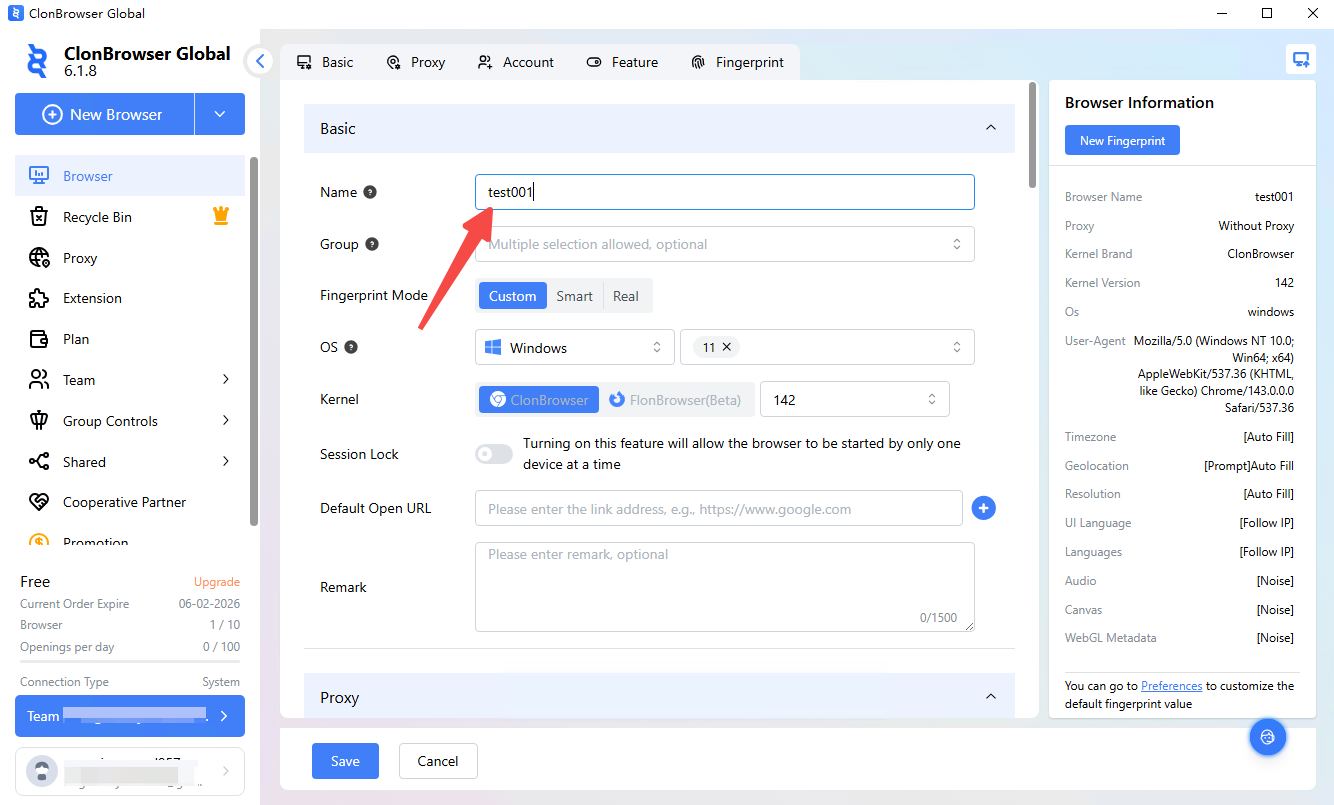
Assign a name to the newly created browser profile.
{% endstep %}
{% step %}
### Set Up a Proxy for the New Browser
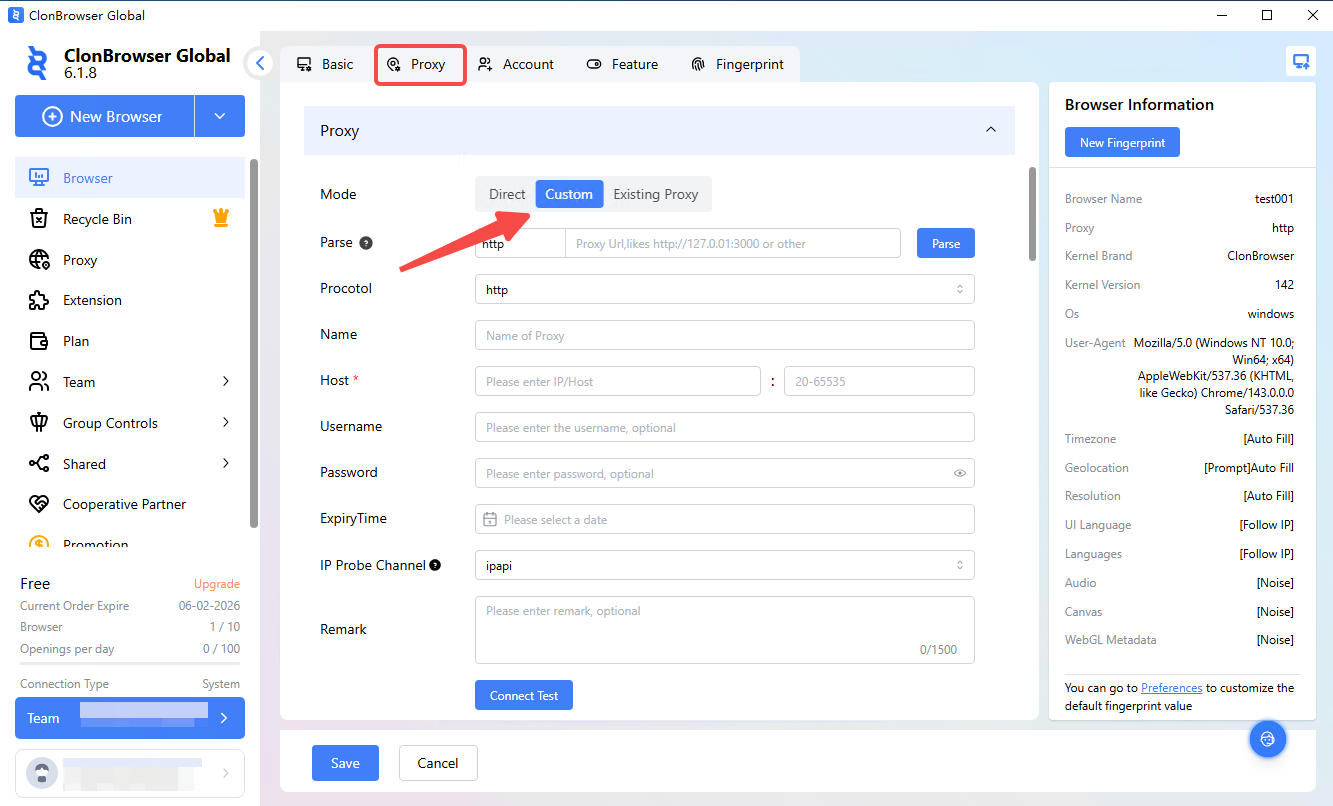
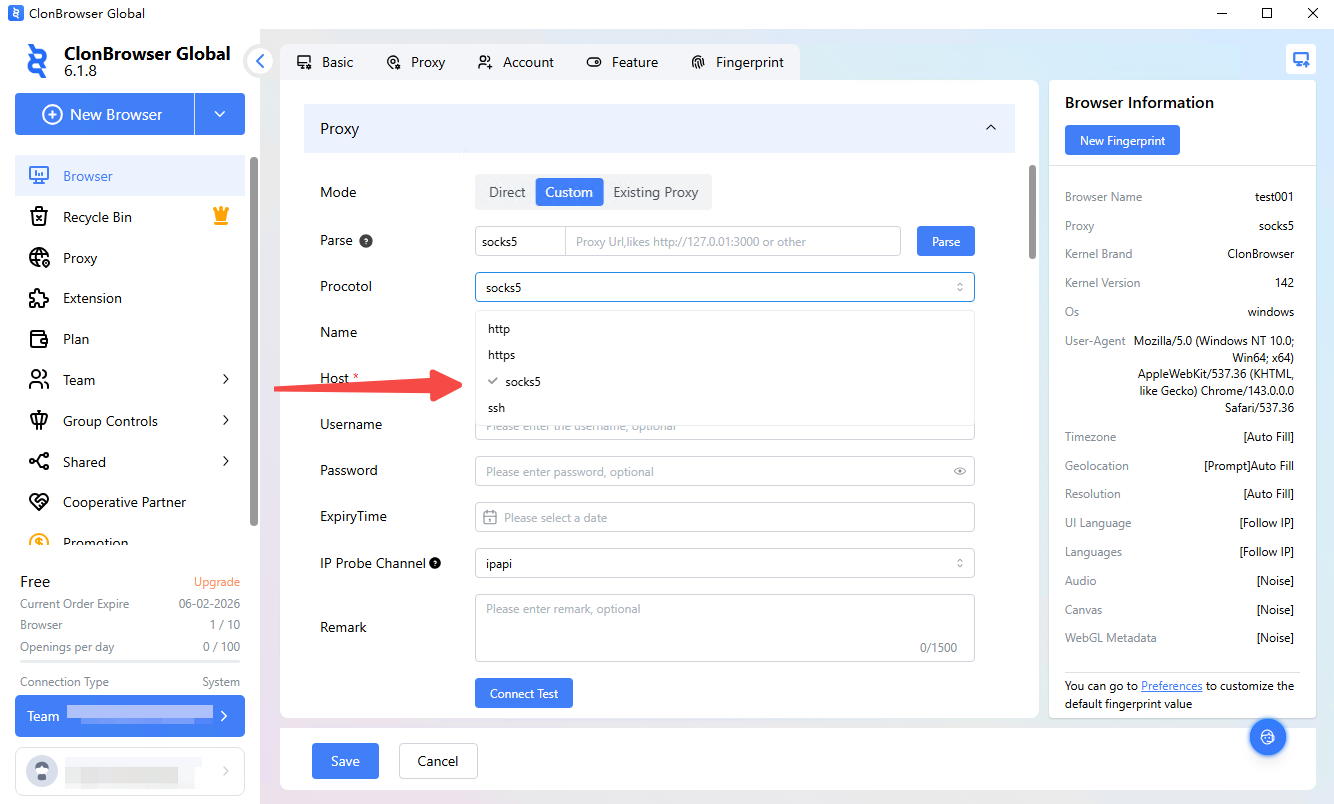
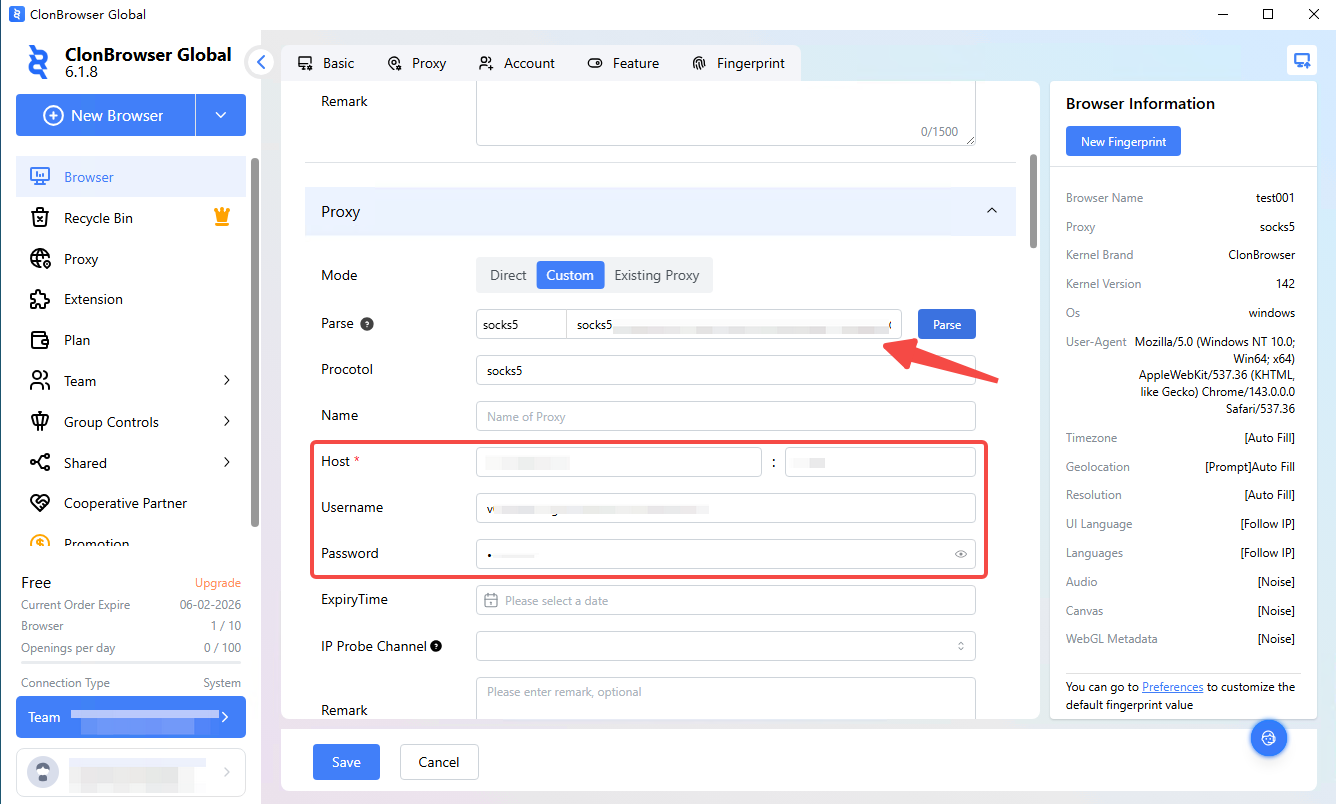
Go to the Proxy Settings section and select Custom.
{% endstep %}
{% step %}
### Select the SOCKS5 Protocol
Choose the SOCKS5 protocol.
{% endstep %}
{% step %}
### Method 1: Manually Paste Proxy Information
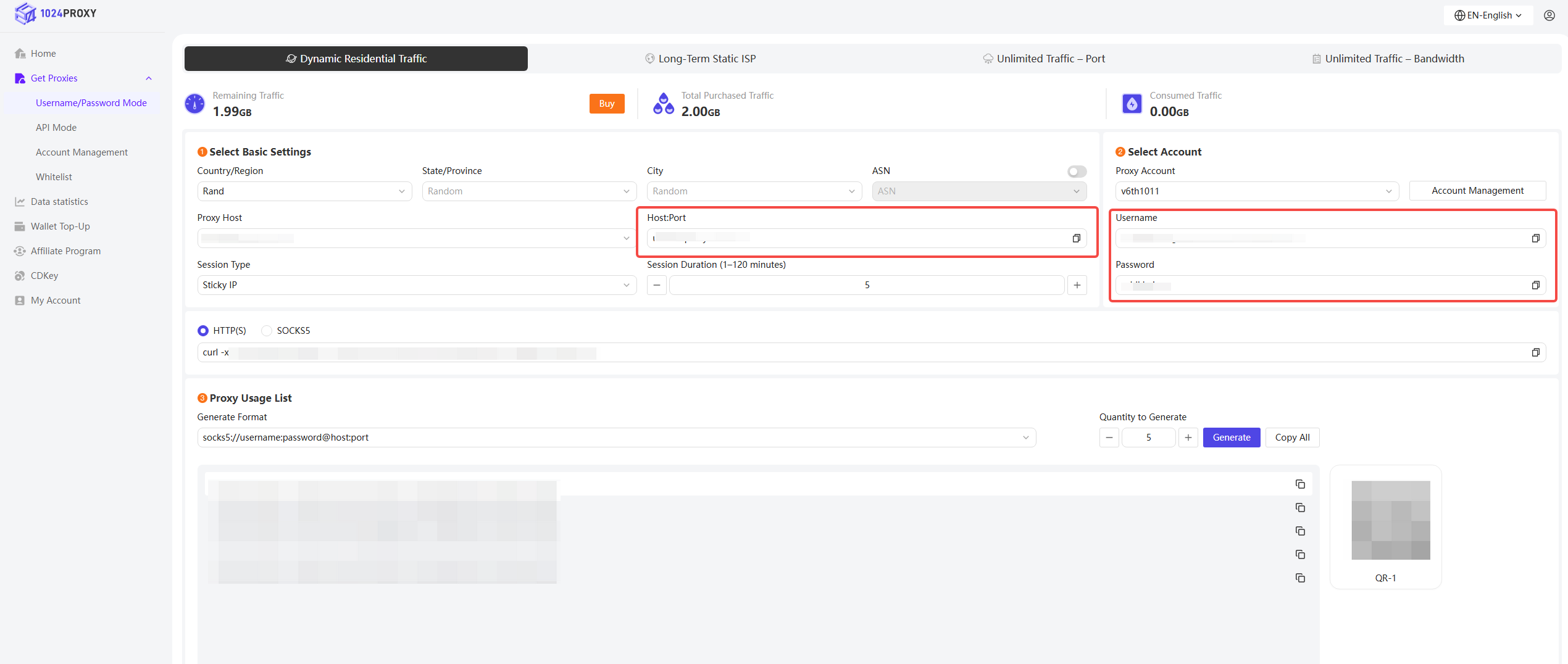
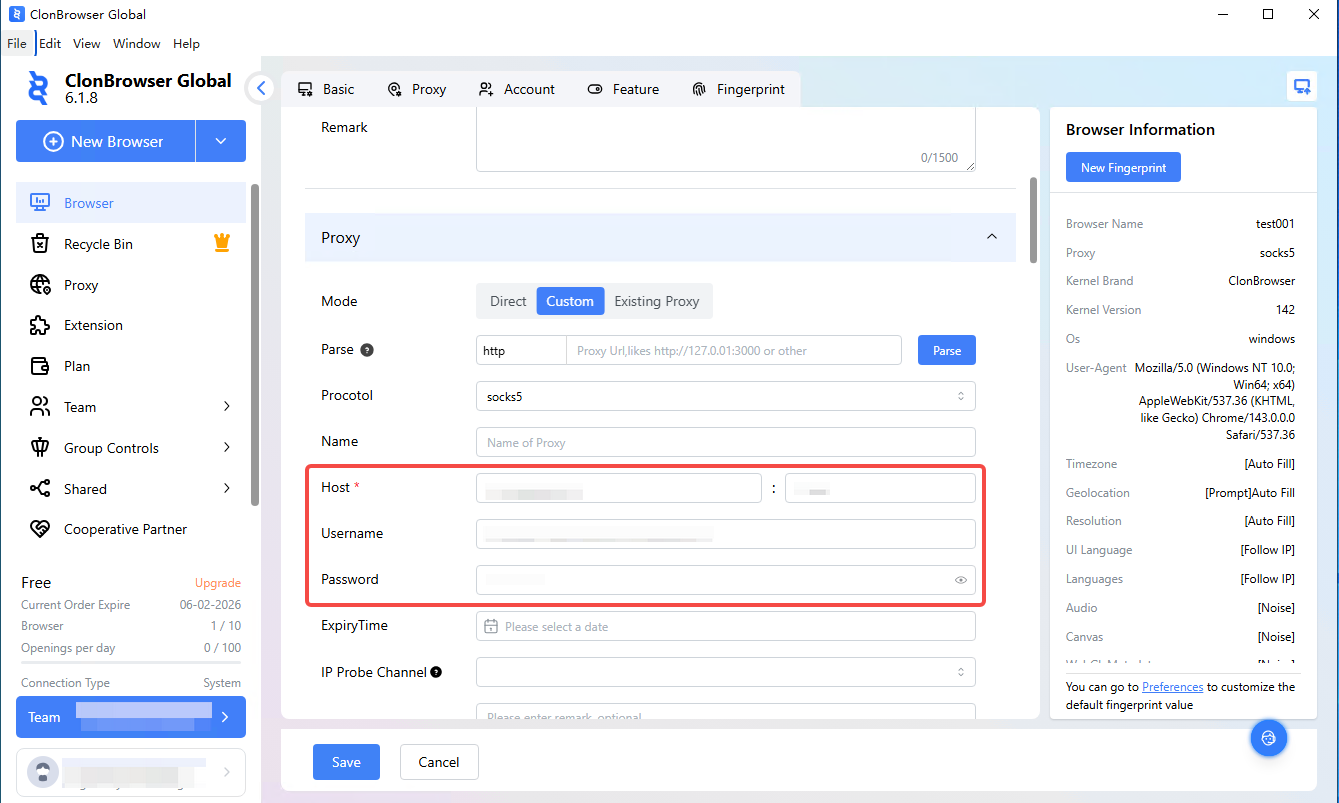
You can copy the host:port, proxy type, username, and password from 1024Proxy and manually paste them into the corresponding fields in the ClonBrowser fingerprint browser.
{% endstep %}
{% step %}
### Method 2: SOCKS5 Format Parsing
You can also use the SOCKS5 format parsing option to quickly paste proxy information.
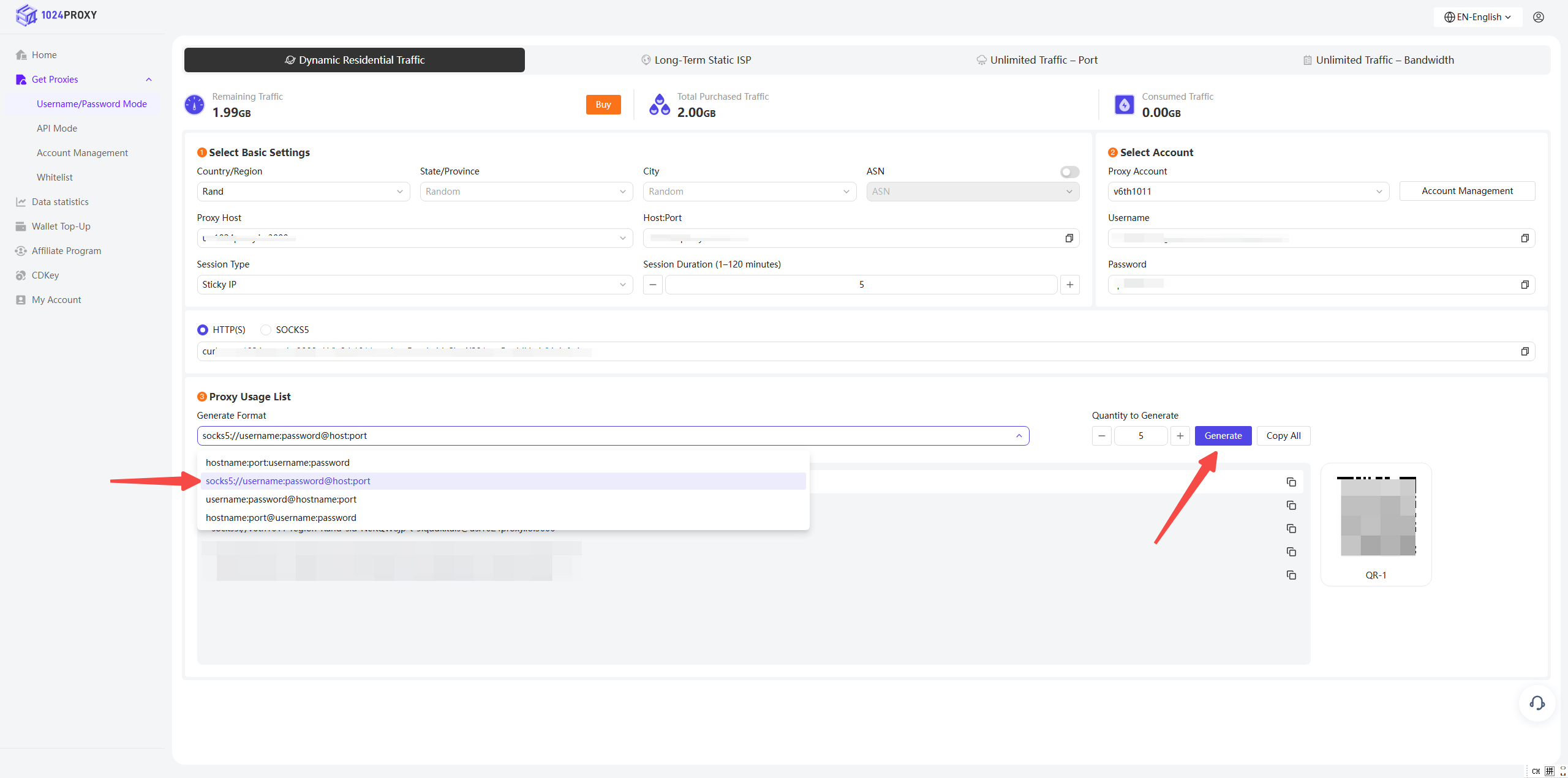
First, open the 1024Proxy dashboard, select the\
`socks5://username:password@host:port`\
format, and click Generate to create the corresponding credentials.
Copy one set of credentials into the SOCKS5 Parsing field in ClonBrowser and click Parse. The credentials will be automatically split and filled into the appropriate fields.
{% endstep %}
{% step %}
### Test the Proxy Connection
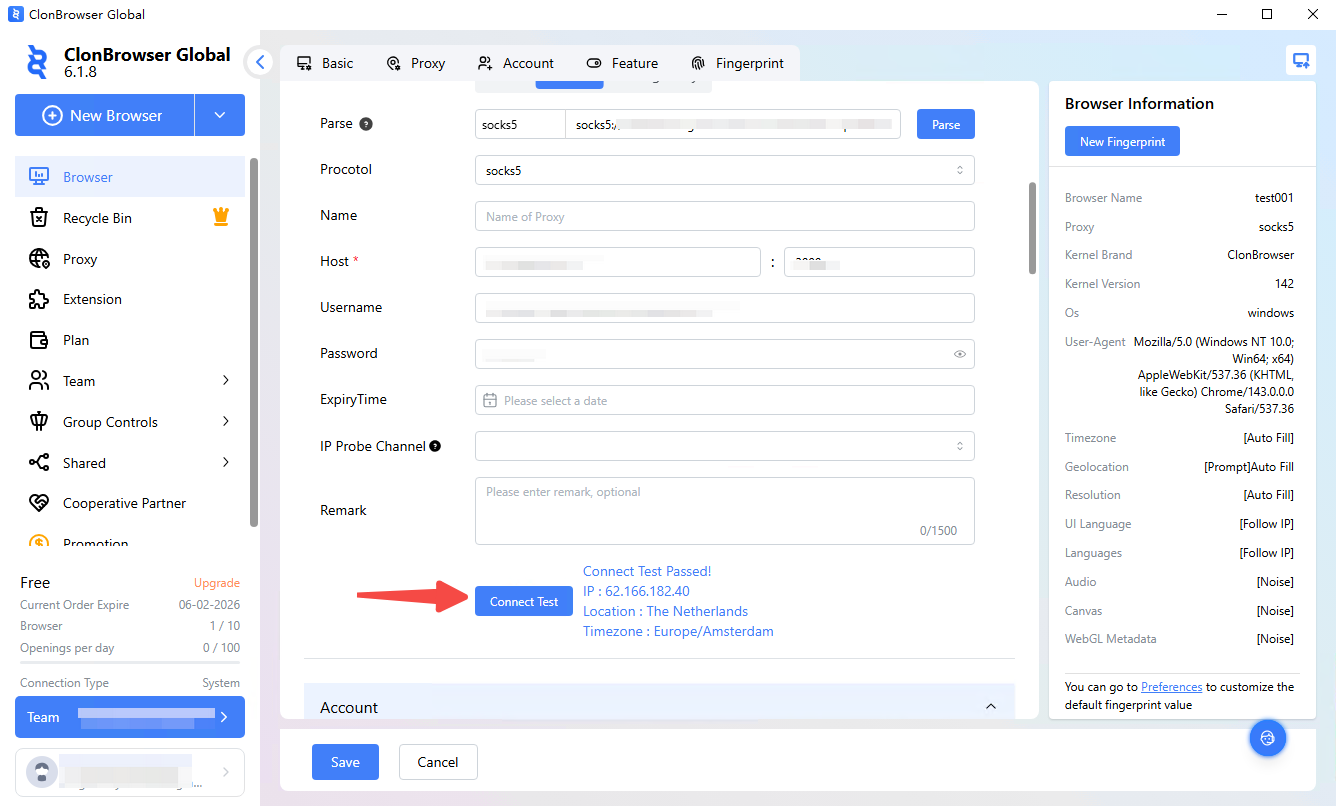
Click Connection Test.\
As shown in the example, when the test result displays Success along with specific IP, location, and time zone information, it indicates that the proxy connection is working properly.
{% endstep %}
{% step %}
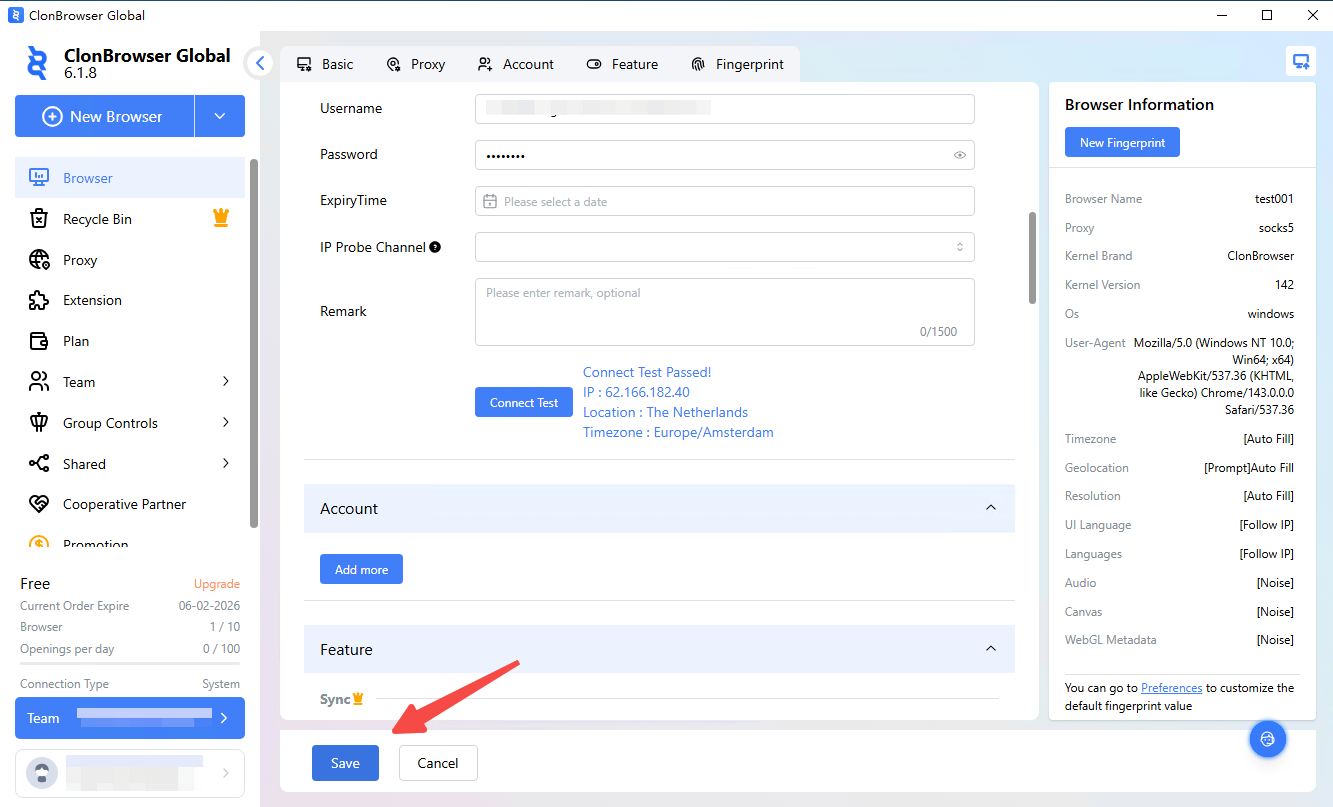
### Complete the Proxy Configuration
Click Save to finish the proxy setup.
{% endstep %}
{% step %}
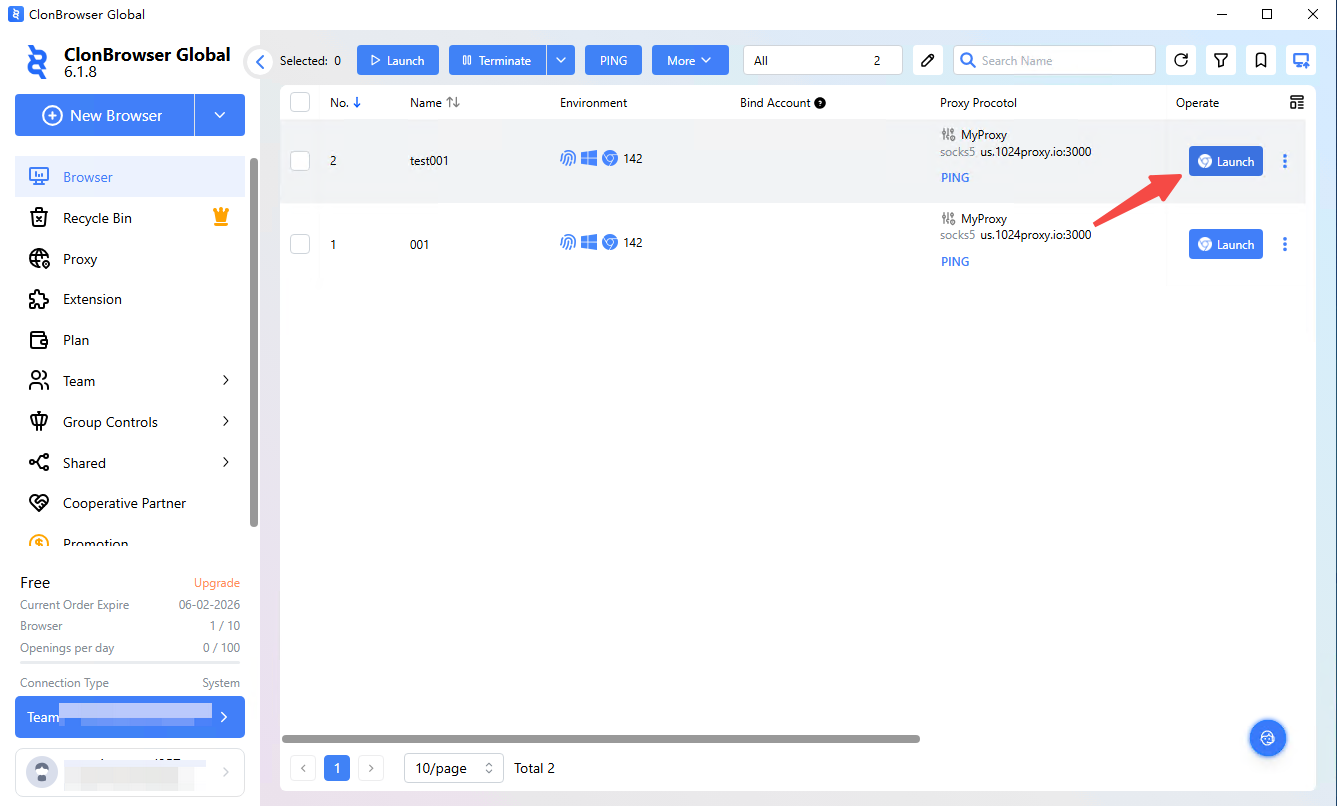
### Launch the Browser Profile
Select the newly configured browser profile and click Start.\
The proxy setup is now complete, and you can access your target websites using the configured proxy environment.
{% endstep %}
{% endstepper %}