> For the complete documentation index, see [llms.txt](https://help.1024proxy.com/llms.txt). Markdown versions of documentation pages are available by appending `.md` to page URLs; this page is available as [Markdown](https://help.1024proxy.com/integrationtutorial/fbt/how-to-set-up-1024-proxy-in-dolphin-anty-browser.md).
# How to Set Up 1024 Proxy in Dolphin Anty Browser
### Dolphin Anty Overview
Dolphin Anty is a well-known fingerprint browser / anti-detect browser (Anti-detect Browser) in the cross-border and multi-account operations space. It is primarily used to create and manage multiple fully isolated browser environments on the same device. Each browser environment has its own independent and customizable browser fingerprint, effectively preventing account linkage and reducing the risk of being detected, rate-limited, or banned by platform risk-control systems.
### Installation & Download
Dolphin Anty download link:\
{% stepper %}
{% step %}
### Create a Browser Profile
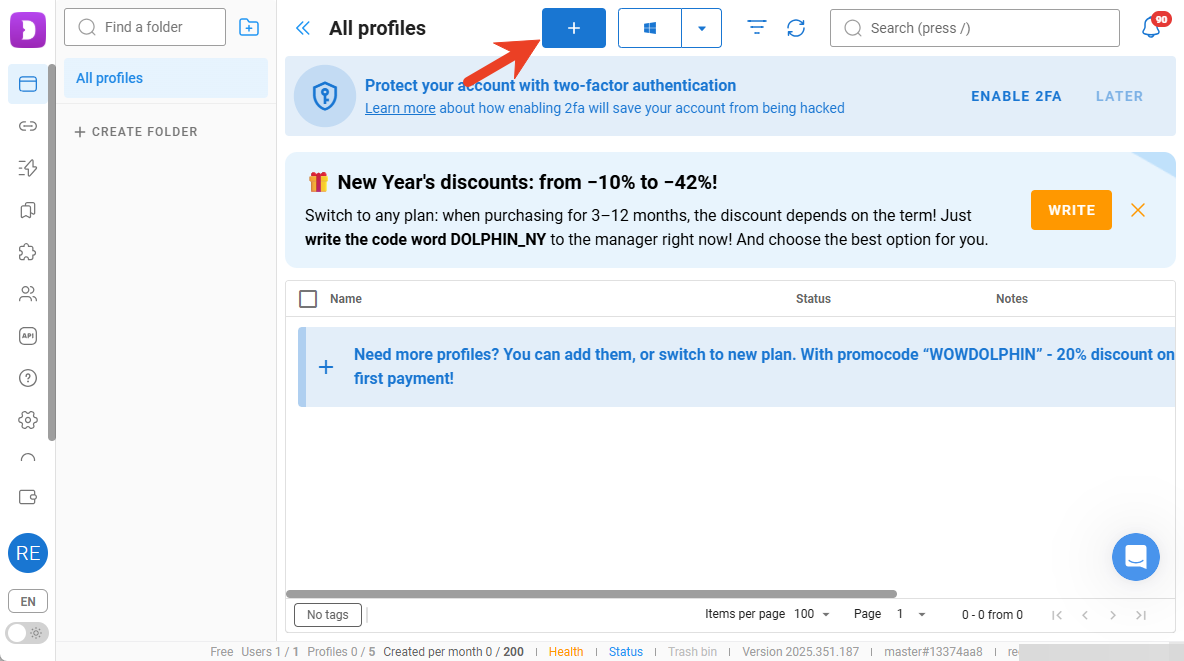
Click the plus (+) icon in the top-right corner to create a new browser profile.
{% endstep %}
{% step %}
### Fill in Basic Information
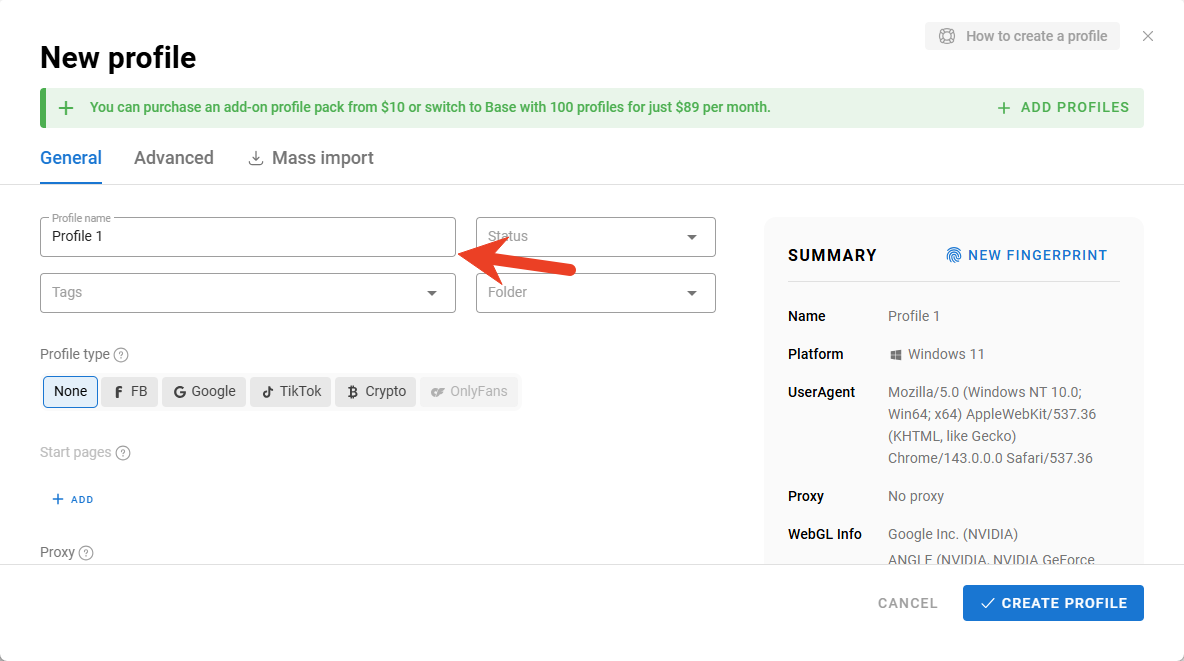
Complete the basic information for the browser profile, such as the browser name and other required details.
{% endstep %}
{% step %}
### Configure Proxy Settings
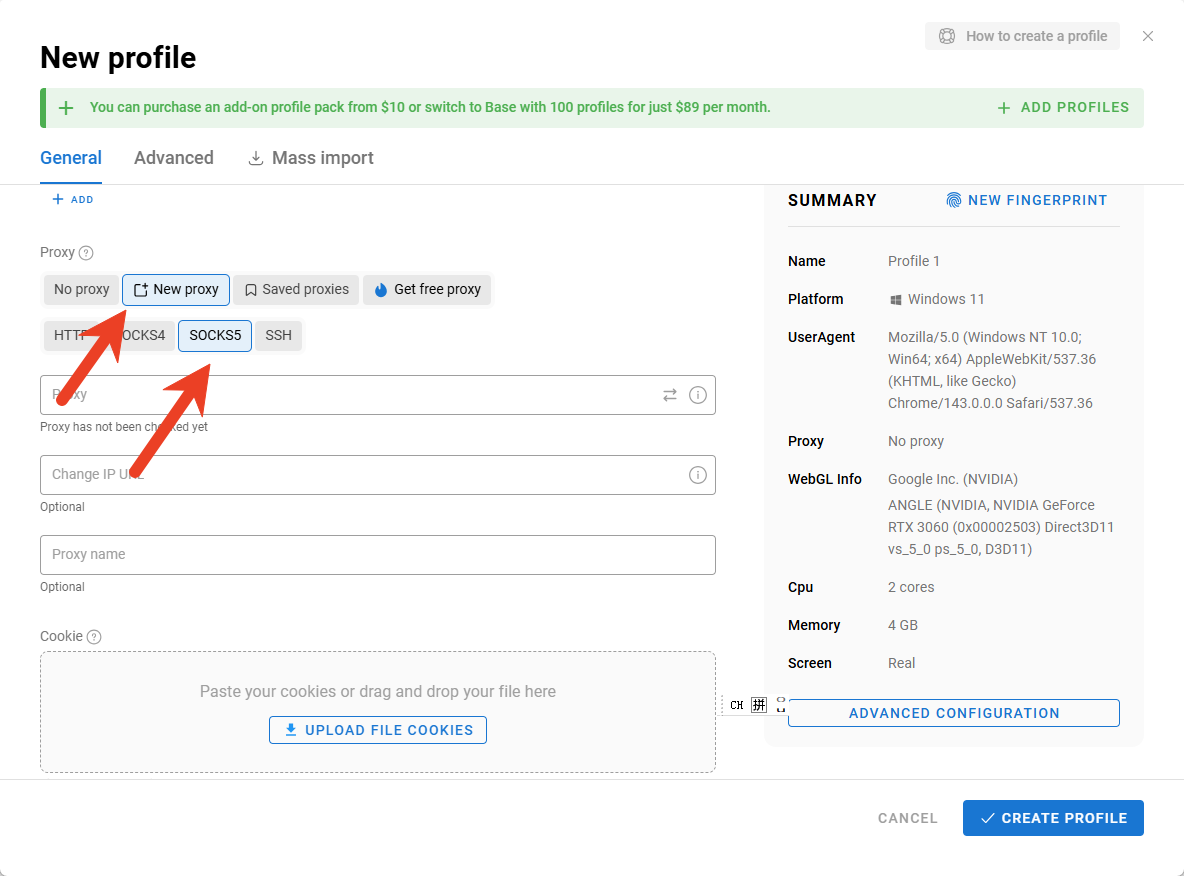
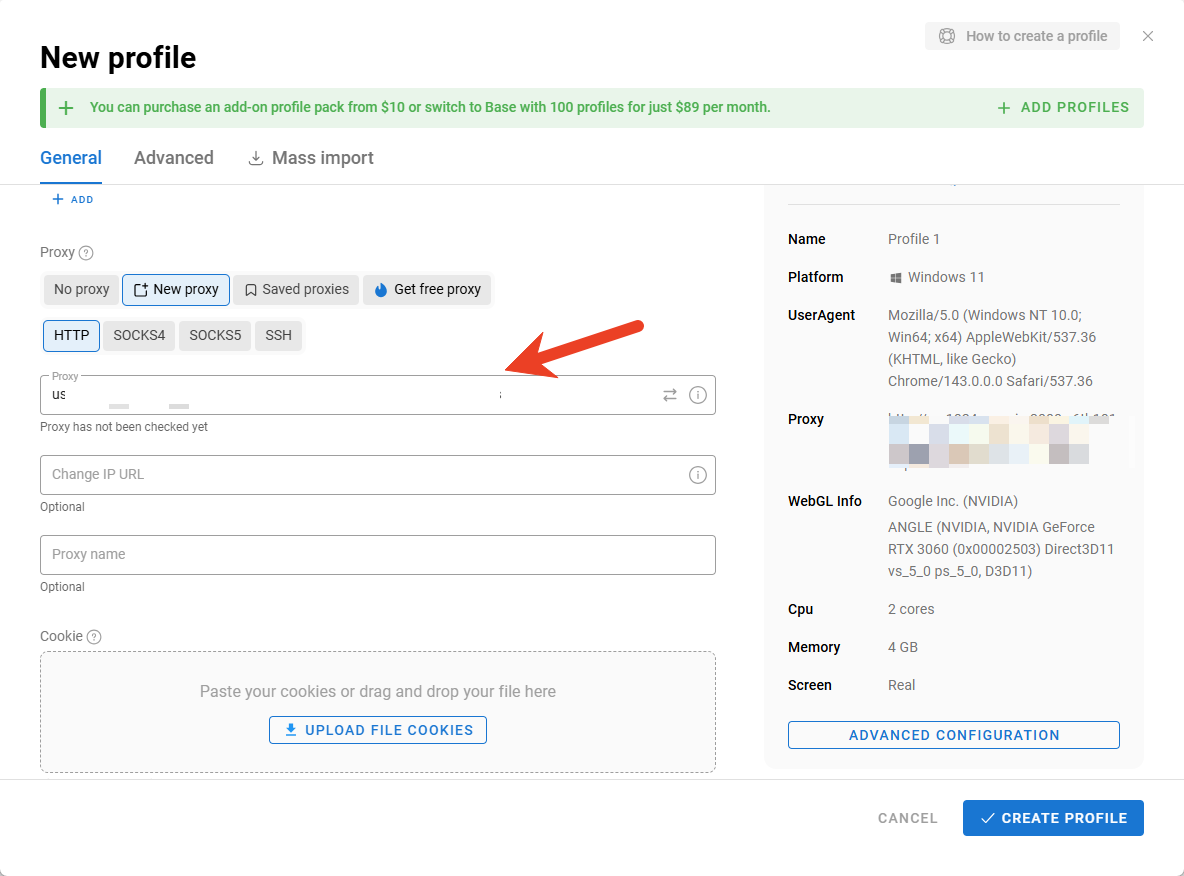
Click the \[New Proxy] button to add a third-party proxy.\
Select SOCKS5 as the proxy protocol.
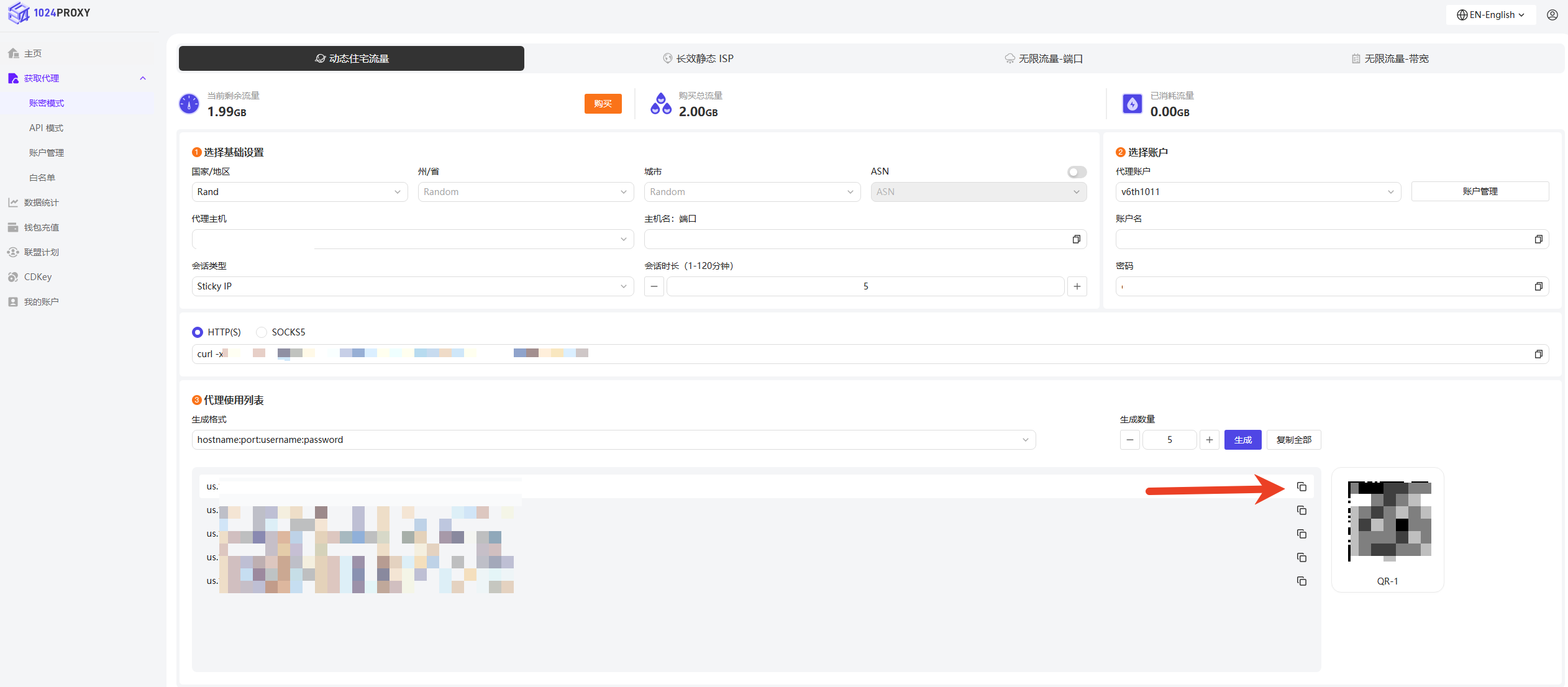
Copy and paste the proxy credentials from the 1024Proxy dashboard into Dolphin Anty.
{% endstep %}
{% step %}
### Test the Proxy
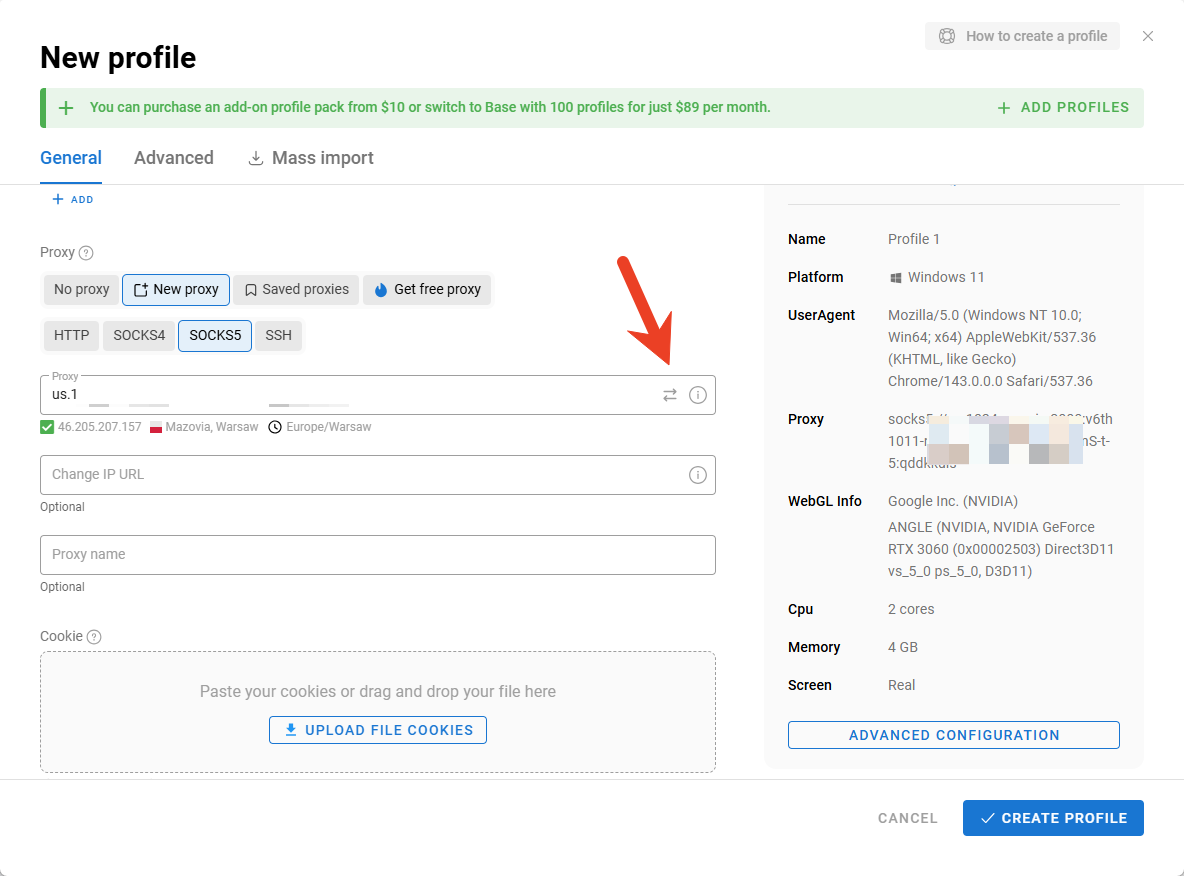
Click the Test Proxy button to check whether the proxy IP is reachable.\
If the test result displays detailed IP information (as shown in the example), it indicates that the proxy IP is working properly.
{% endstep %}
{% step %}
### Complete Browser Profile Creation
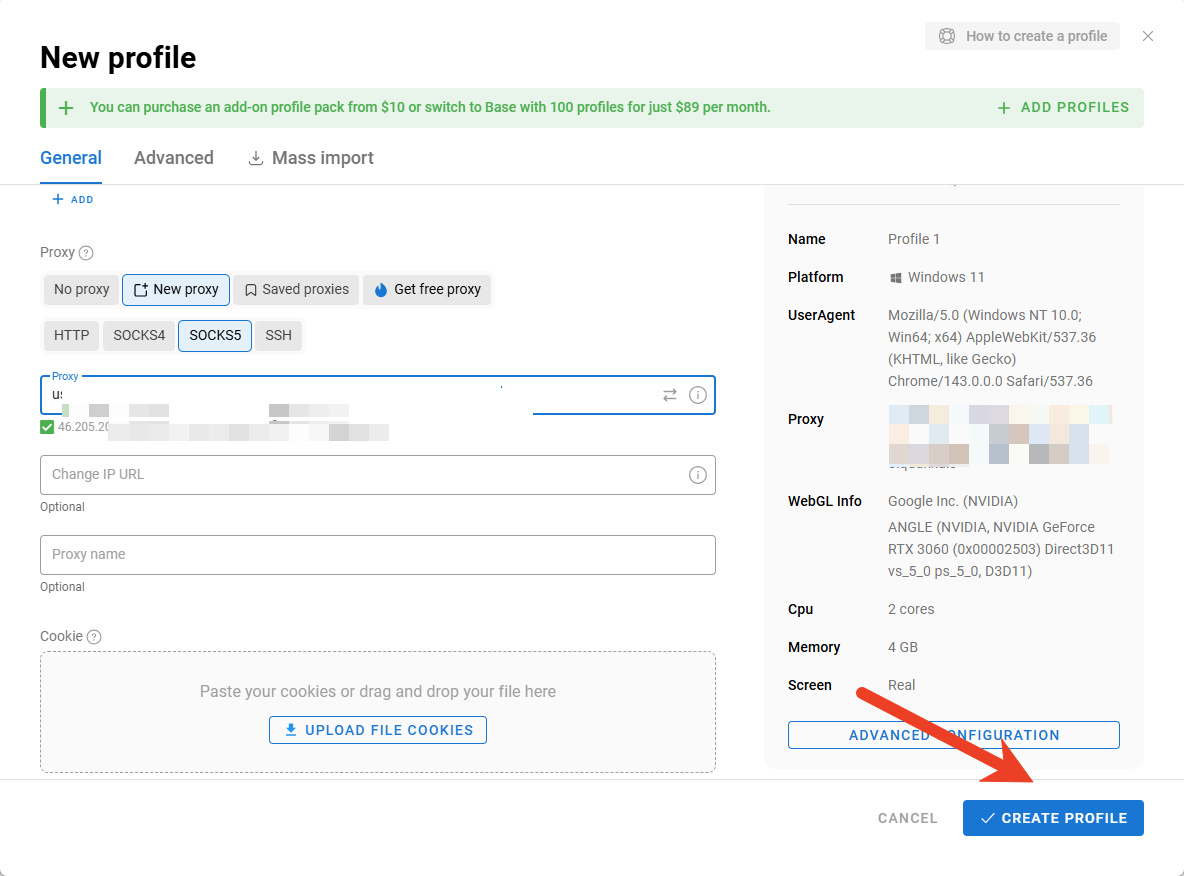
Click \[Create Profile] to finish configuring the browser profile.
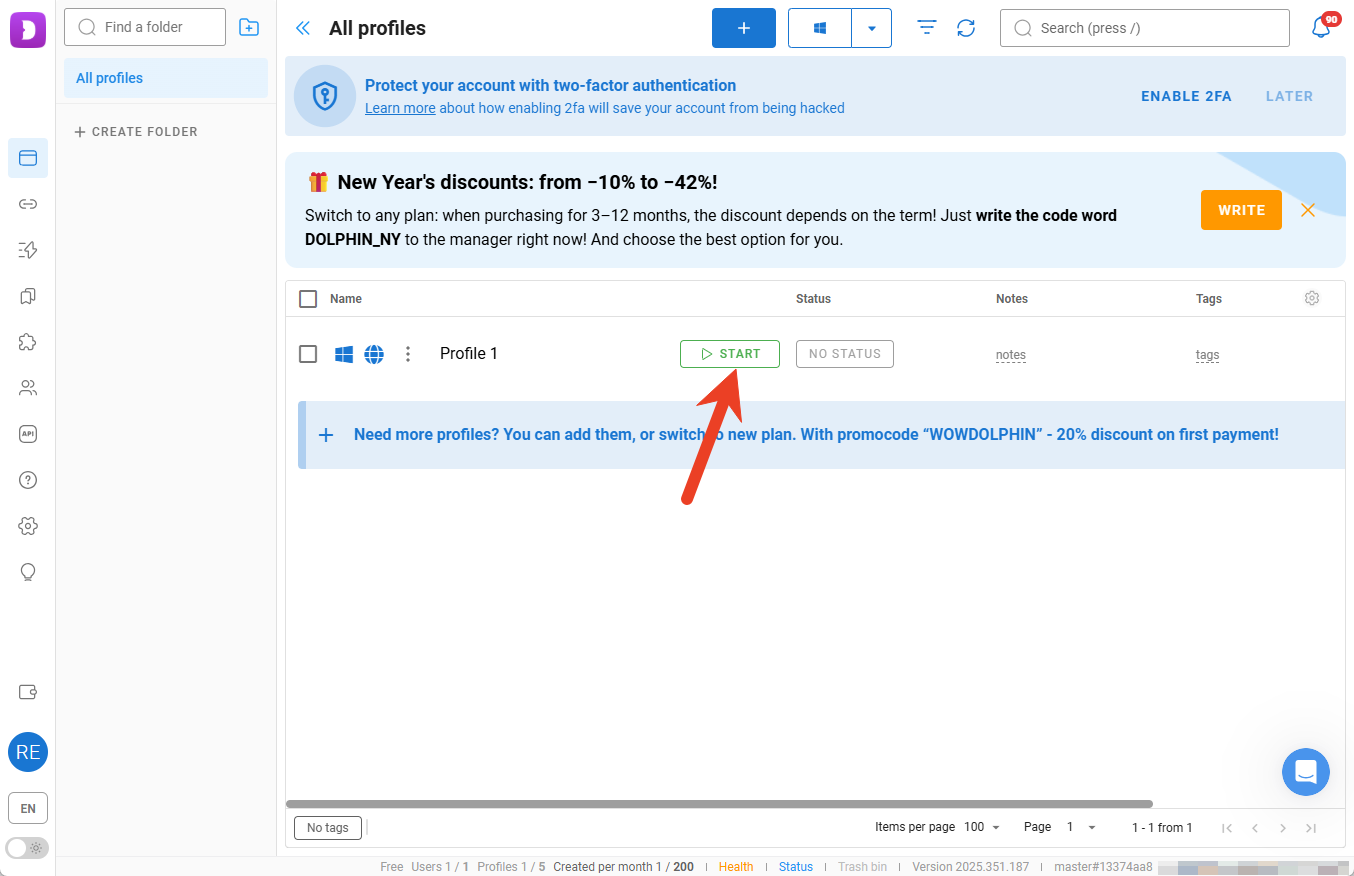
Once the profile is successfully created with the proxy IP configured, simply click \[Start] to begin accessing target websites through the proxy IP.
{% endstep %}
{% endstepper %}