> For the complete documentation index, see [llms.txt](https://help.1024proxy.com/llms.txt). Markdown versions of documentation pages are available by appending `.md` to page URLs; this page is available as [Markdown](https://help.1024proxy.com/integrationtutorial/fbt/how-to-set-up-1024-proxy-in-indigo-browser.md).
# How to Set Up 1024 Proxy in Indigo Browser
### Indigo Introduction
Indigo is a professional fingerprint browser / anti-detect browser (Anti-detect Browser) that creates multiple isolated browser fingerprint environments on the same device. By precisely simulating browser and device fingerprints, it effectively prevents account linkage and reduces the risk of being identified, banned, or rate-limited by platform risk control systems.
### Account Registration and Purchase
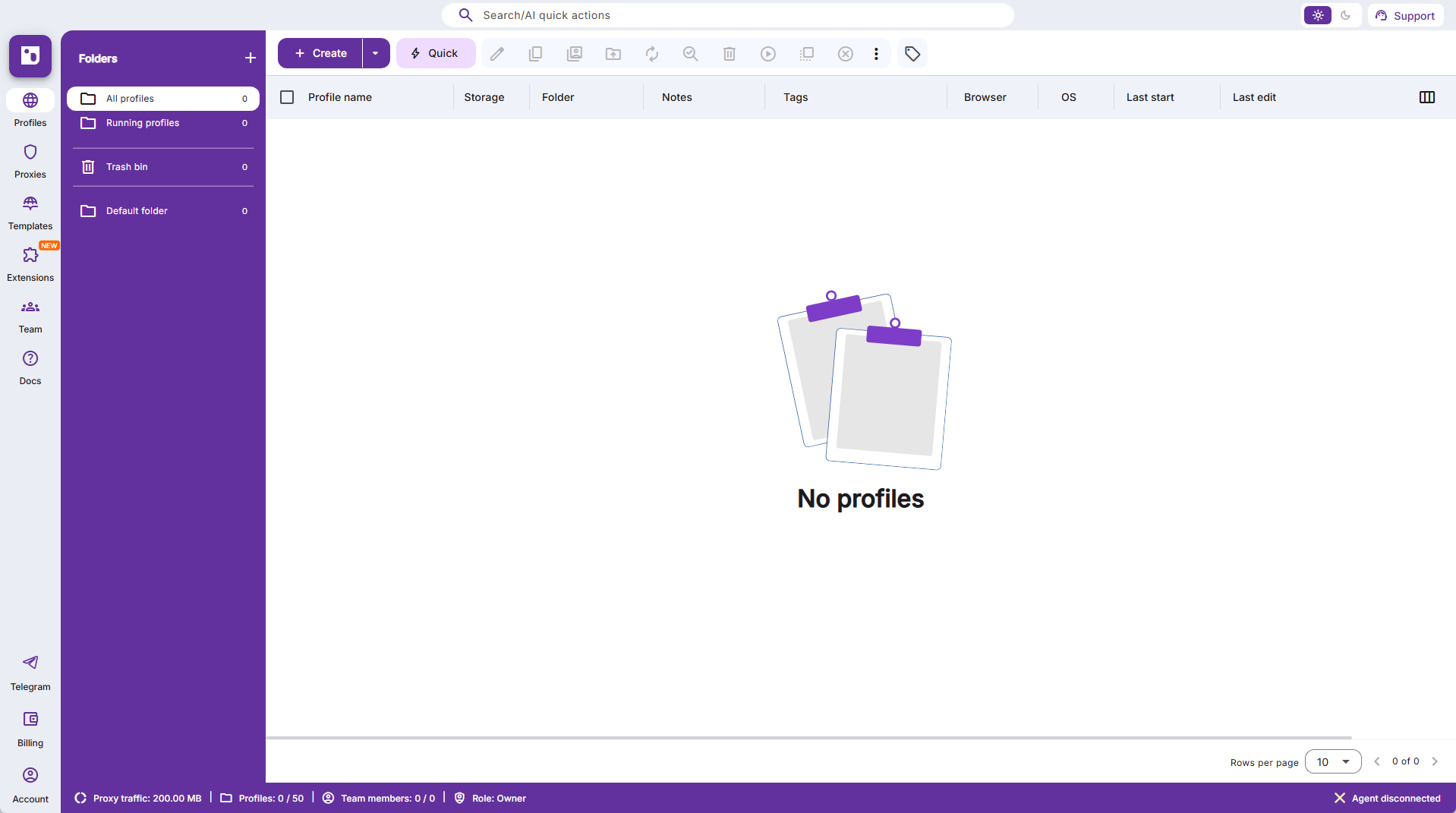
Visit Indigo at:\
Complete account registration and purchase the required plan.
{% stepper %}
{% step %}
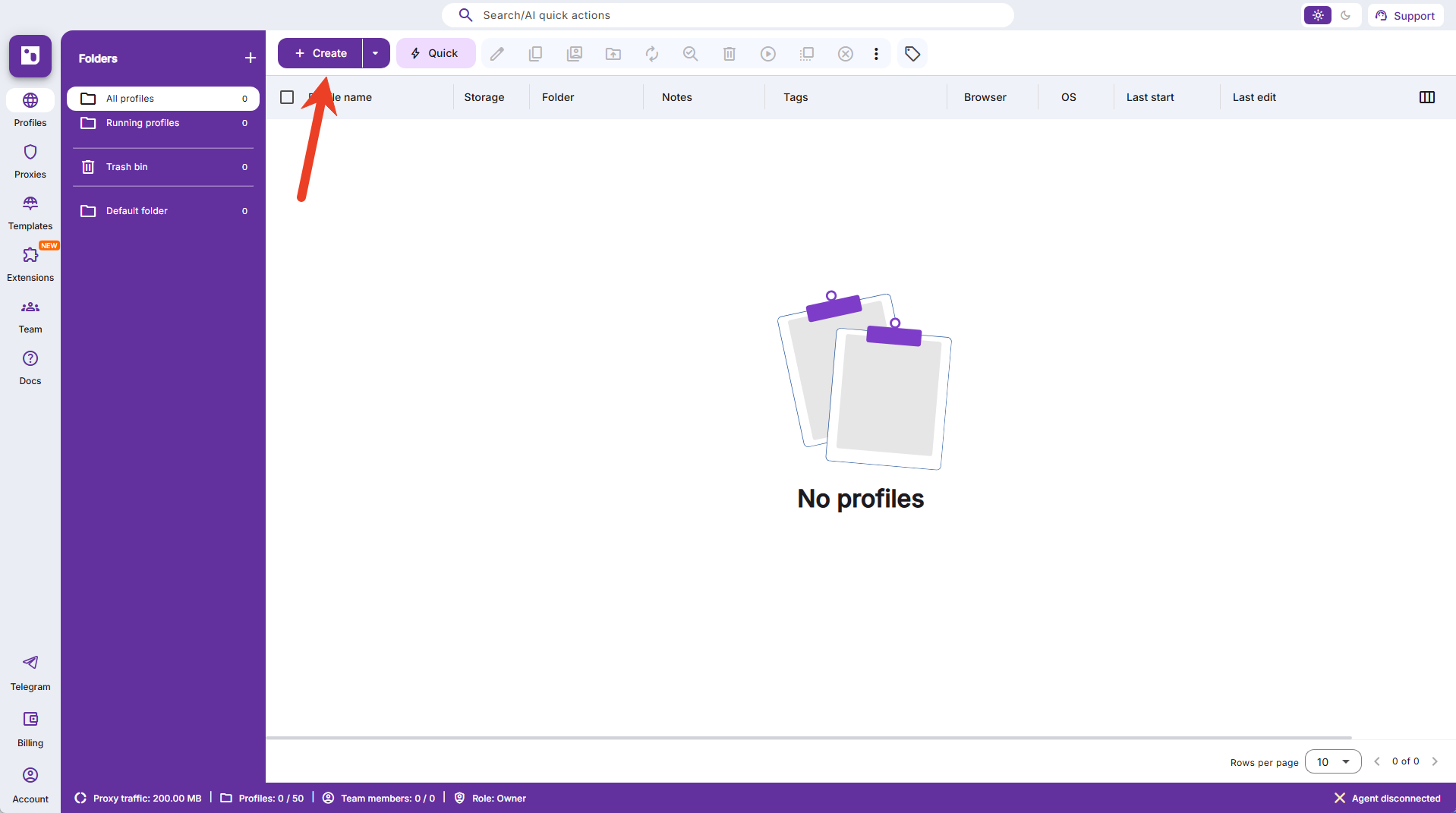
### Create a New Browser Window
Click Create to create a new browser window.
{% endstep %}
{% step %}
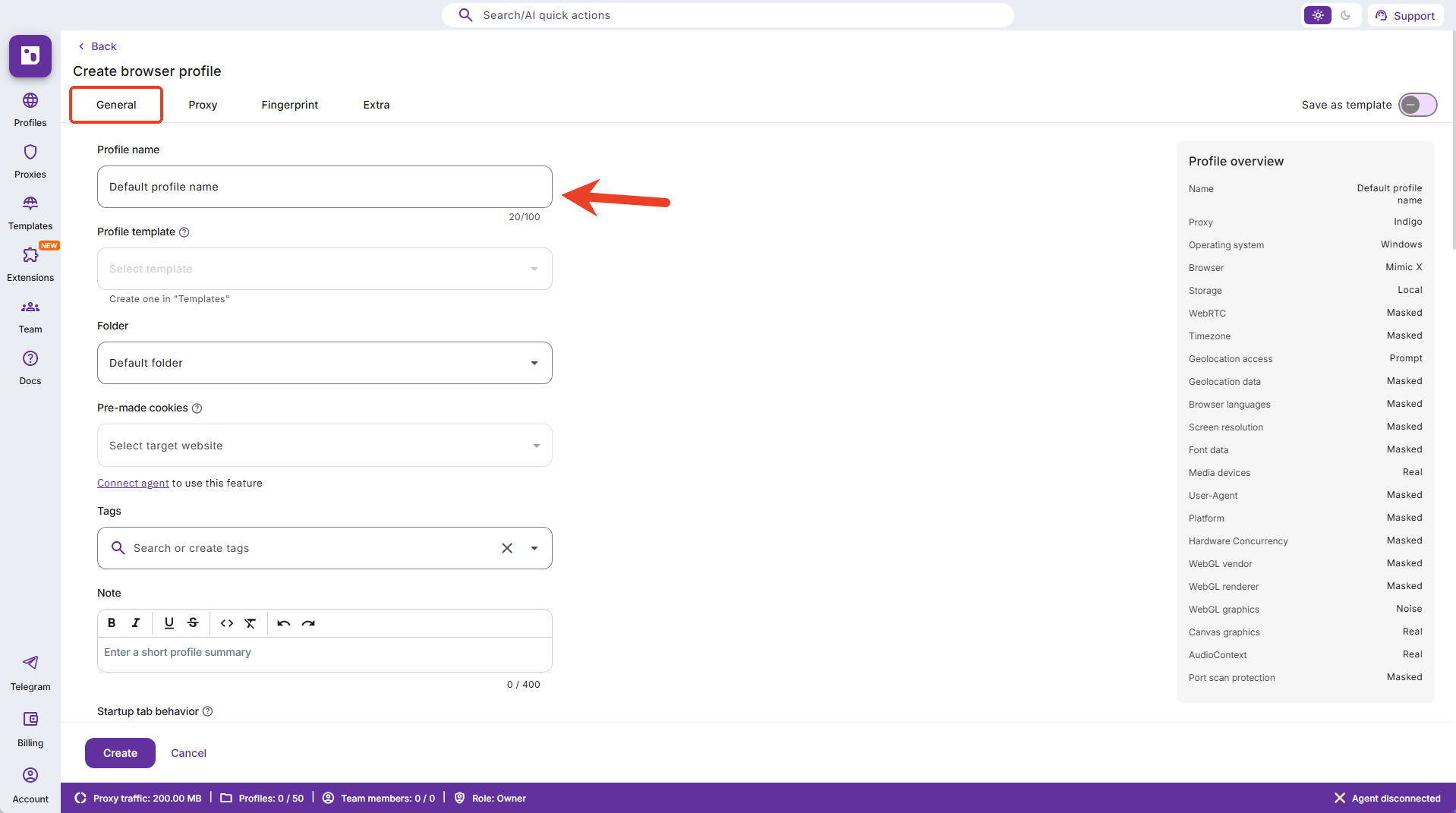
### Fill in Basic Information
Complete the basic profile details, such as the window name and notes.
{% endstep %}
{% step %}
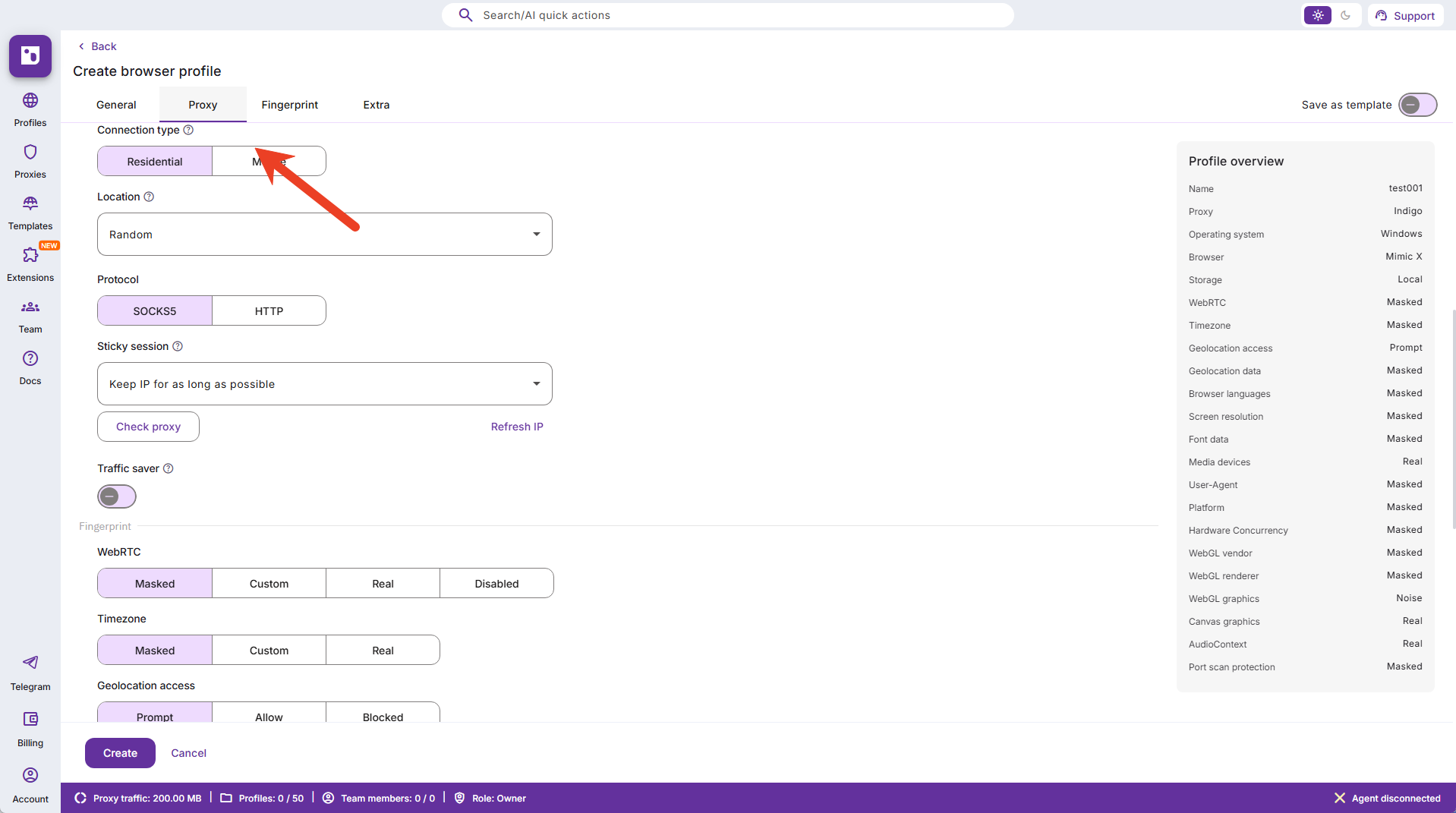
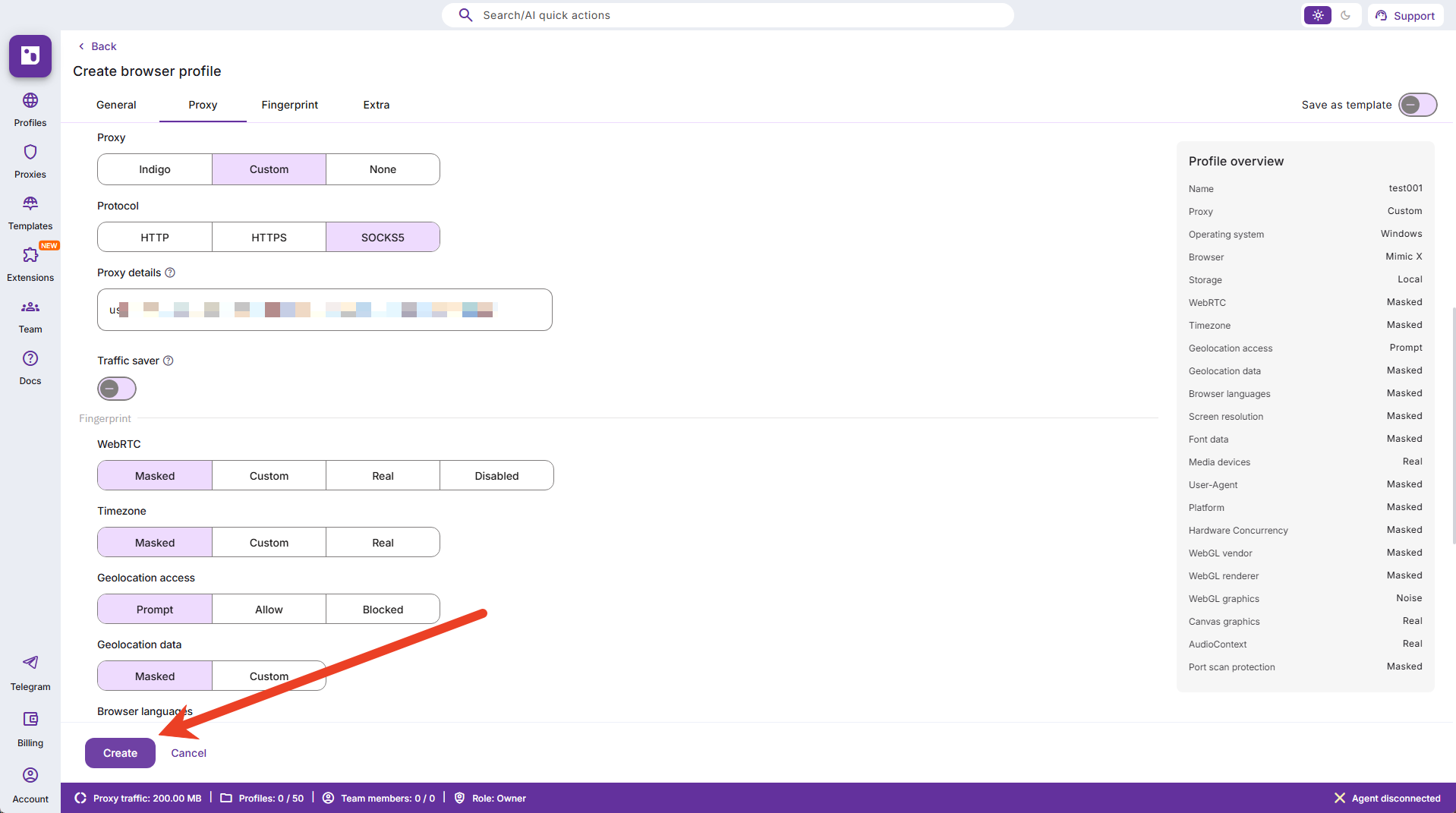
### Set Proxy Information
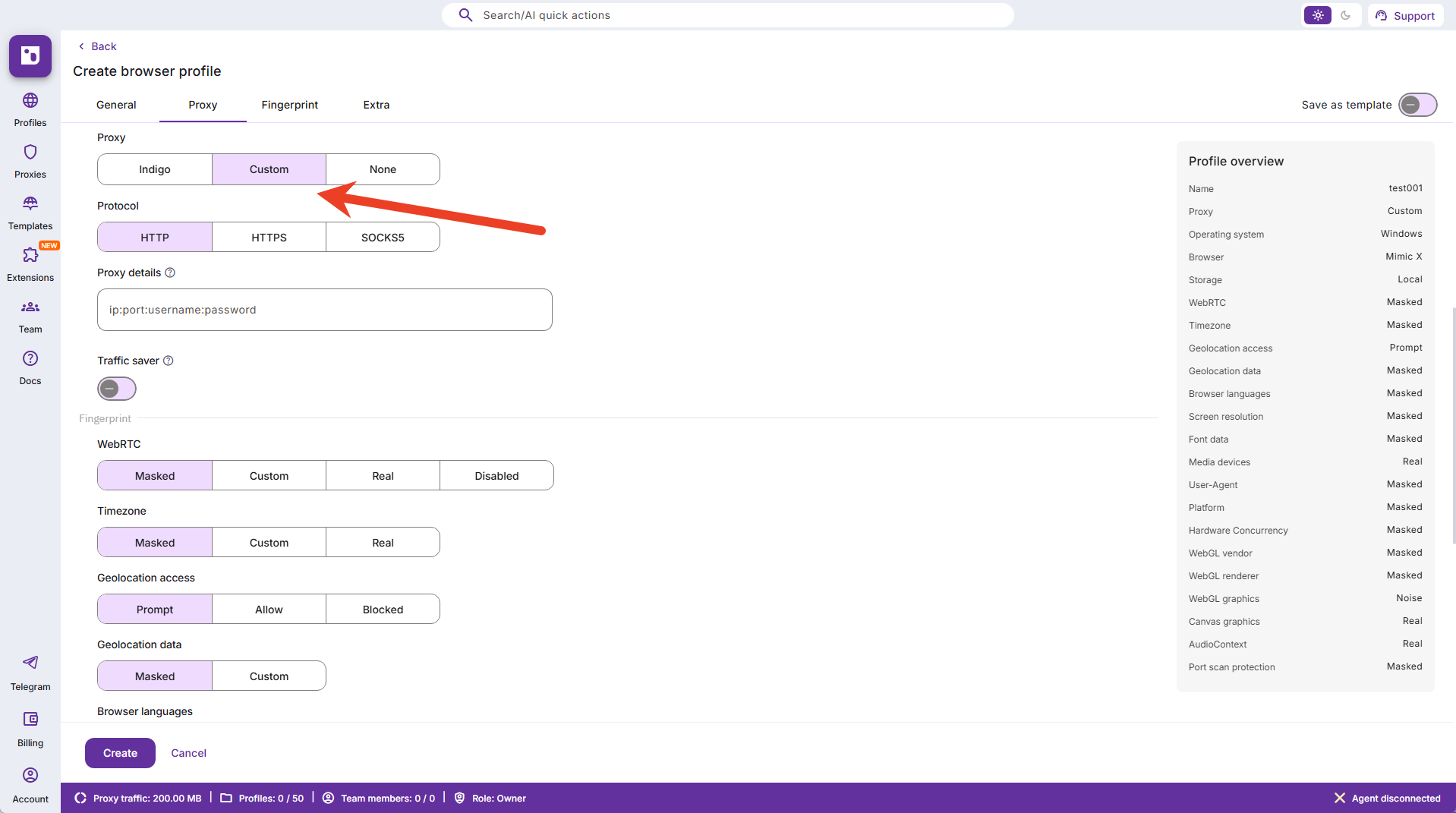
Click the Proxy menu within the window.
In the proxy options, select Custom (the middle option).
{% endstep %}
{% step %}
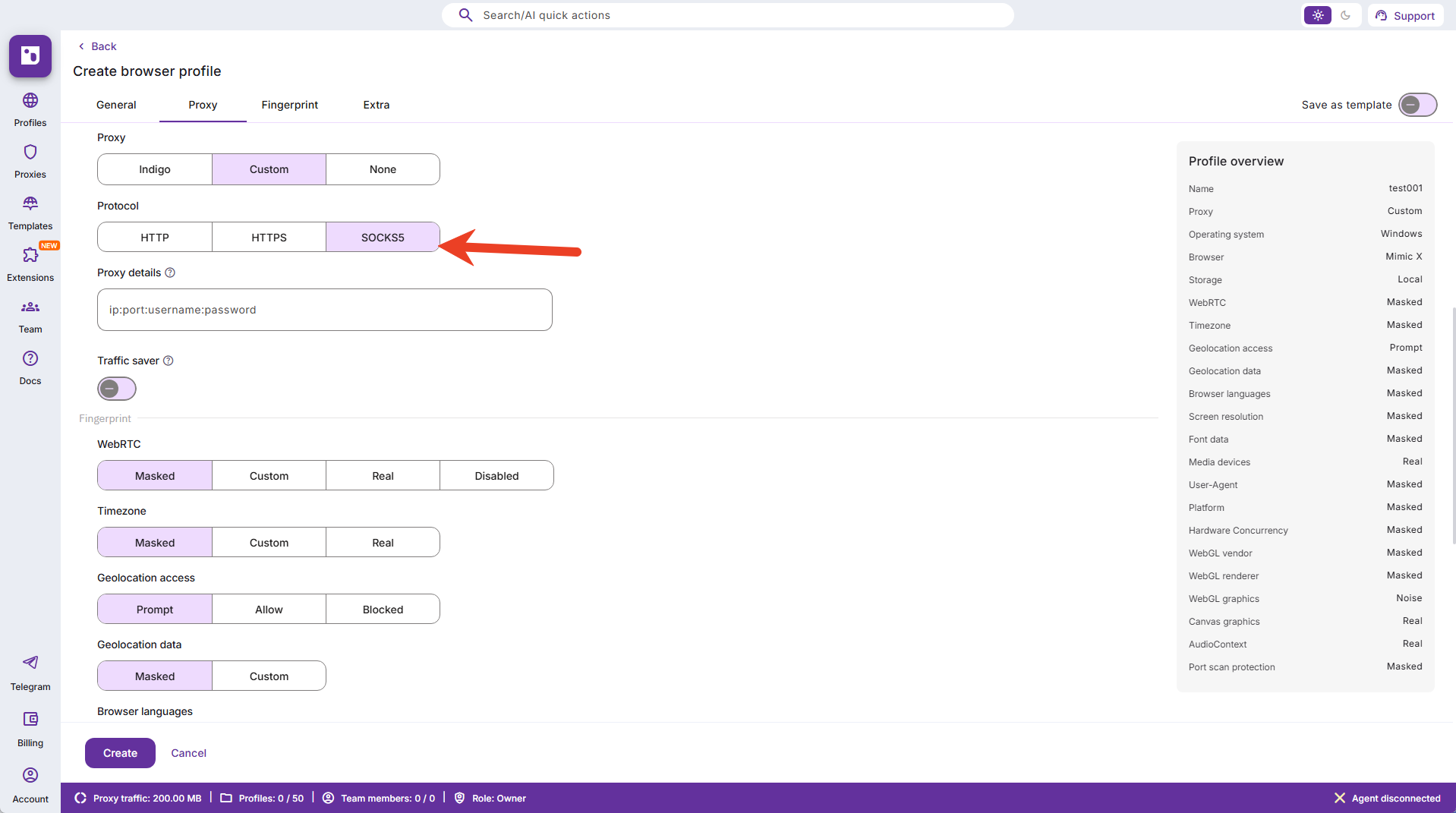
### Select the SOCKS5 protocol
{% endstep %}
{% step %}
### Enter the proxy details
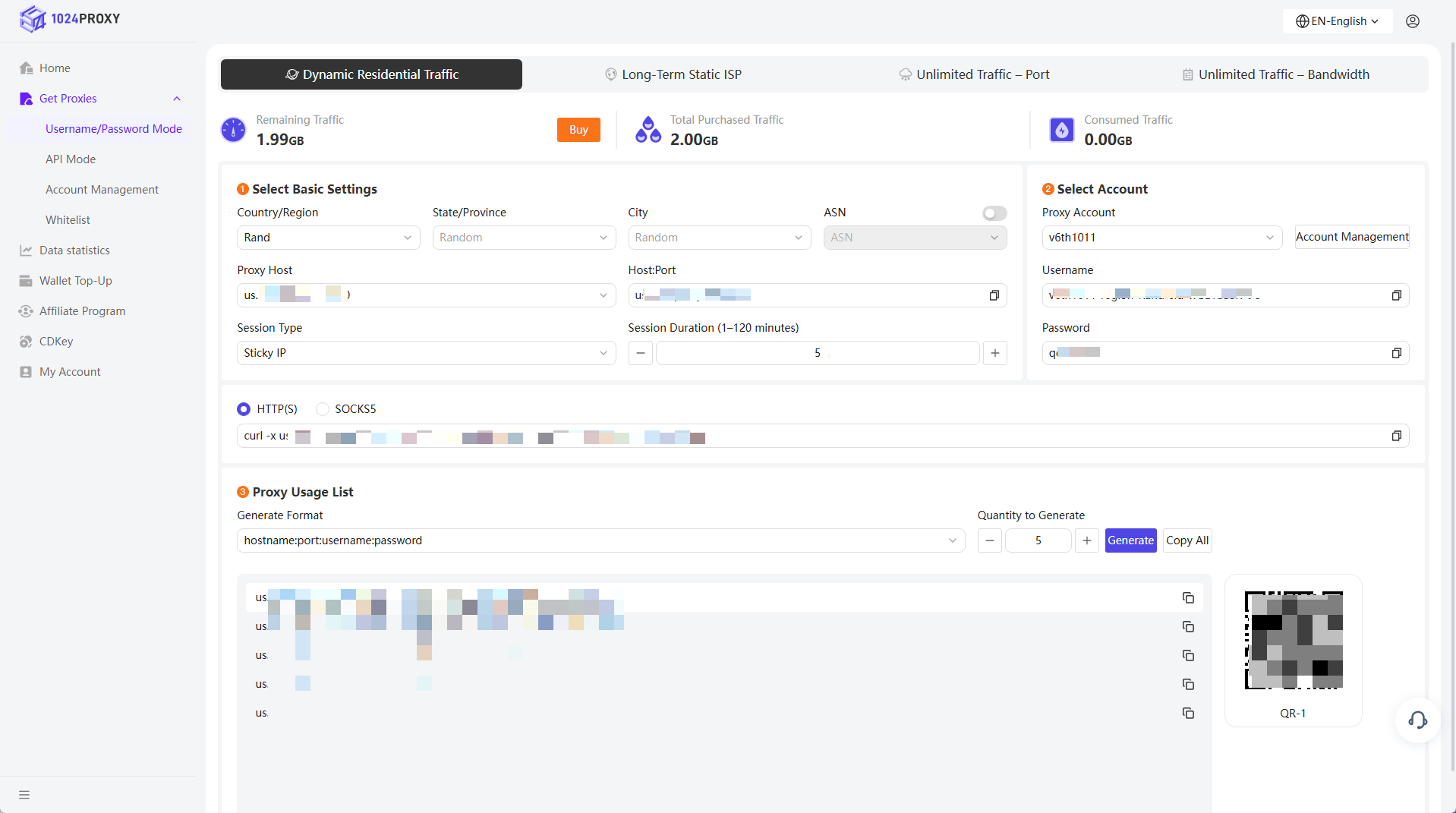
Enter the proxy details obtained from the 1024Proxy dashboard.
{% endstep %}
{% step %}
### Download the application
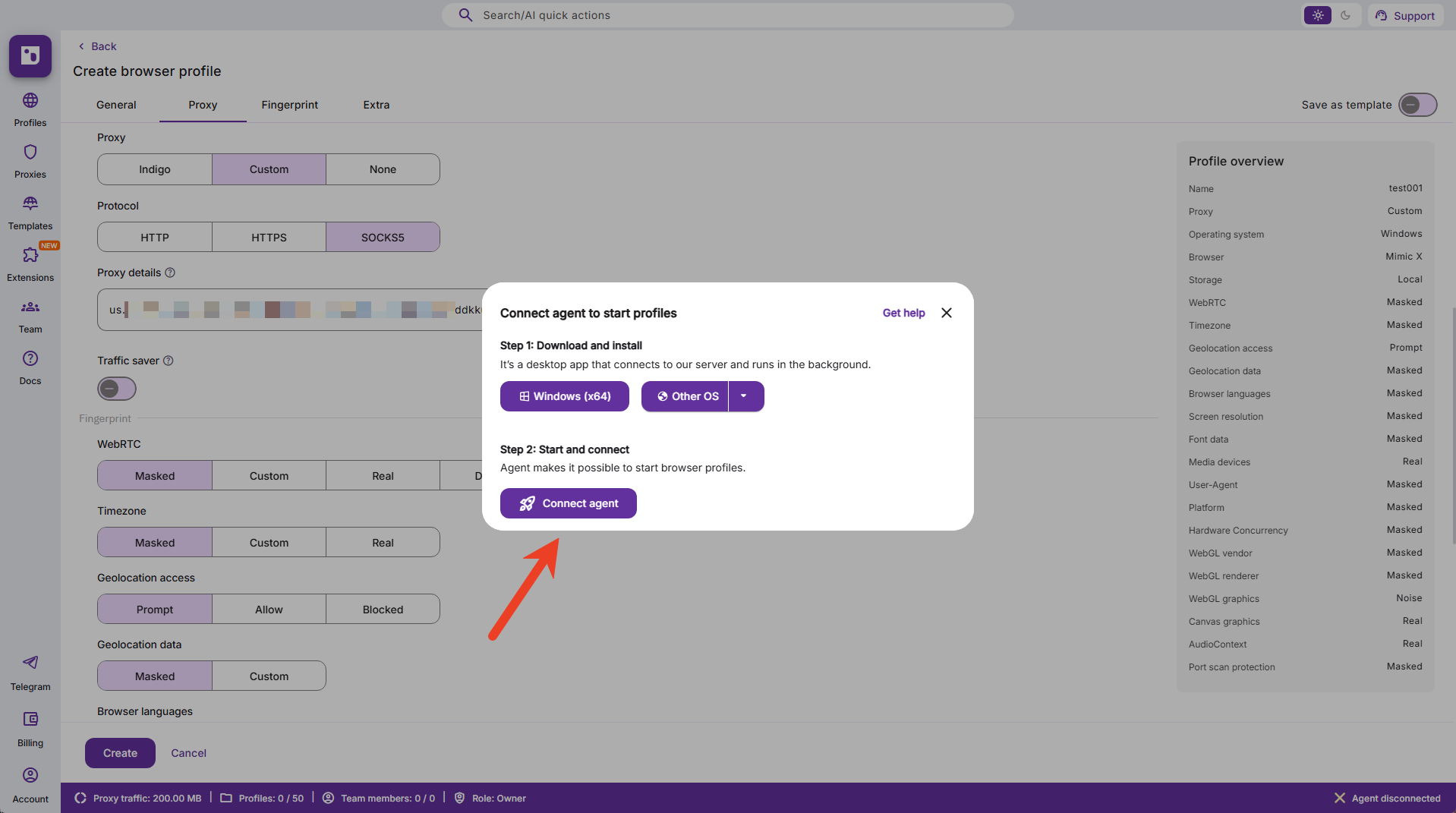
Paste the proxy information into Indigo Browser. A prompt may appear requesting you to download the application—click Download and complete the installation.
{% endstep %}
{% step %}
### Complete Window Creation
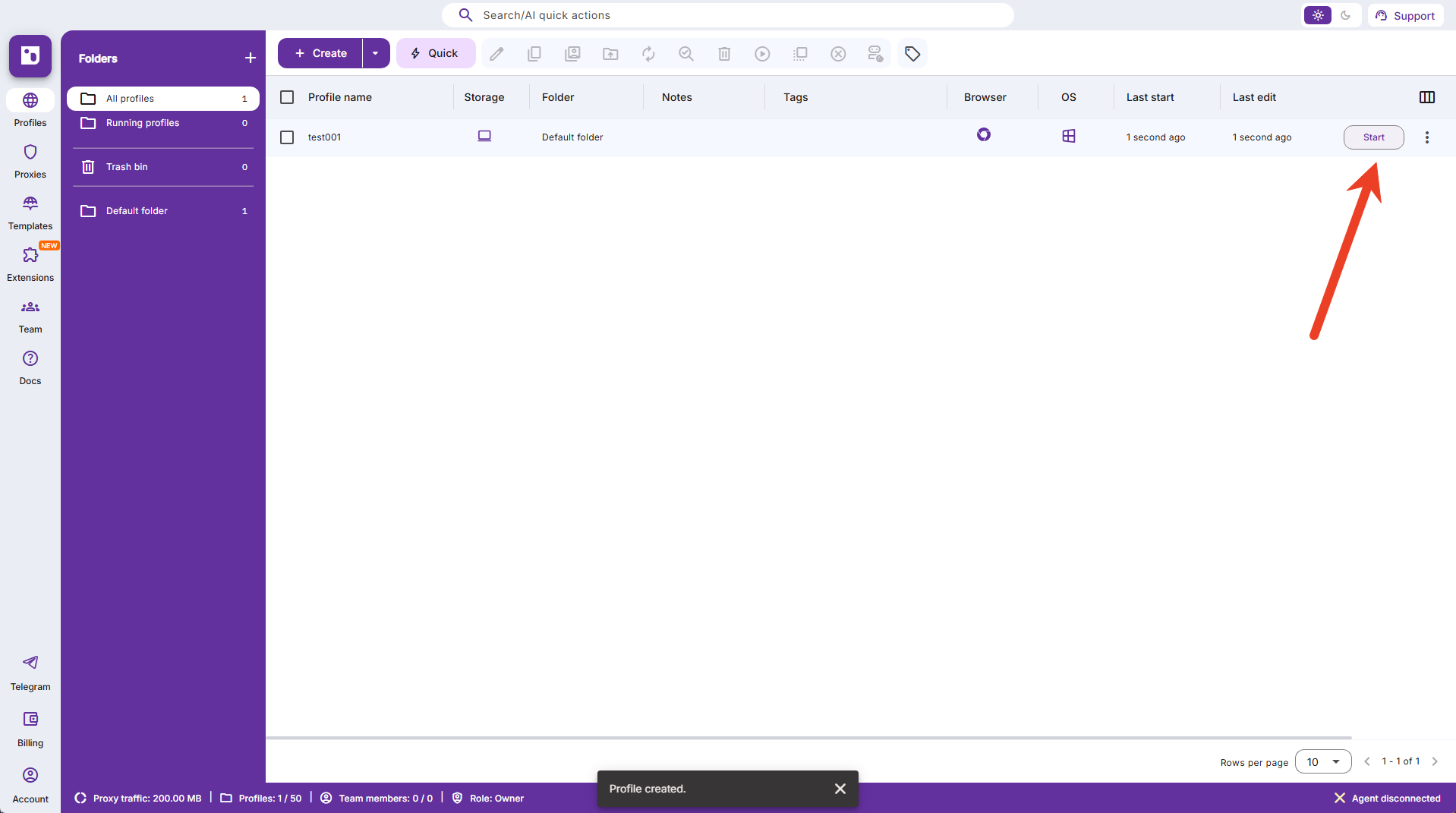
Click Create to finish creating the browser window.
Click Start to launch the current browser window.
{% endstep %}
{% endstepper %}