> For the complete documentation index, see [llms.txt](https://help.1024proxy.com/llms.txt). Markdown versions of documentation pages are available by appending `.md` to page URLs; this page is available as [Markdown](https://help.1024proxy.com/integrationtutorial/fbt/how-to-set-up-1024-proxy-in-linken-sphere-browser.md).
# How to Set Up 1024 Proxy in Linken Sphere Browser
### Linken Sphere Overview
Linken Sphere is a professional anti-detect / anti-fingerprint browser designed to create multiple independent browser sessions. Each session has a unique digital fingerprint and environment parameters, allowing users to hide their real device information when visiting websites and effectively avoid detection or bans by anti-fraud systems. It is especially suitable for scenarios such as multi-account management, data scraping, social media operations, and advertising campaigns.
#### Download and Installation
Download and install Linken Sphere, then complete account registration and login.\
Linken Sphere download link:
{% stepper %}
{% step %}
### Create a Proxy Session
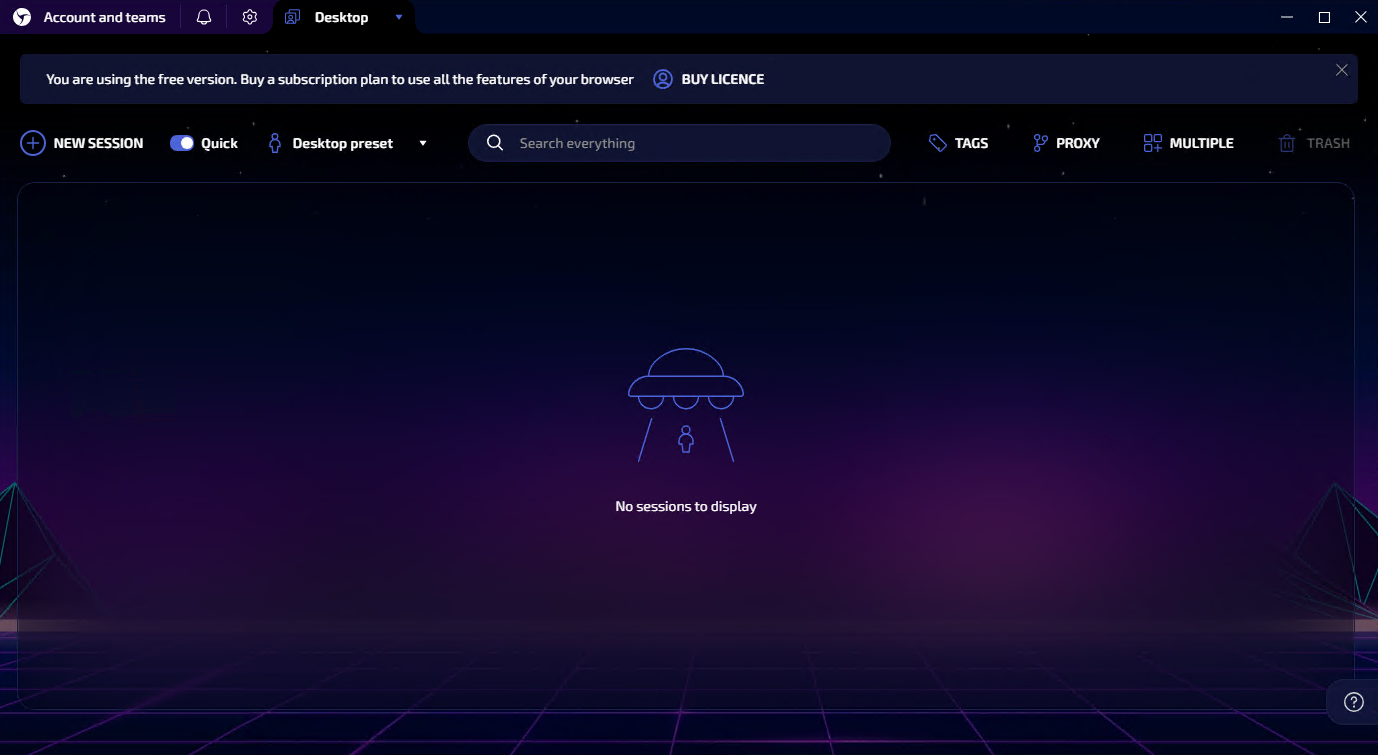
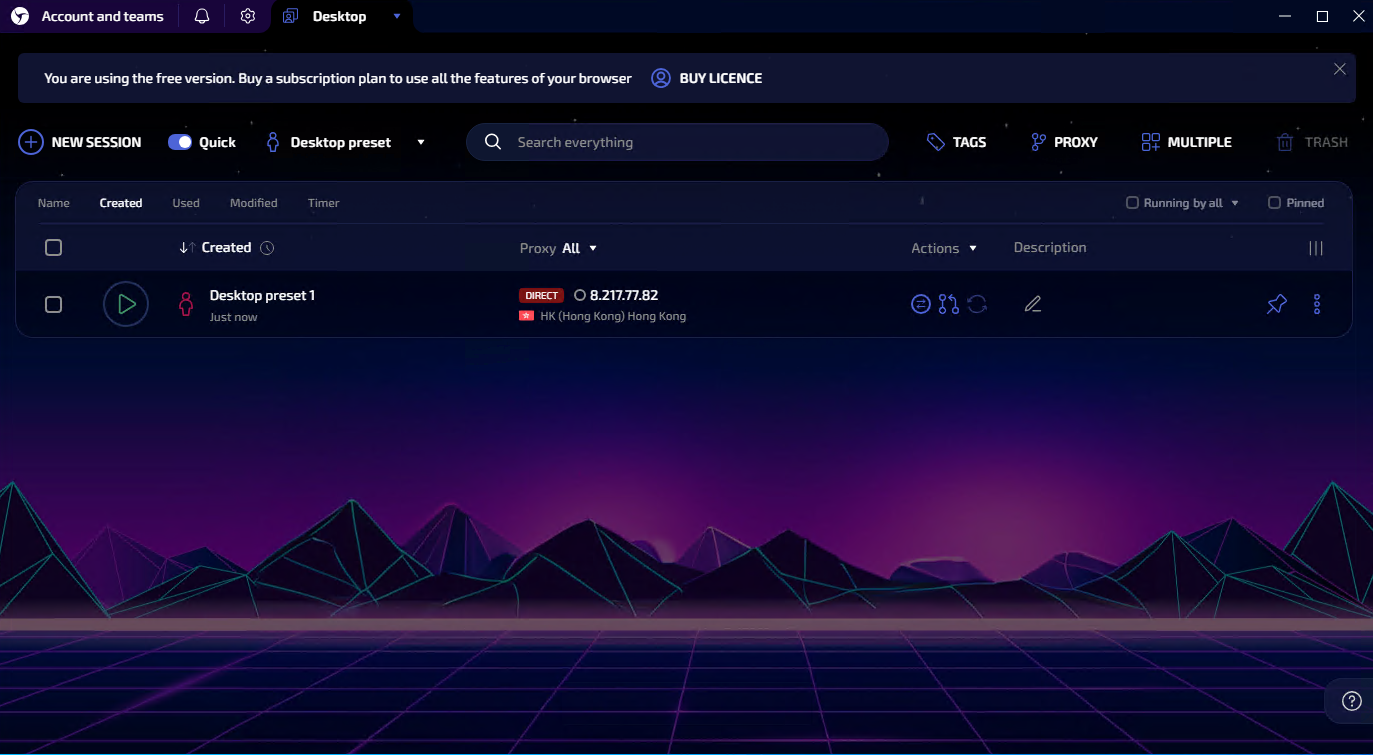
Click New Session, and a new browser session will be created.
{% endstep %}
{% step %}
### Edit Browser Session Settings
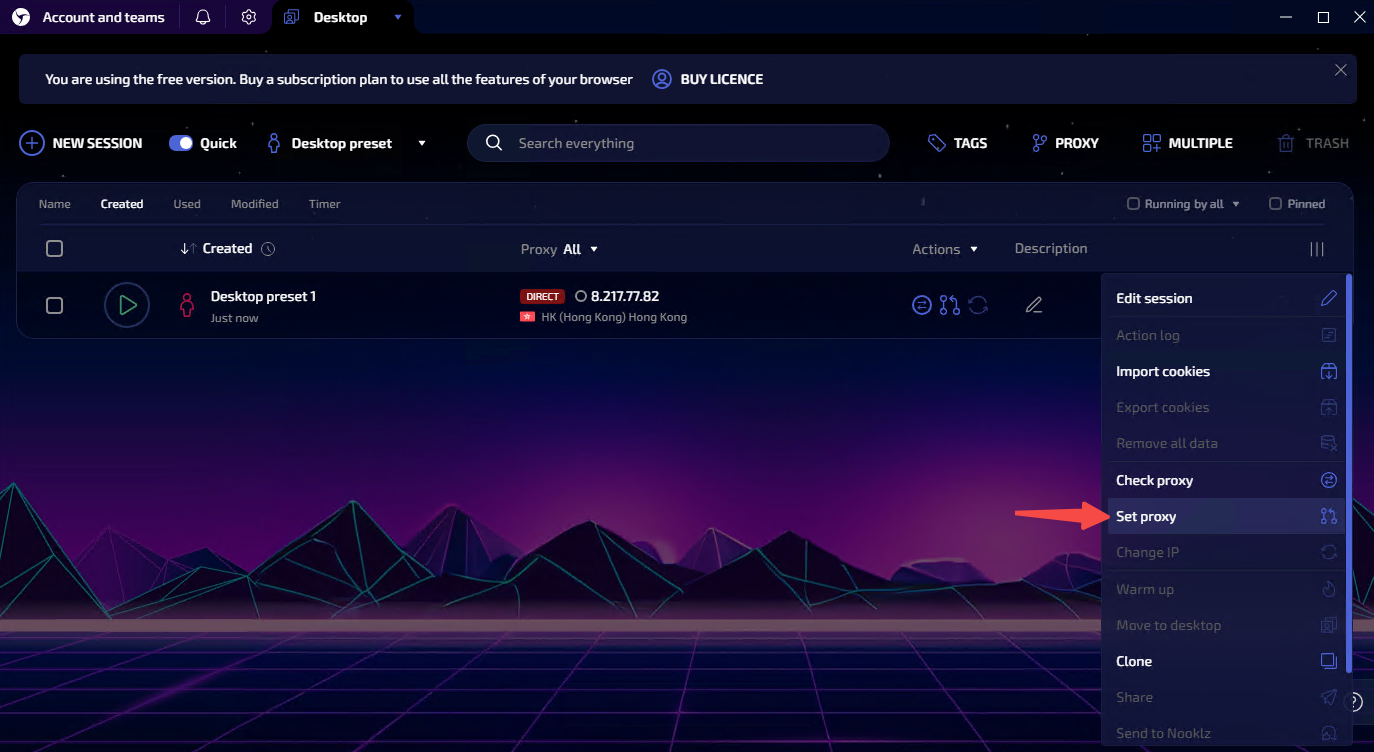
Click the three dots on the far right and select Set Proxy.
{% endstep %}
{% step %}
### Select the SOCKS5 Protocol
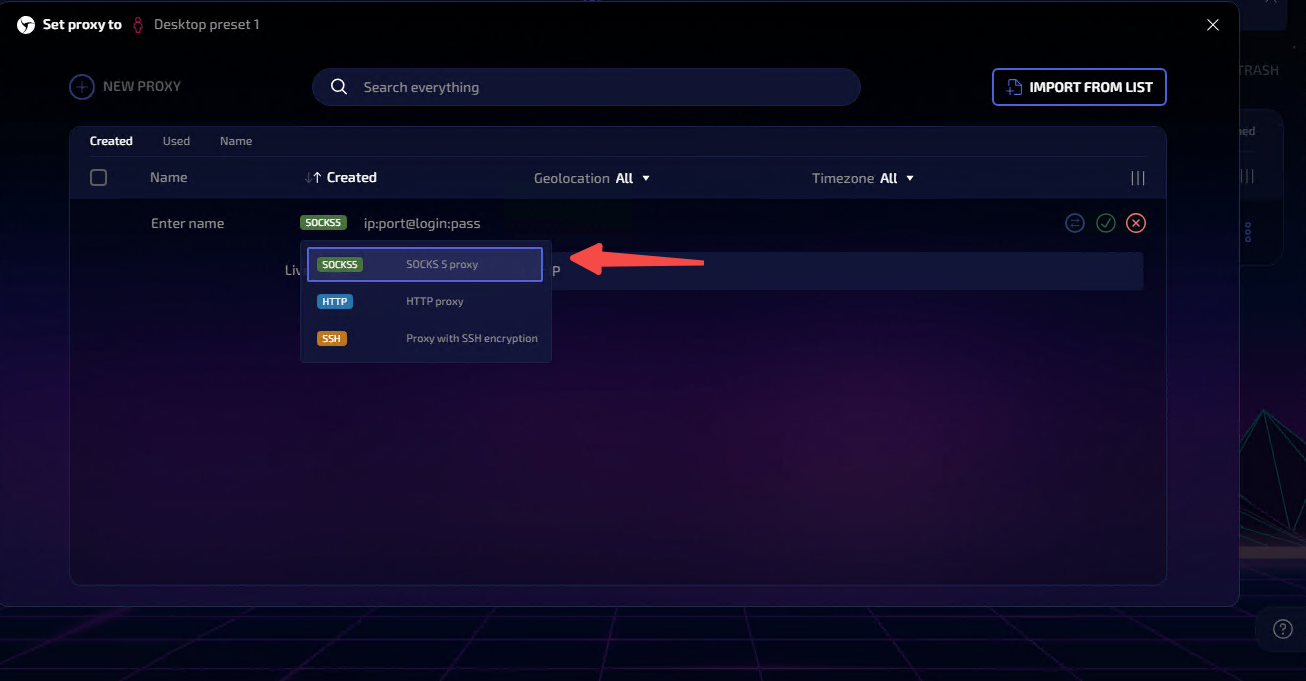
Choose SOCKS5 as the proxy protocol type.
{% endstep %}
{% step %}
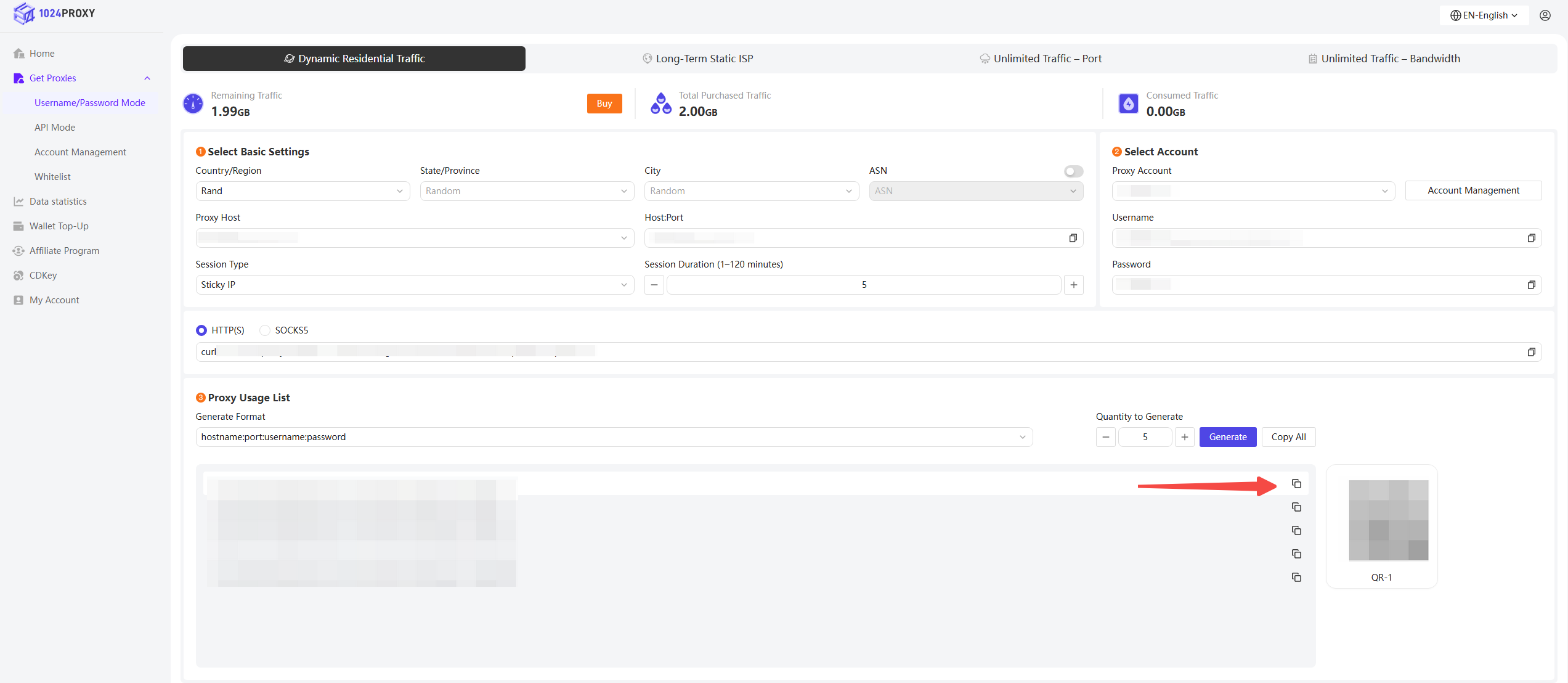
### Copy and Paste Proxy Information
Copy the proxy details from 1024Proxy and paste them into Linken Sphere.
After pasting the proxy information, click the checkmark to save.
{% endstep %}
{% step %}
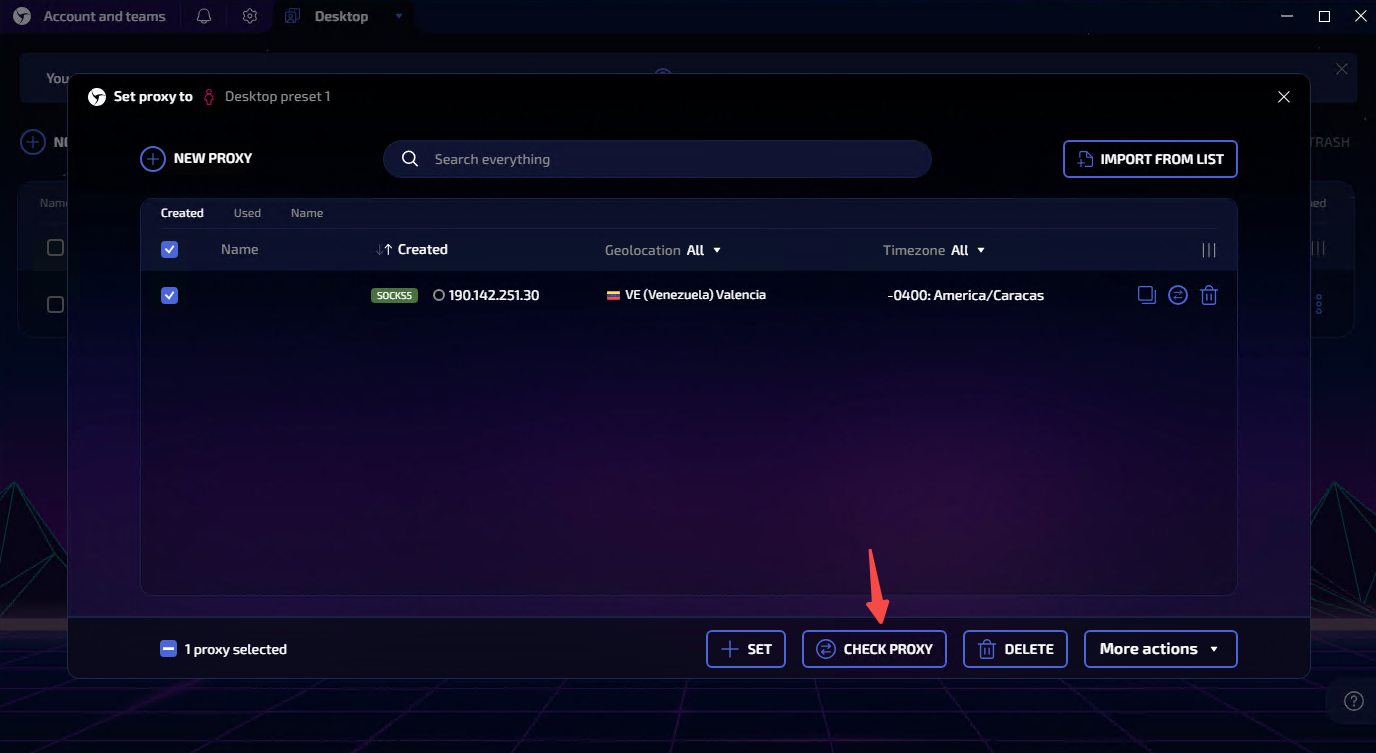
### Test the Proxy
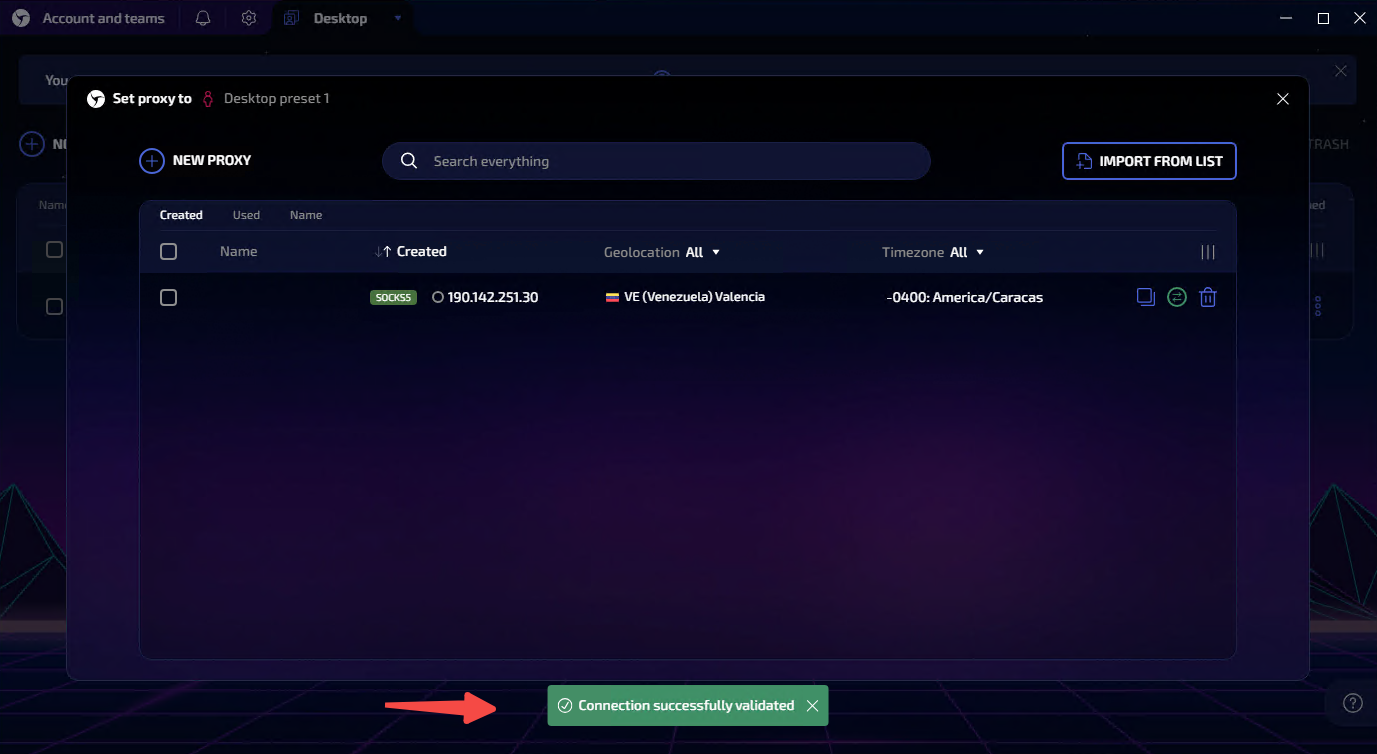
Select the proxy you just added and click Check Proxy.
If a green toast notification appears, it means the proxy is working properly.
{% endstep %}
{% step %}
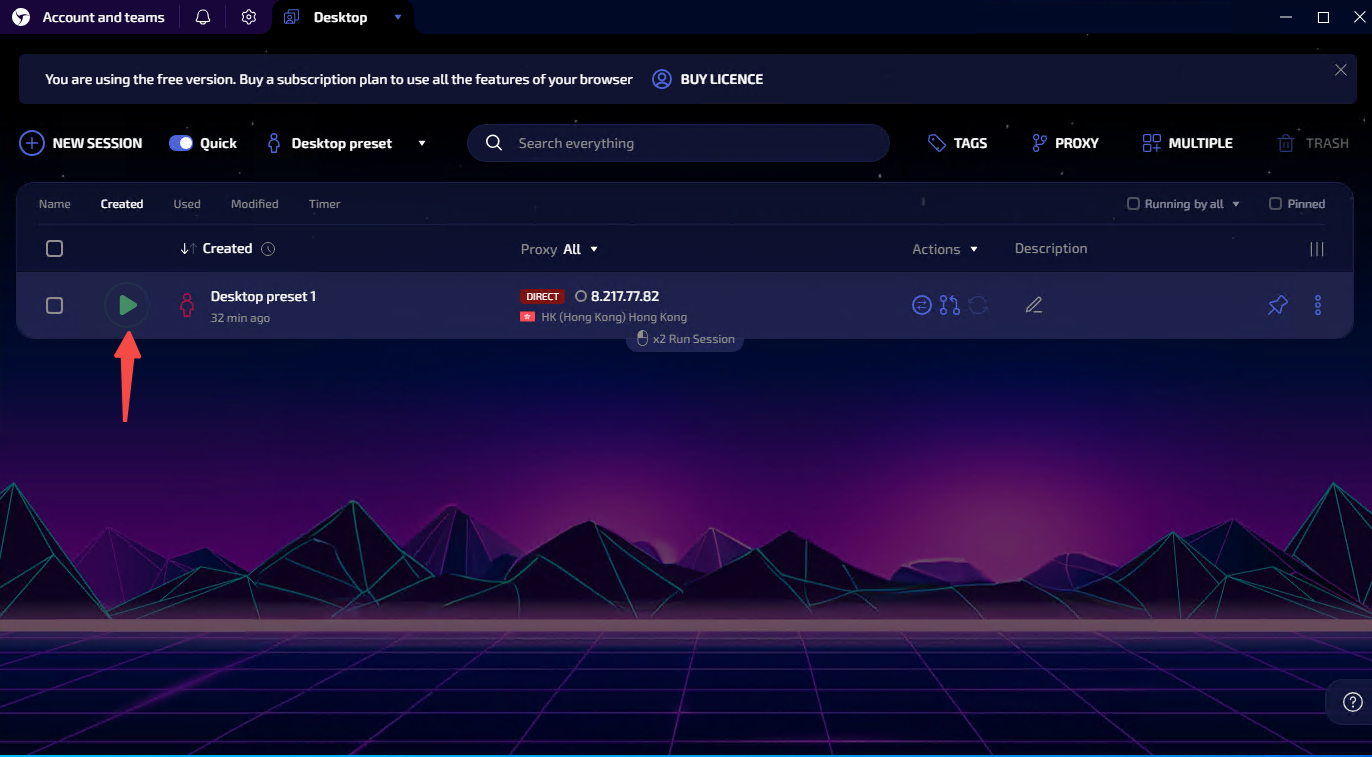
### Launch the Proxy Session
Click the green Start button, or double-click with the left mouse button, to launch the browser using the configured proxy settings.
{% endstep %}
{% endstepper %}