> For the complete documentation index, see [llms.txt](https://help.1024proxy.com/llms.txt). Markdown versions of documentation pages are available by appending `.md` to page URLs; this page is available as [Markdown](https://help.1024proxy.com/integrationtutorial/fbt/how-to-set-up-1024-proxy-in-morelogin-browser.md).
# How to Set Up 1024 Proxy in Morelogin Browser
### MoreLogin Introduction
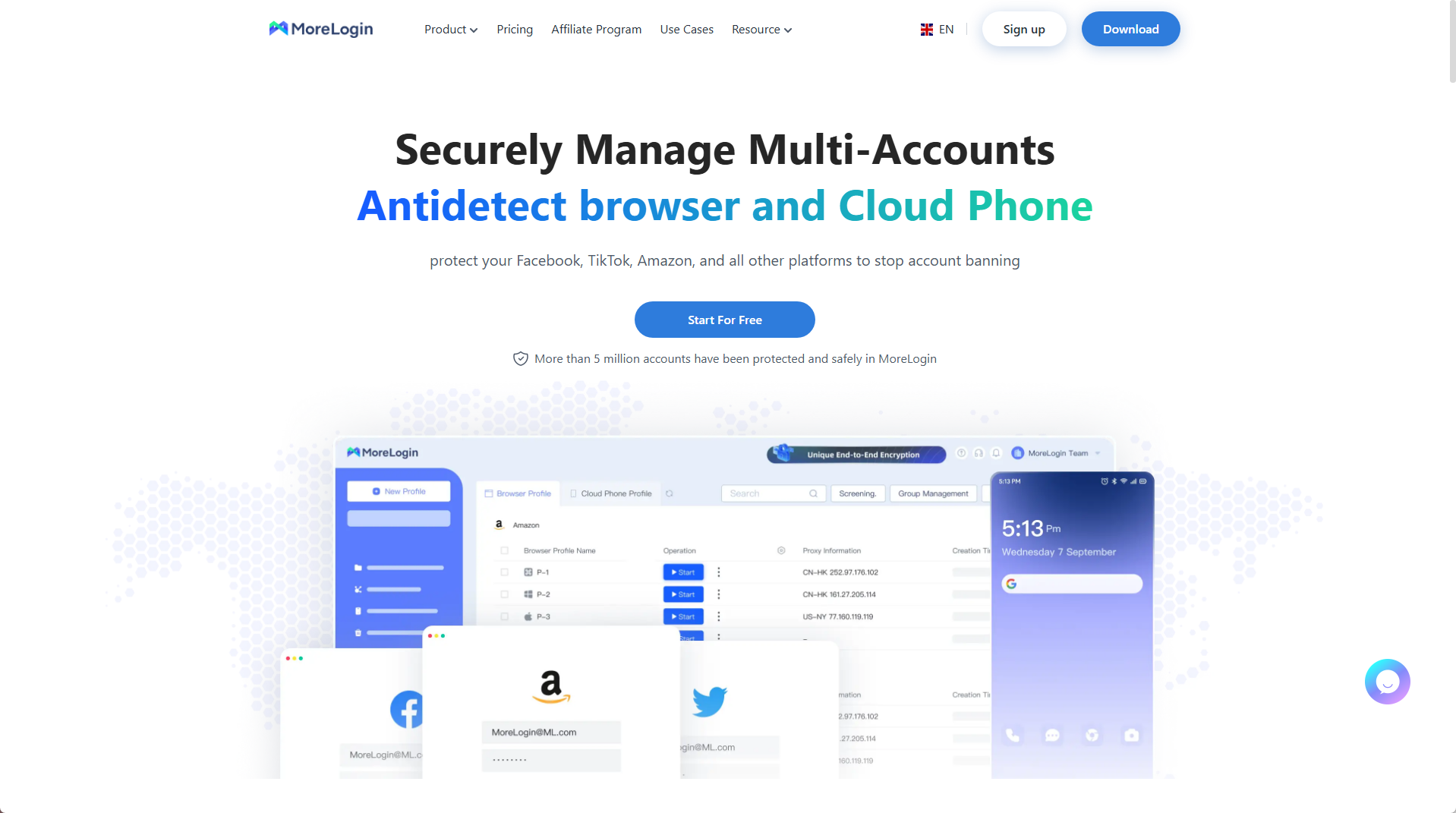
MoreLogin is a professional fingerprint browser / anti-detect browser (Anti-detect Browser) that creates and manages multiple isolated browser fingerprint environments on the same device. By simulating different devices and network fingerprints, it effectively prevents account linkage and reduces the risk of being identified, rate-limited, or banned by platform risk control systems.
### Installation and Download
Download link:
{% stepper %}
{% step %}
### Create a New Window
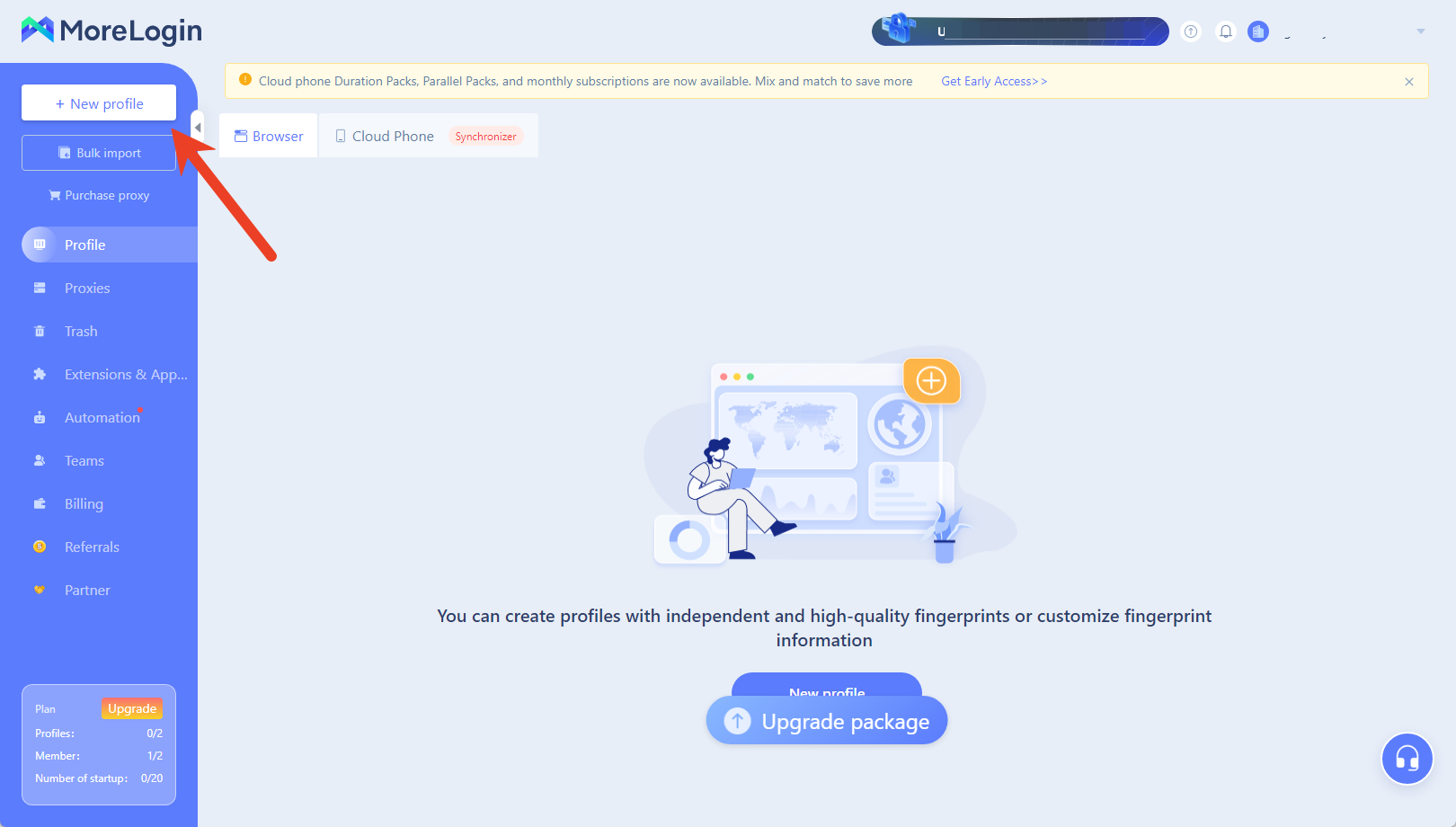
Click the + Create Environment button to create a new browser profile.\
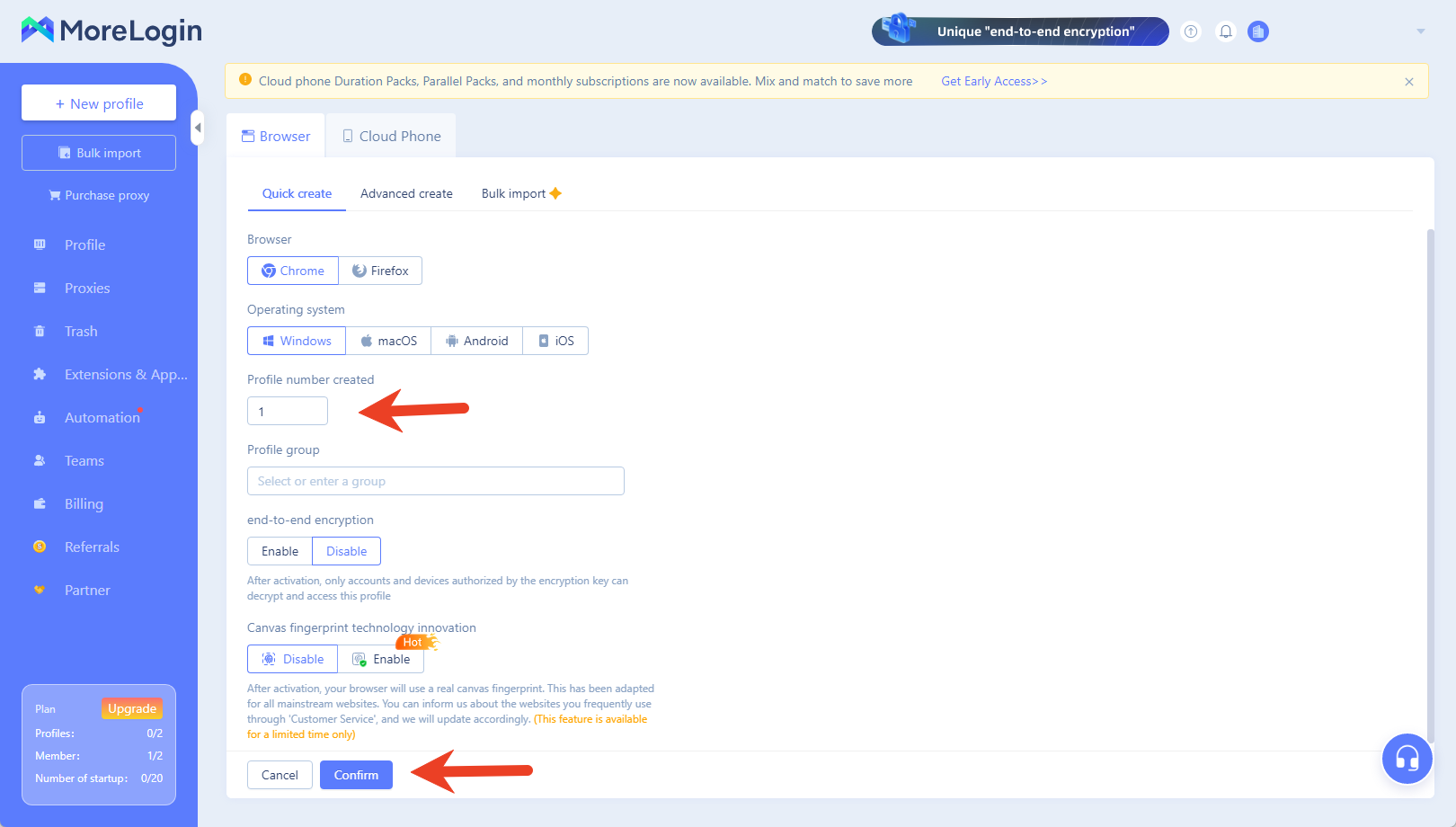
Select the number of profiles to create and click Confirm.
{% endstep %}
{% step %}
### Edit Basic Profile Information
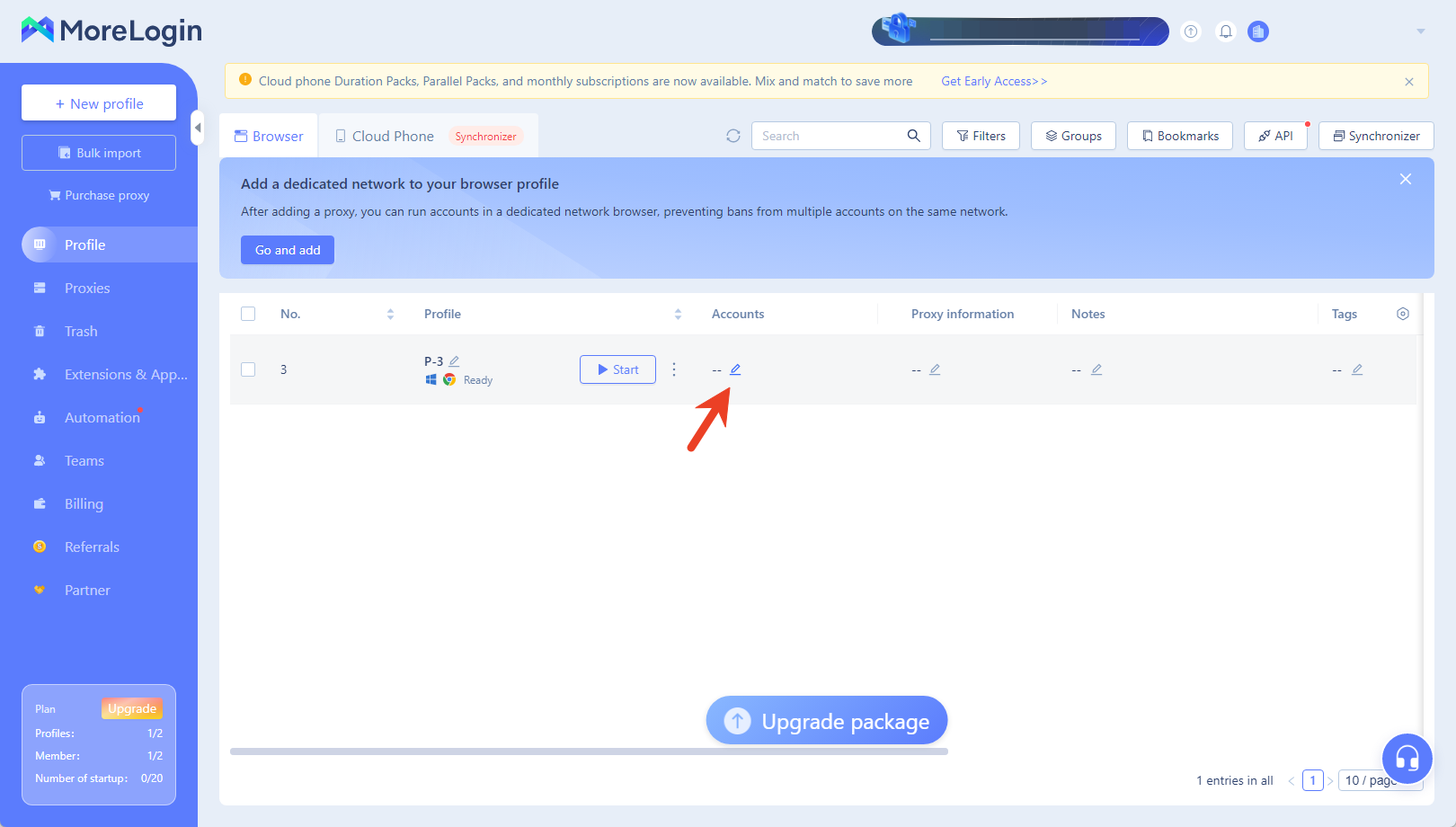
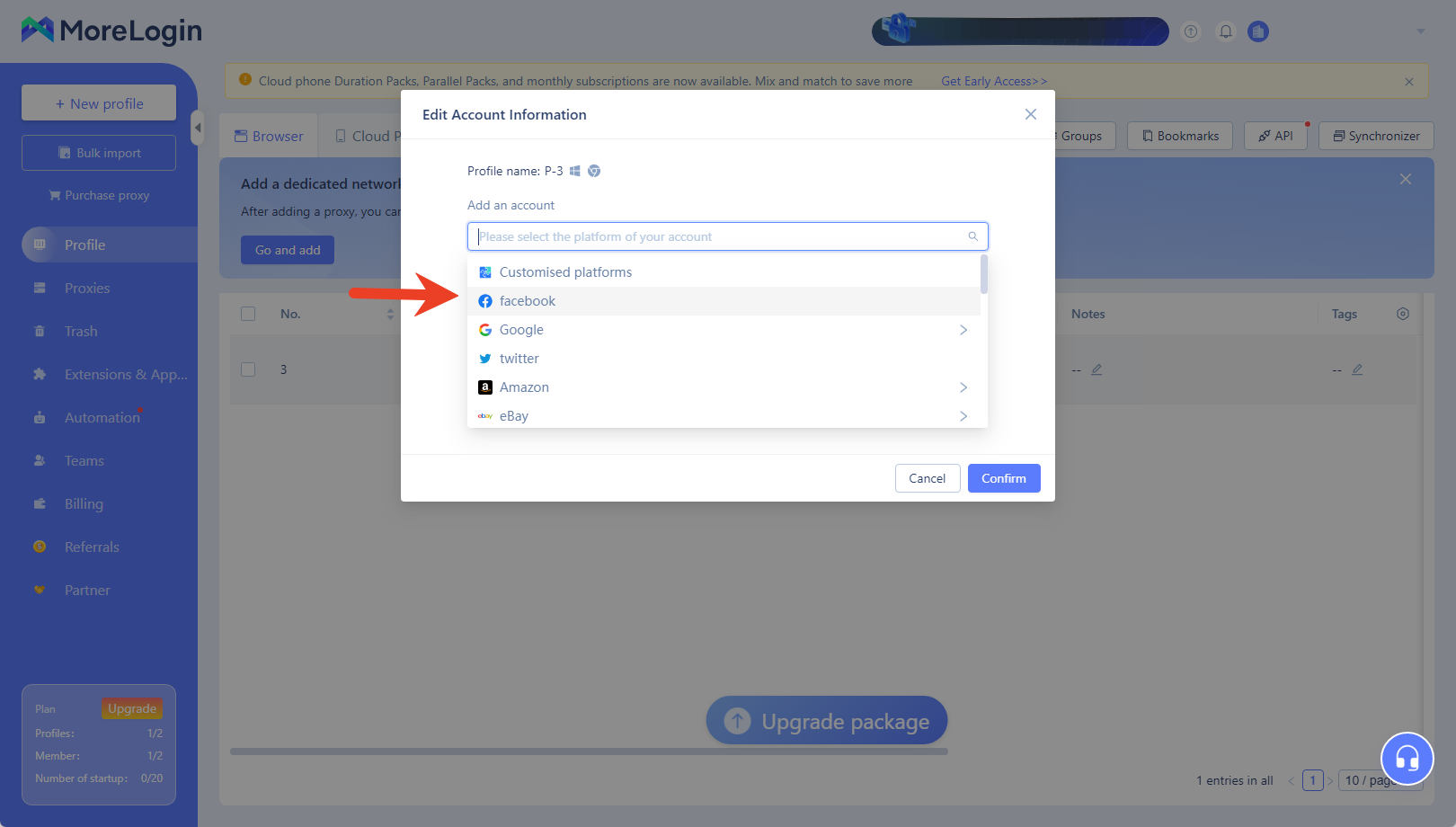
Click the edit icon next to the account information.\
Fill in the platform details associated with this profile.
{% endstep %}
{% step %}
### Modify Proxy Settings
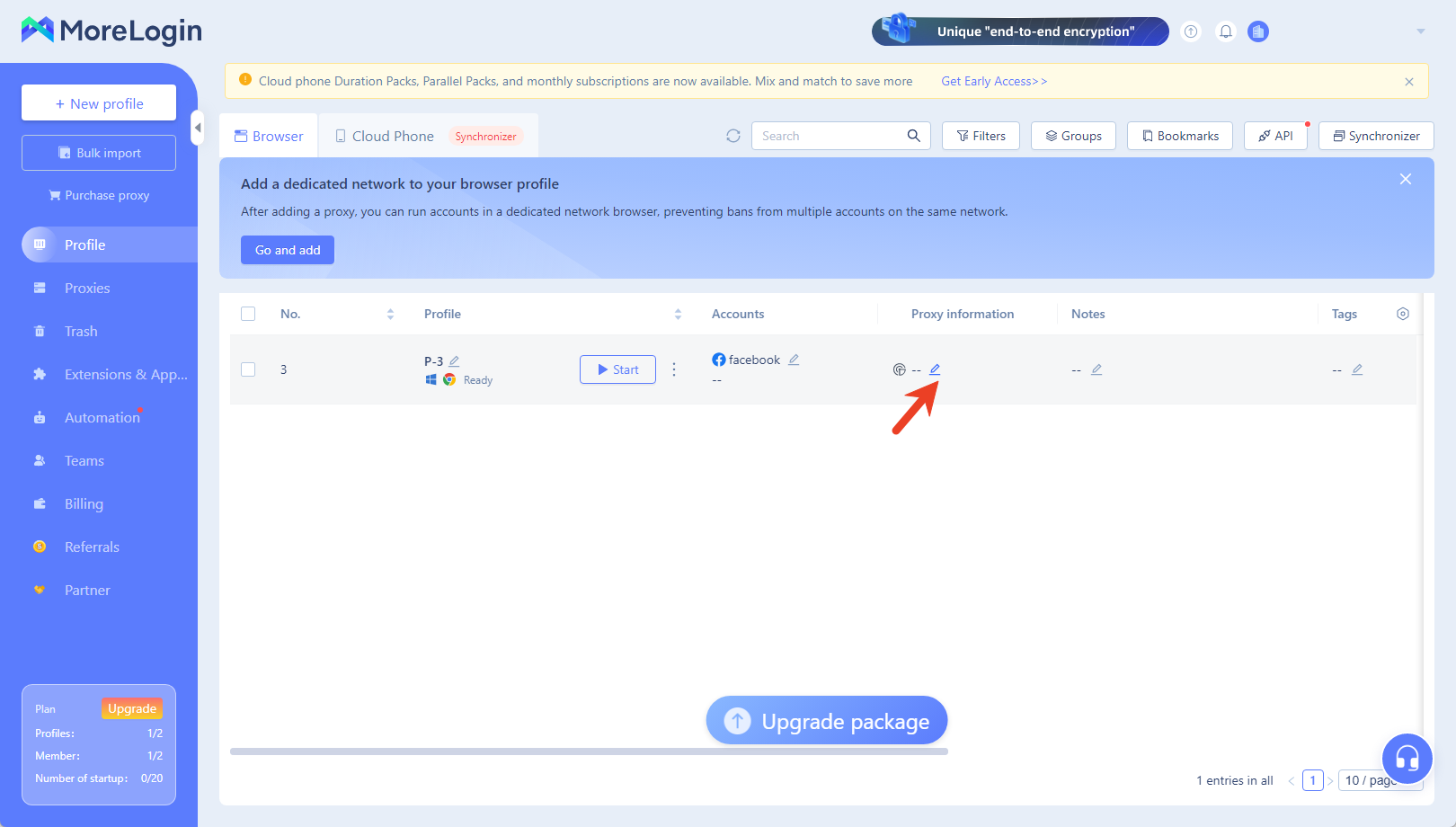
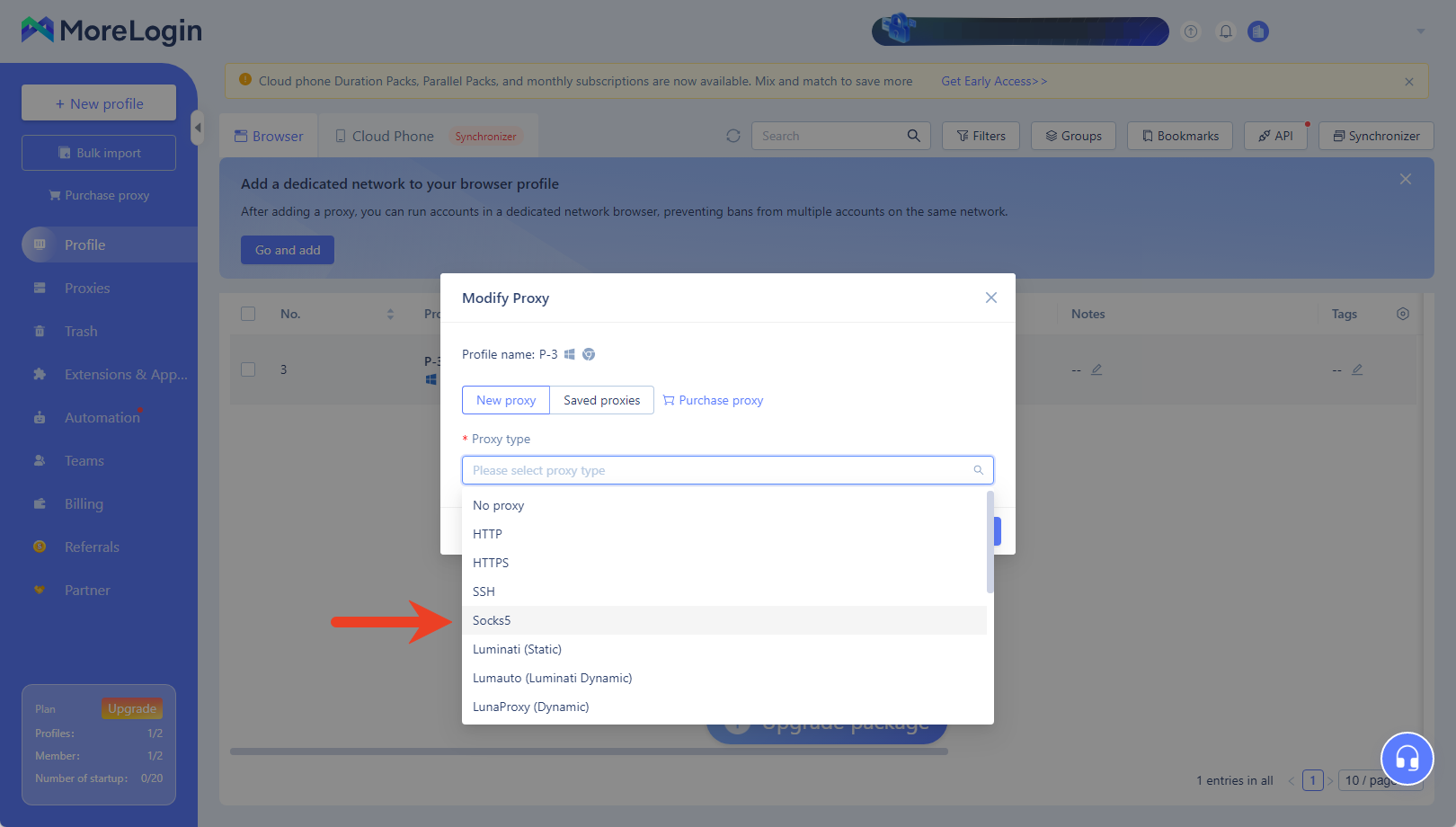
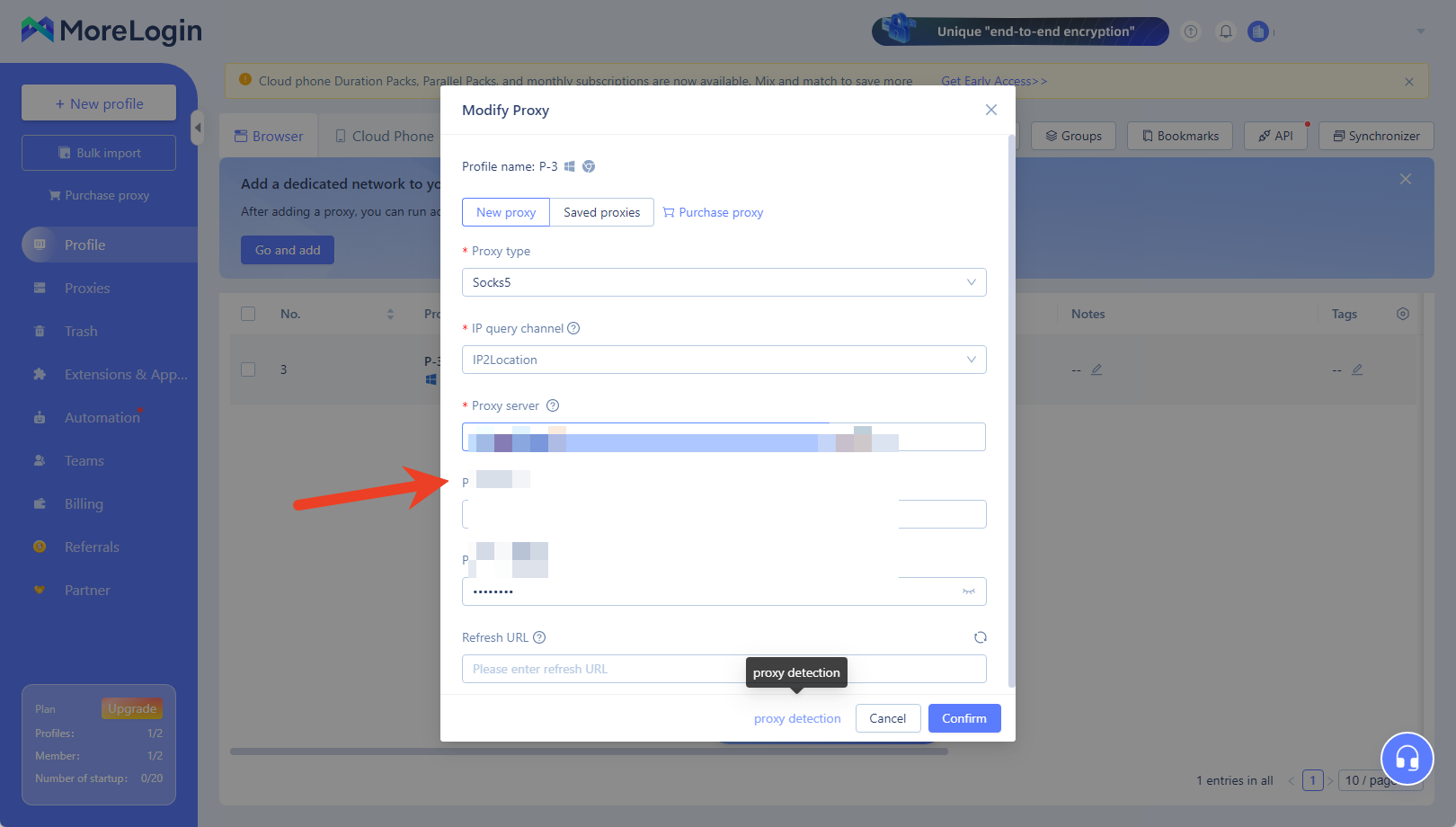
Click the edit icon in the Proxy Settings section.
Select the SOCKS5 protocol.
{% endstep %}
{% step %}
### Paste Proxy Information
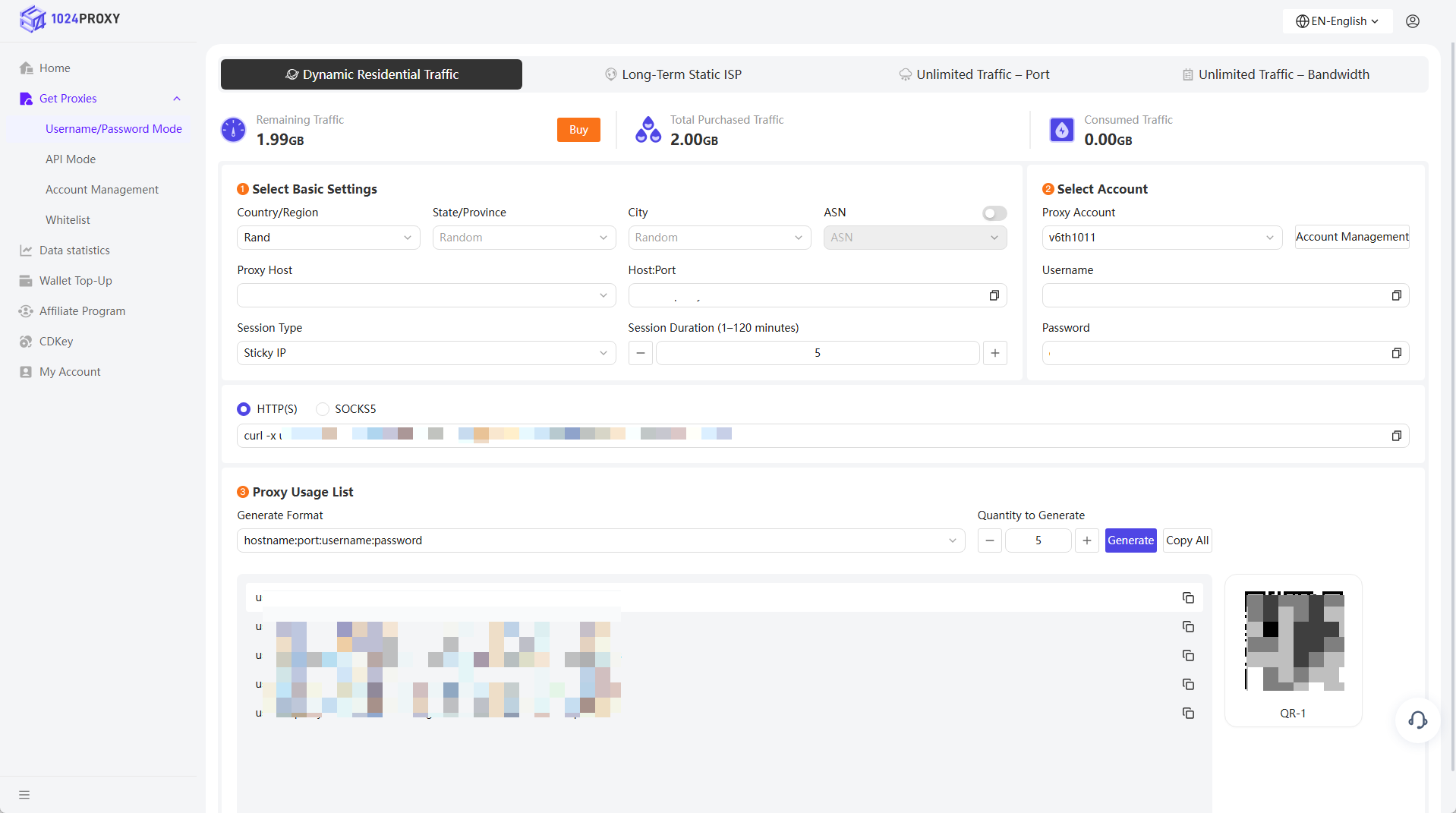
Copy the proxy credentials from the 1024Proxy dashboard and paste them into the corresponding proxy fields in the MoreLogin browser.
{% endstep %}
{% step %}
### Test the Proxy
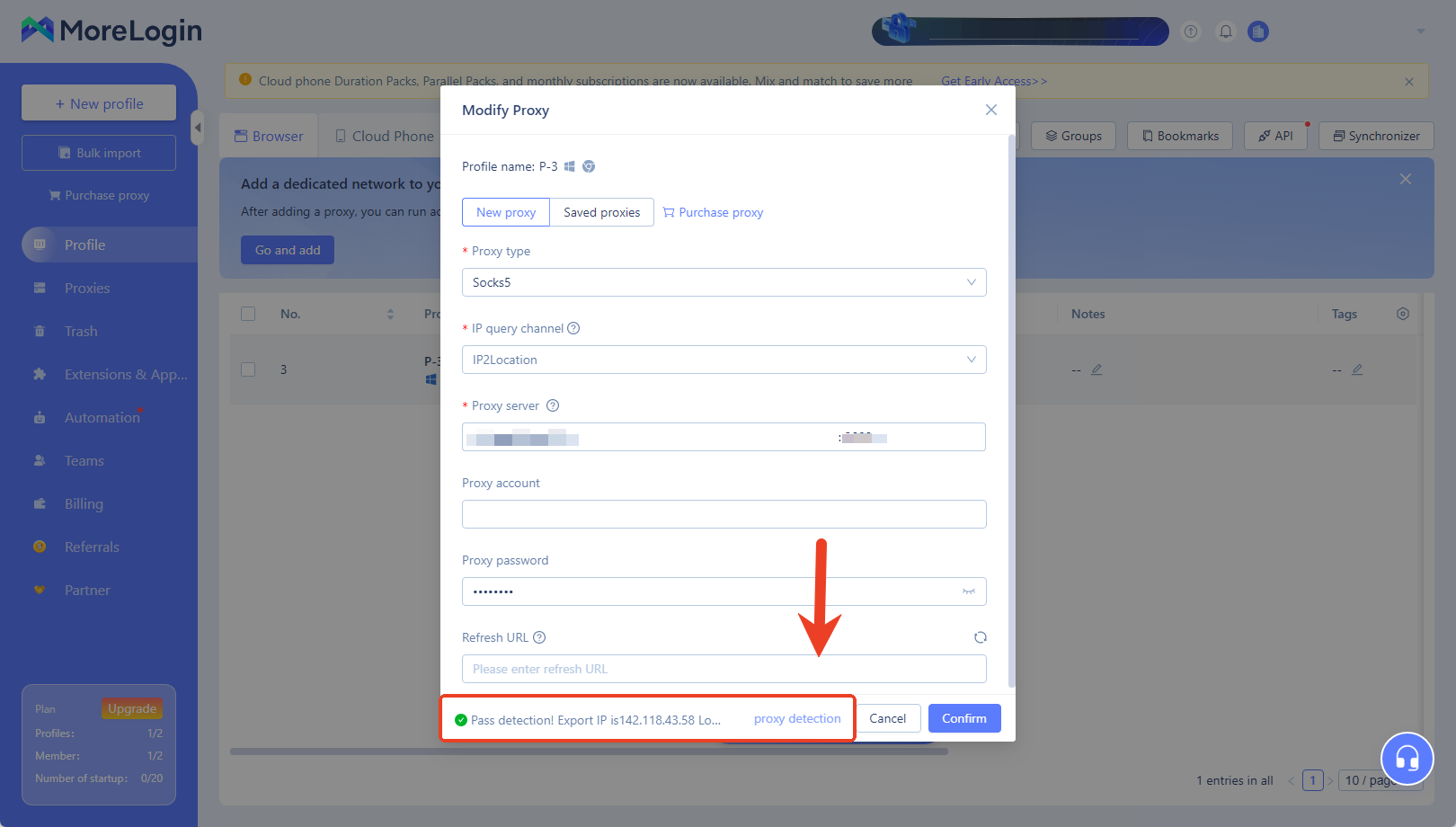
Click the Test Proxy button. When the test result shows a green IP address and detailed information (as shown in the example), it indicates that the proxy IP is connected successfully and can be used normally.
{% endstep %}
{% step %}
### Finish and Start Using
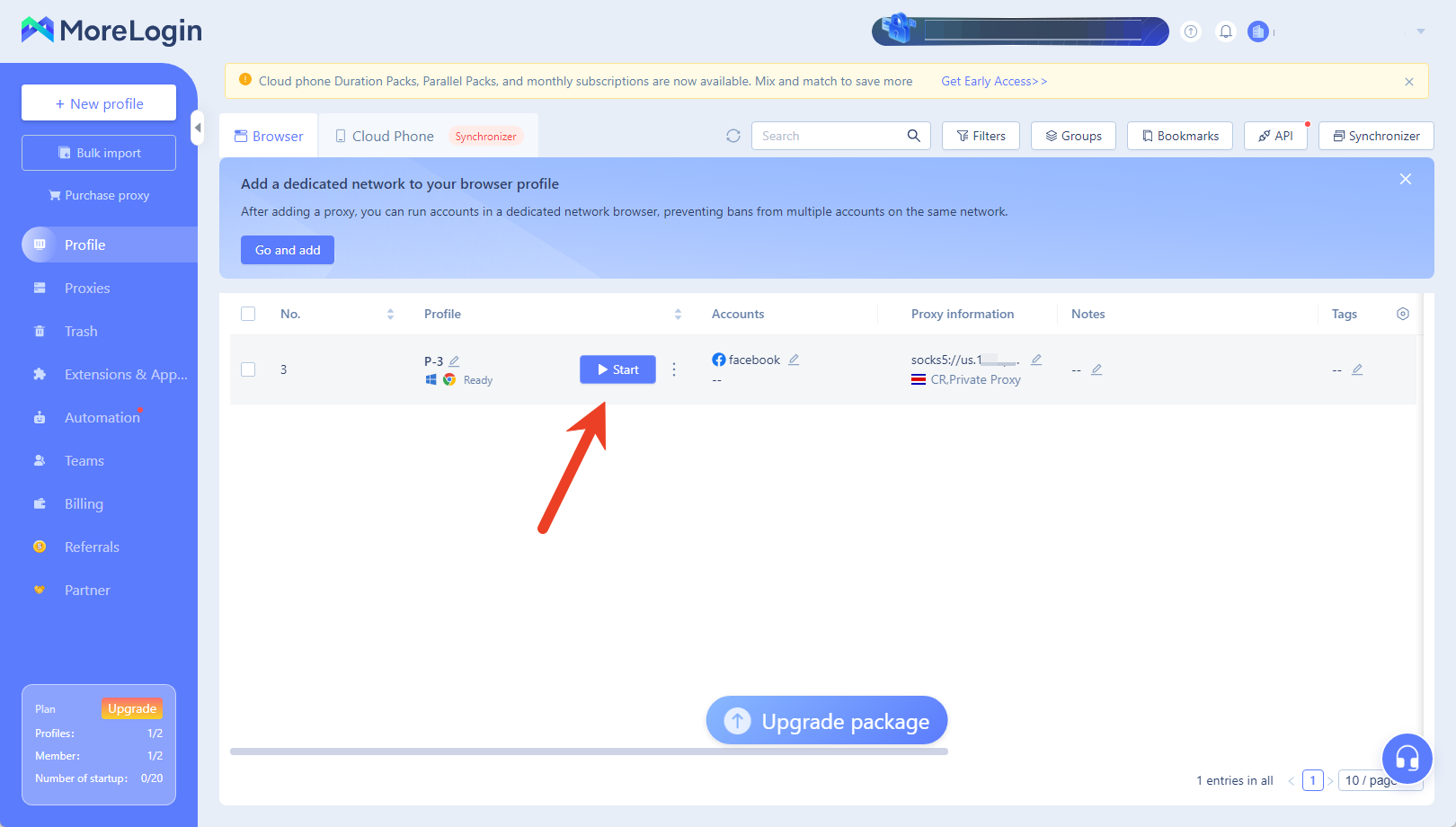
Click Confirm and start the proxy to begin using the browser normally.
{% endstep %}
{% endstepper %}