> For the complete documentation index, see [llms.txt](https://help.1024proxy.com/llms.txt). Markdown versions of documentation pages are available by appending `.md` to page URLs; this page is available as [Markdown](https://help.1024proxy.com/integrationtutorial/fbt/how-to-set-up-1024-proxy-in-mulogin-browser.md).
# How to Set Up 1024 Proxy in Mulogin Browser
### MuLogin Introduction
MuLogin is an antidetect browser designed for multi-account management. It helps users securely and stably log in to and operate multiple accounts on the same device, effectively preventing account association and platform risk control issues.
### Download and Install MuLogin
Complete the download and installation of the MuLogin software.
Download link:\
[https://www.mulogin.com/](https://www.mulogin.com/?ref=1024proxy)
{% stepper %}
{% step %}
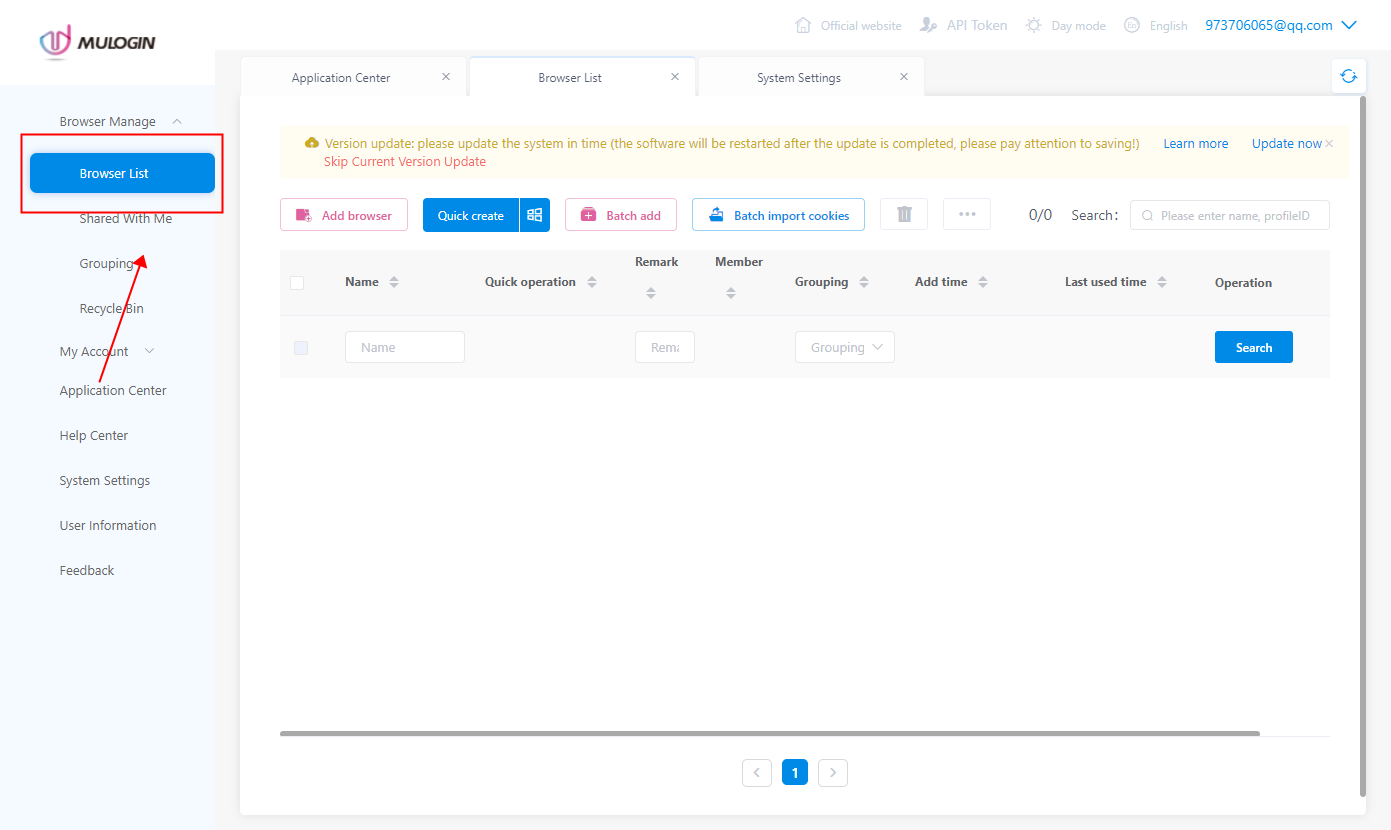
### Open the Browser List
Click the \[Browser List] button.
{% endstep %}
{% step %}
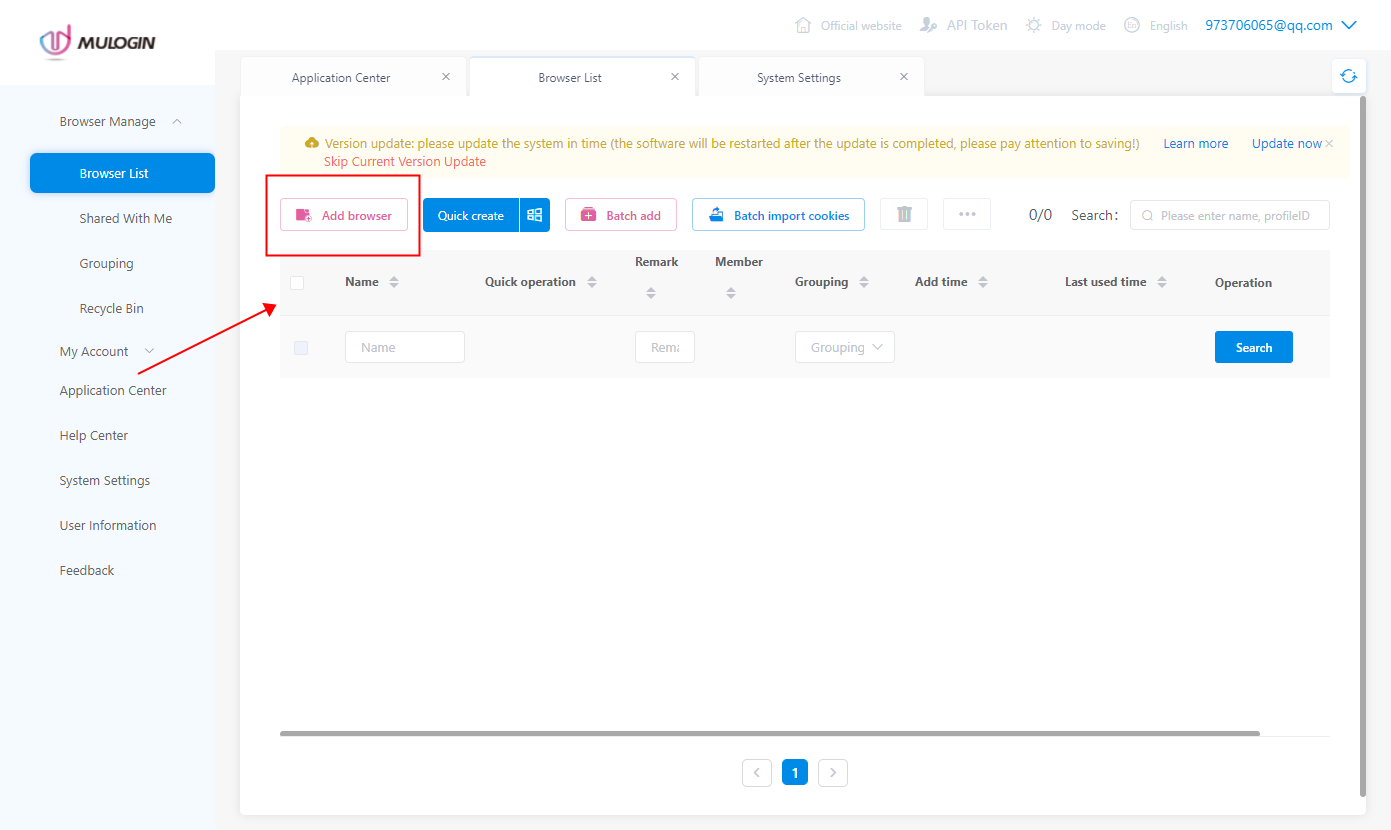
### Add a Browser Profile
Click \[Add Browser] to create a new browser window/profile.
{% endstep %}
{% step %}
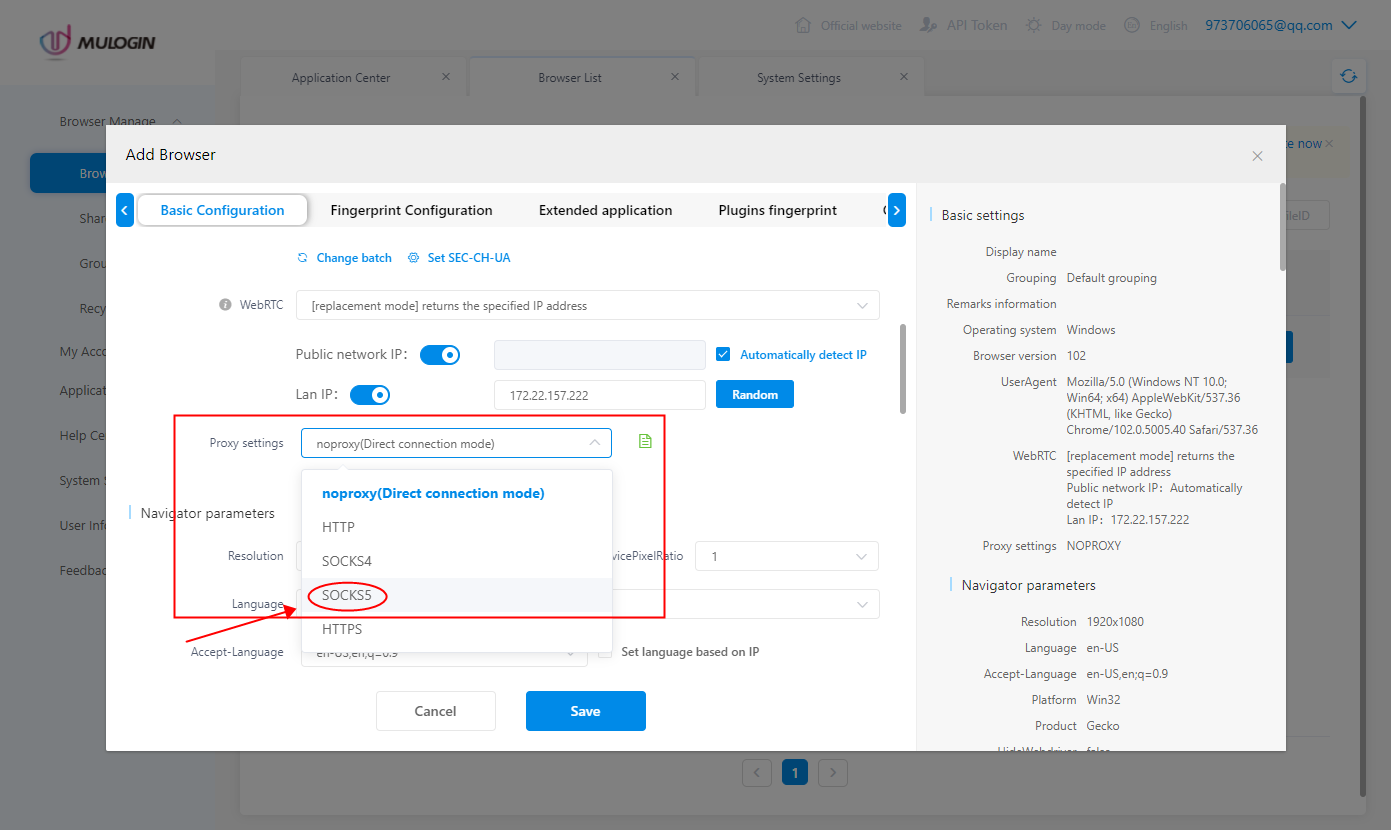
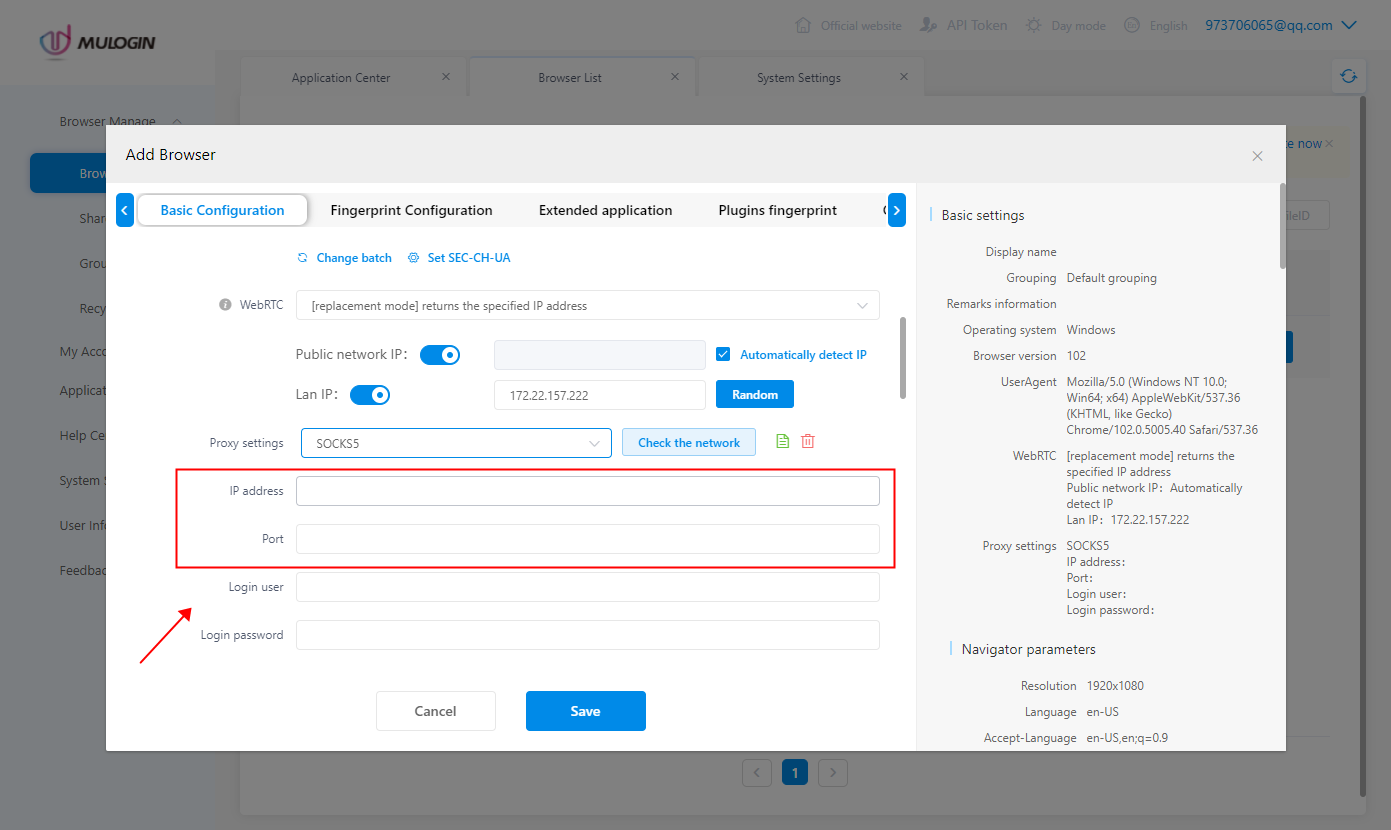
### Configure Proxy Settings
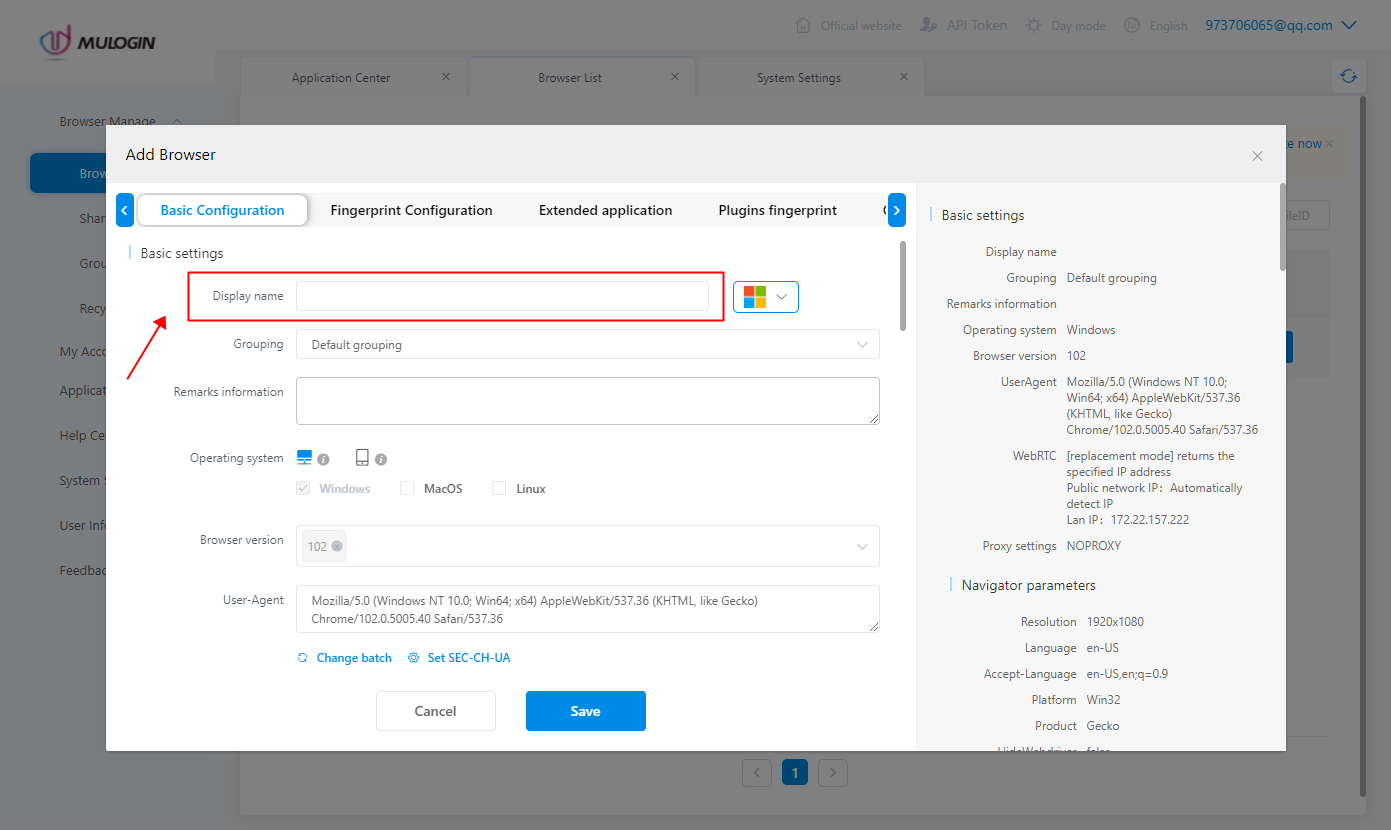
After filling in the basic information, select \[SOCKS5] as the proxy protocol.\
Copy the username and password generated in the 1024Proxy dashboard and paste them into the corresponding fields, including Proxy Host, Proxy Port, Proxy Username, and Proxy Password.
{% endstep %}
{% step %}
### Test the Proxy
Check whether the entered proxy information is working properly. Click \[Check Proxy].\
If the test result is shown in green, it means the proxy is functioning correctly and can be used normally.
{% endstep %}
{% step %}
### Complete Proxy Setup and Start Browsing
Click \[Save] and return to the browser environment list. You can now open the configured browser profile and access the websites you need using the assigned IP proxy.
{% endstep %}
{% endstepper %}