> For the complete documentation index, see [llms.txt](https://help.1024proxy.com/llms.txt). Markdown versions of documentation pages are available by appending `.md` to page URLs; this page is available as [Markdown](https://help.1024proxy.com/integrationtutorial/fbt/how-to-set-up-1024-proxy-in-sessionbox-browser.md).
# How to Set Up 1024 Proxy in SessionBox Browser
### SessionBox Overview
SessionBox is a browser tool/extension focused on multi-session isolation, allowing users to create multiple independent login sessions within the same browser. This enables logging into multiple accounts simultaneously without conflicts or account linkage.
Unlike traditional anti-detect browsers, SessionBox is more of a lightweight session isolation solution, making it suitable for users who do not require advanced fingerprint spoofing but need to operate multiple accounts in parallel.
### Download, install, and complete account registration and login.
Download link:
{% stepper %}
{% step %}
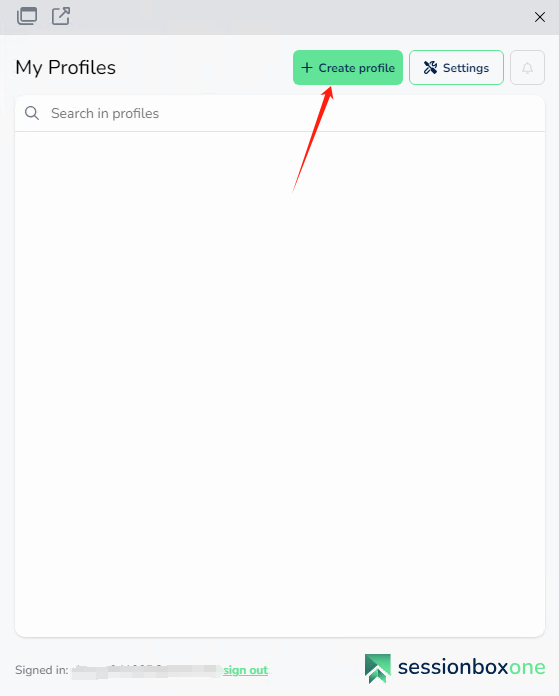
### Click Create Profile to create a browser profile.
{% endstep %}
{% step %}
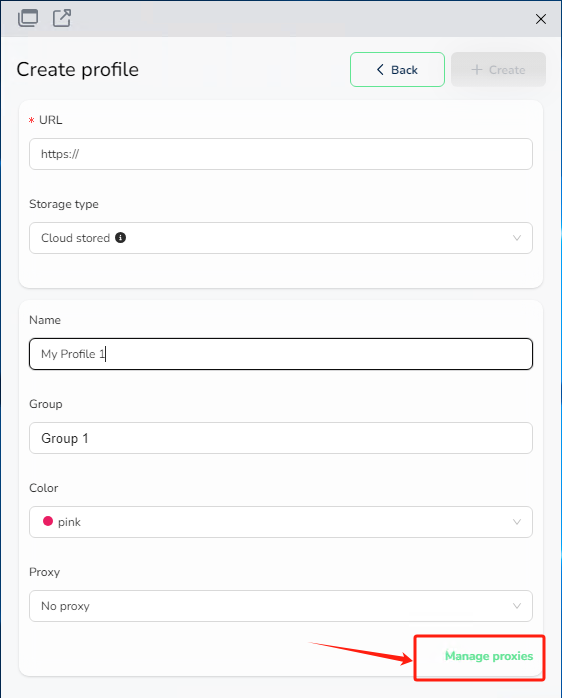
### Name the browser profile
Name the new browser profile and click Manage Proxies.
{% endstep %}
{% step %}
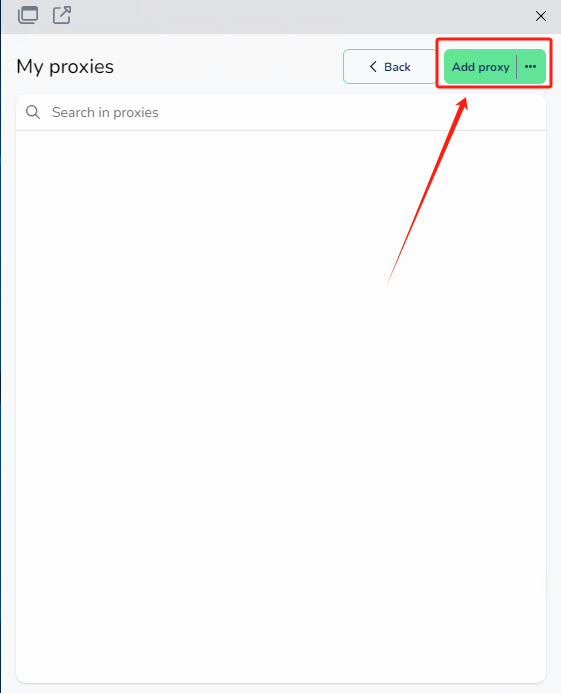
### Add proxy information
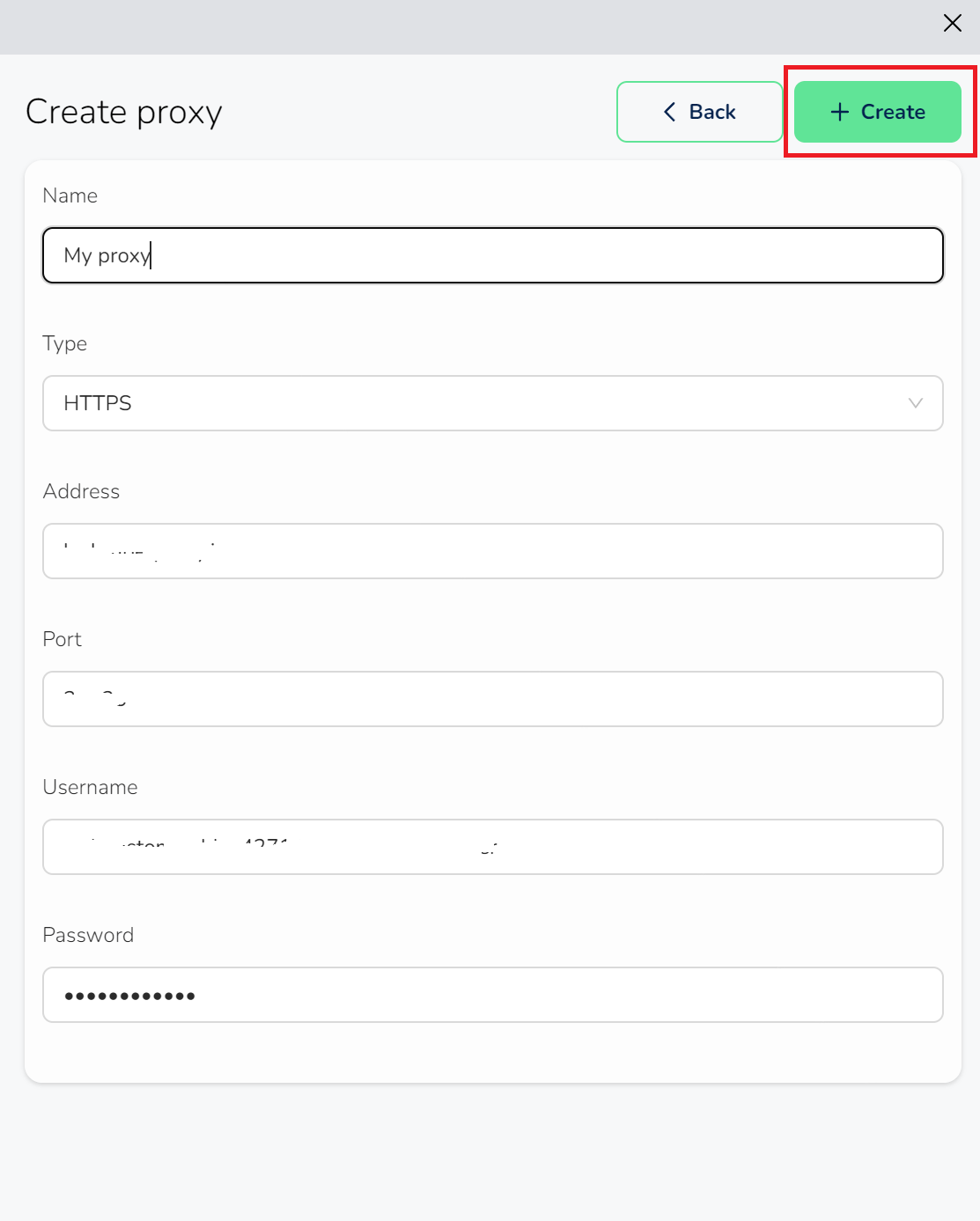
Click Add Proxy to add proxy information.
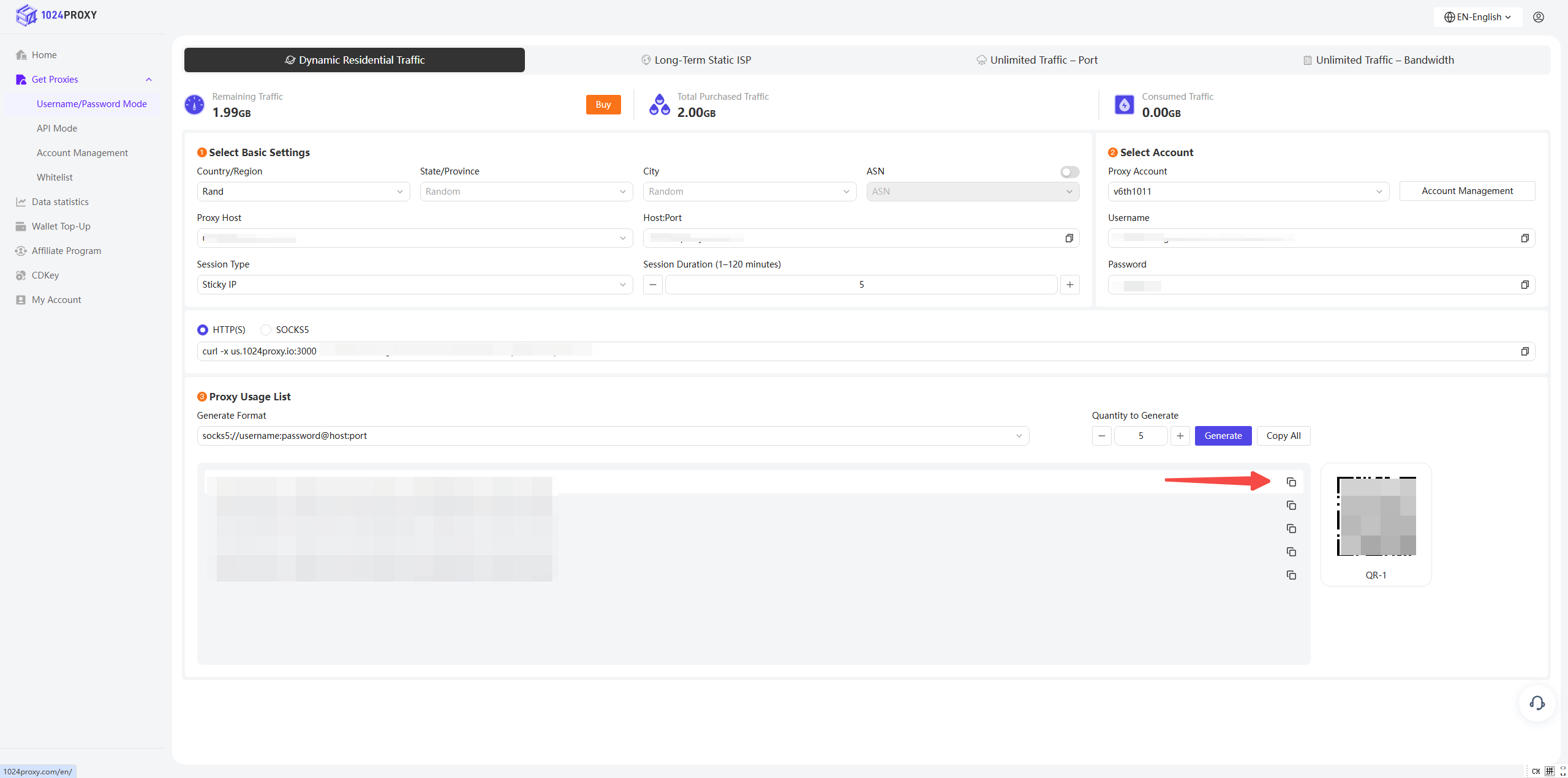
Copy the required proxy information from the 1024Proxy dashboard, paste it into the SessionBox fingerprint browser, and select SOCKS5 as the protocol type.
{% endstep %}
{% step %}
### Test the proxy
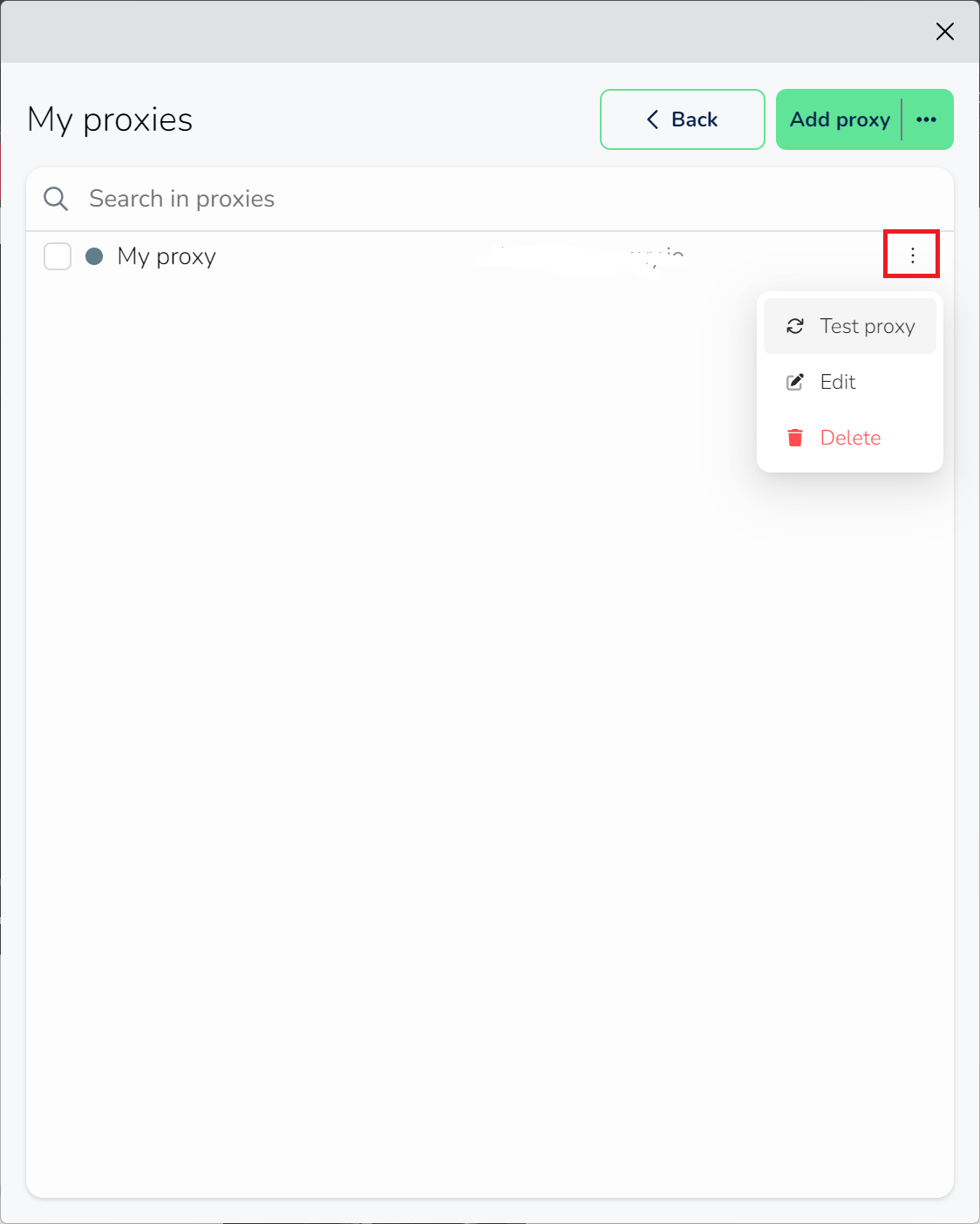
After creating and filling in the proxy information, you can click the three dots on the right side of the profile and select Test Proxy.
When the test result shows a successful connection, it means the proxy is working properly.
{% endstep %}
{% endstepper %}