> For the complete documentation index, see [llms.txt](https://help.1024proxy.com/llms.txt). Markdown versions of documentation pages are available by appending `.md` to page URLs; this page is available as [Markdown](https://help.1024proxy.com/integrationtutorial/fbt/how-to-set-up-1024-proxy-inincogniton-browser.md).
# How to Set Up 1024 Proxy inIncogniton Browser
### Incogniton Overview
Incogniton is a mainstream anti-detect browser designed to create and manage multiple isolated browser fingerprint environments on the same device, helping prevent account linkage and reducing the risk of detection or bans by platform anti-fraud systems.
It is widely used in scenarios such as cross-border e-commerce, multi-account operations, social media management, advertising, affiliate marketing, and data collection.
### Download and Installation
Download and install the Incogniton anti-detect fingerprint browser, then complete account registration and login.\
Download link:
{% stepper %}
{% step %}
### Create a New Profile
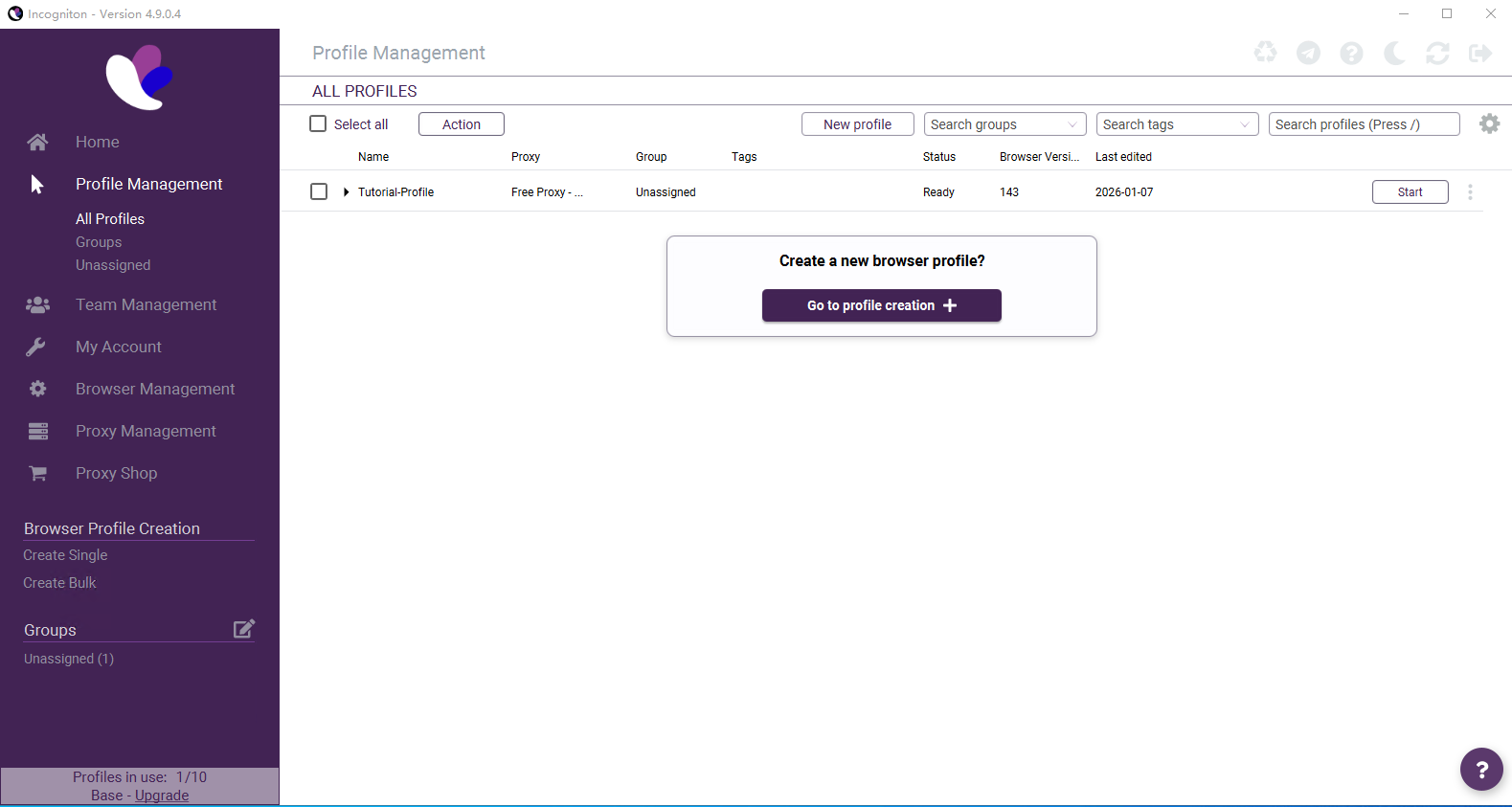
Click Go to profile creation to create a new fingerprint browser profile.
{% endstep %}
{% step %}
### Edit Basic Information
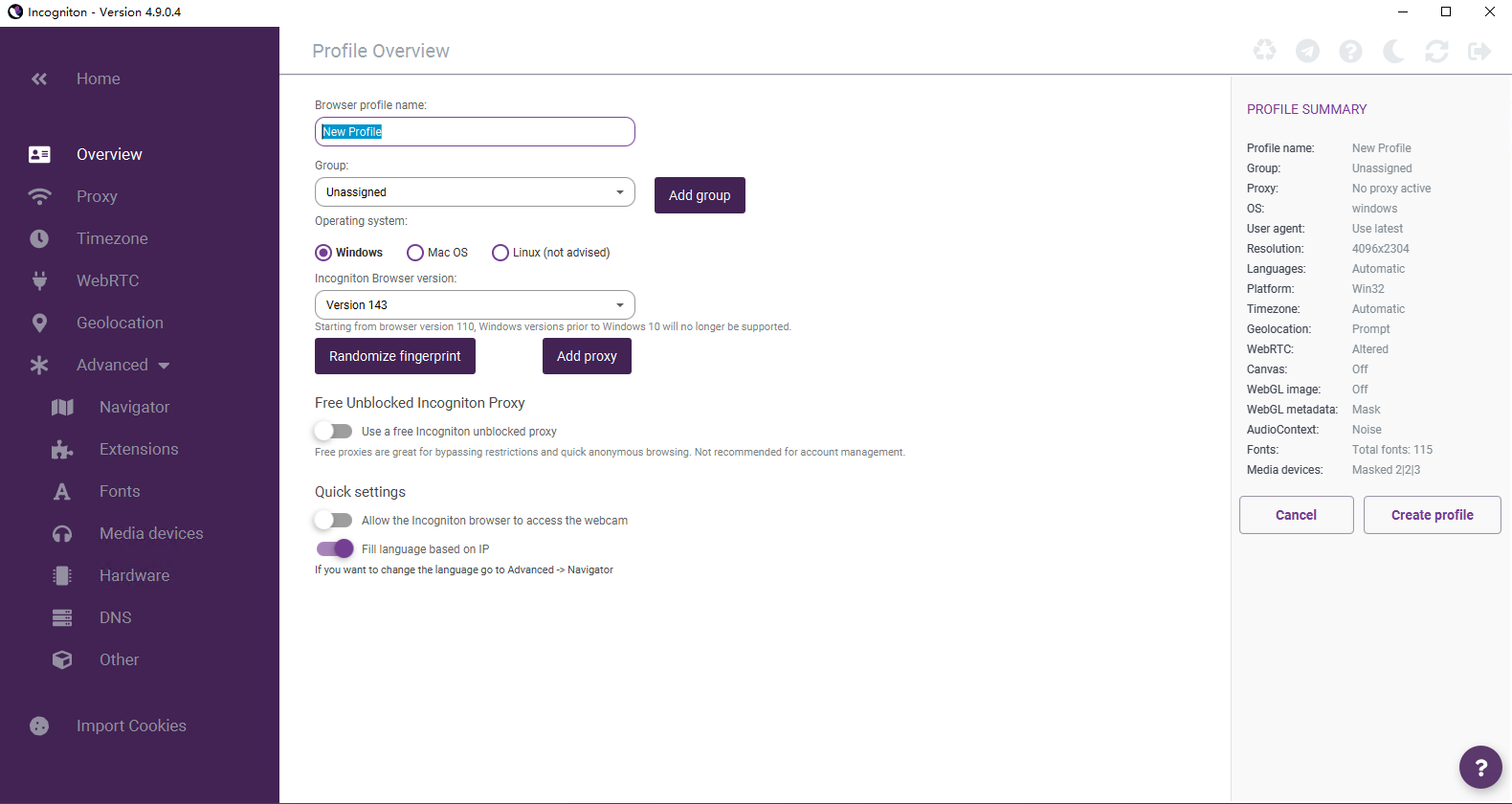
Fill in the basic information for the anti-detect profile, such as the profile name, operating system, browser version, and other settings.
{% endstep %}
{% step %}
### Add Proxy Information
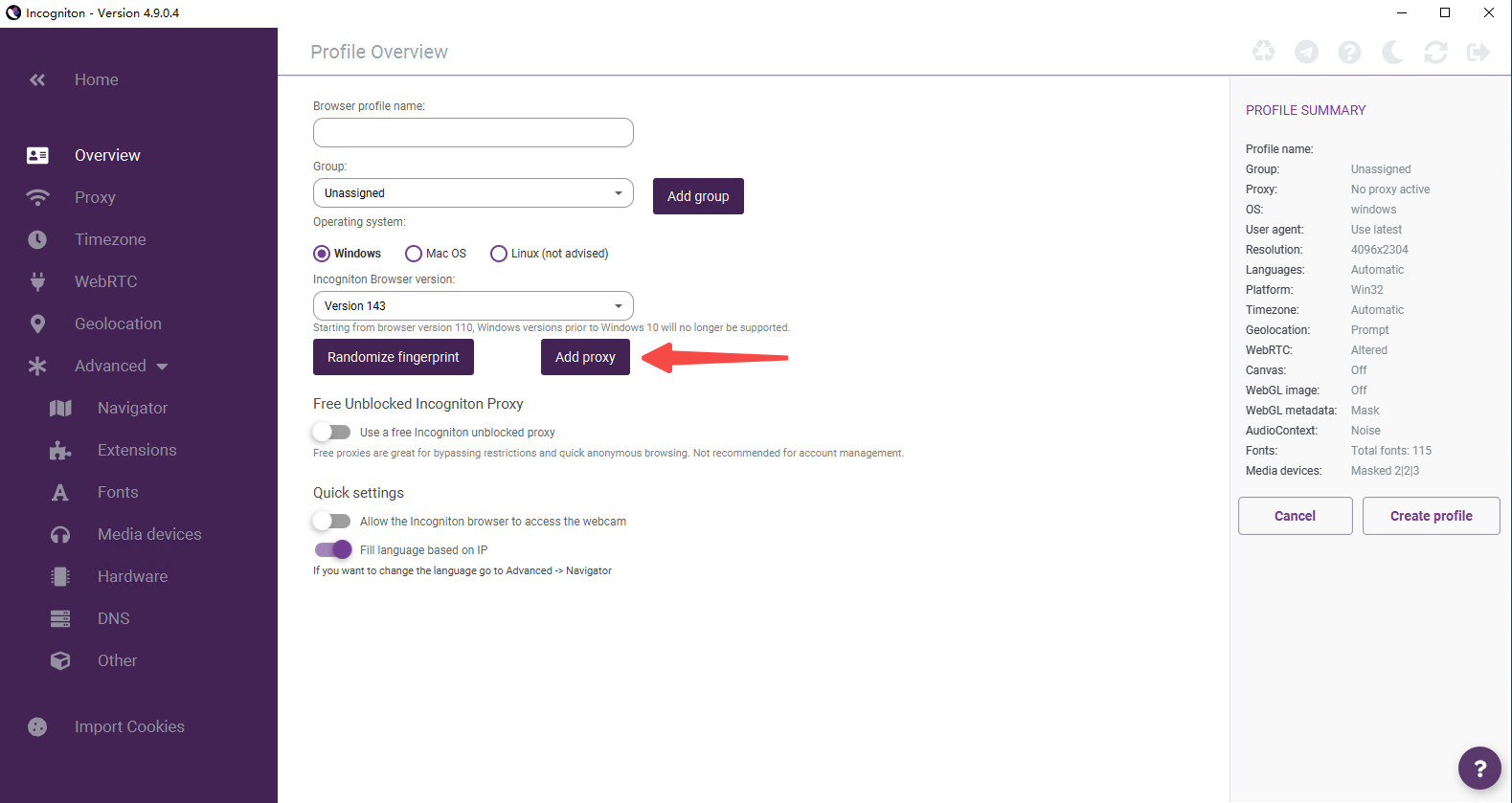
Click Add Proxy to enter the proxy configuration page.
{% endstep %}
{% step %}
### Select the SOCKS5 Protocol
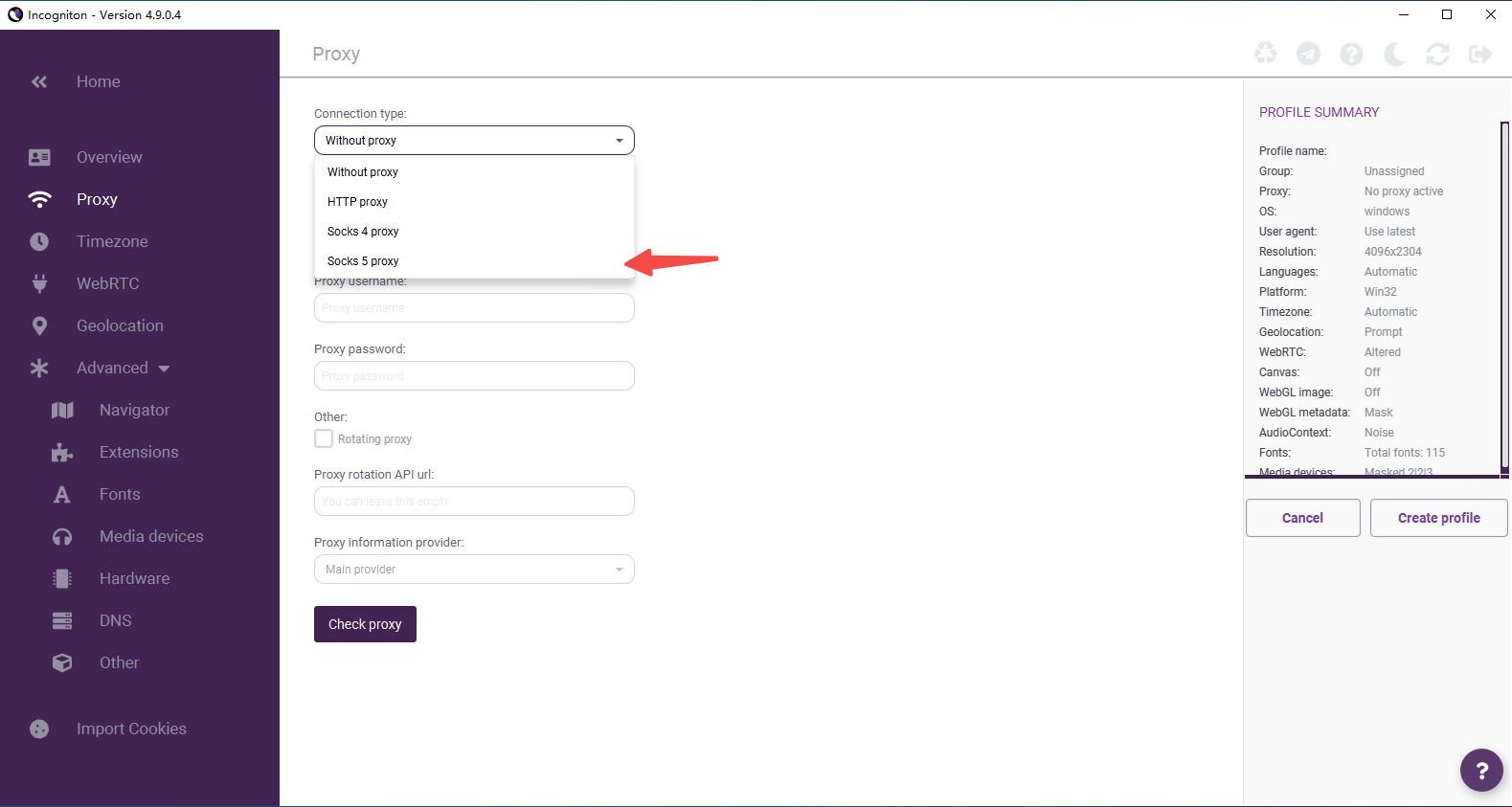
Choose SOCKS5 as the proxy protocol type.
{% endstep %}
{% step %}
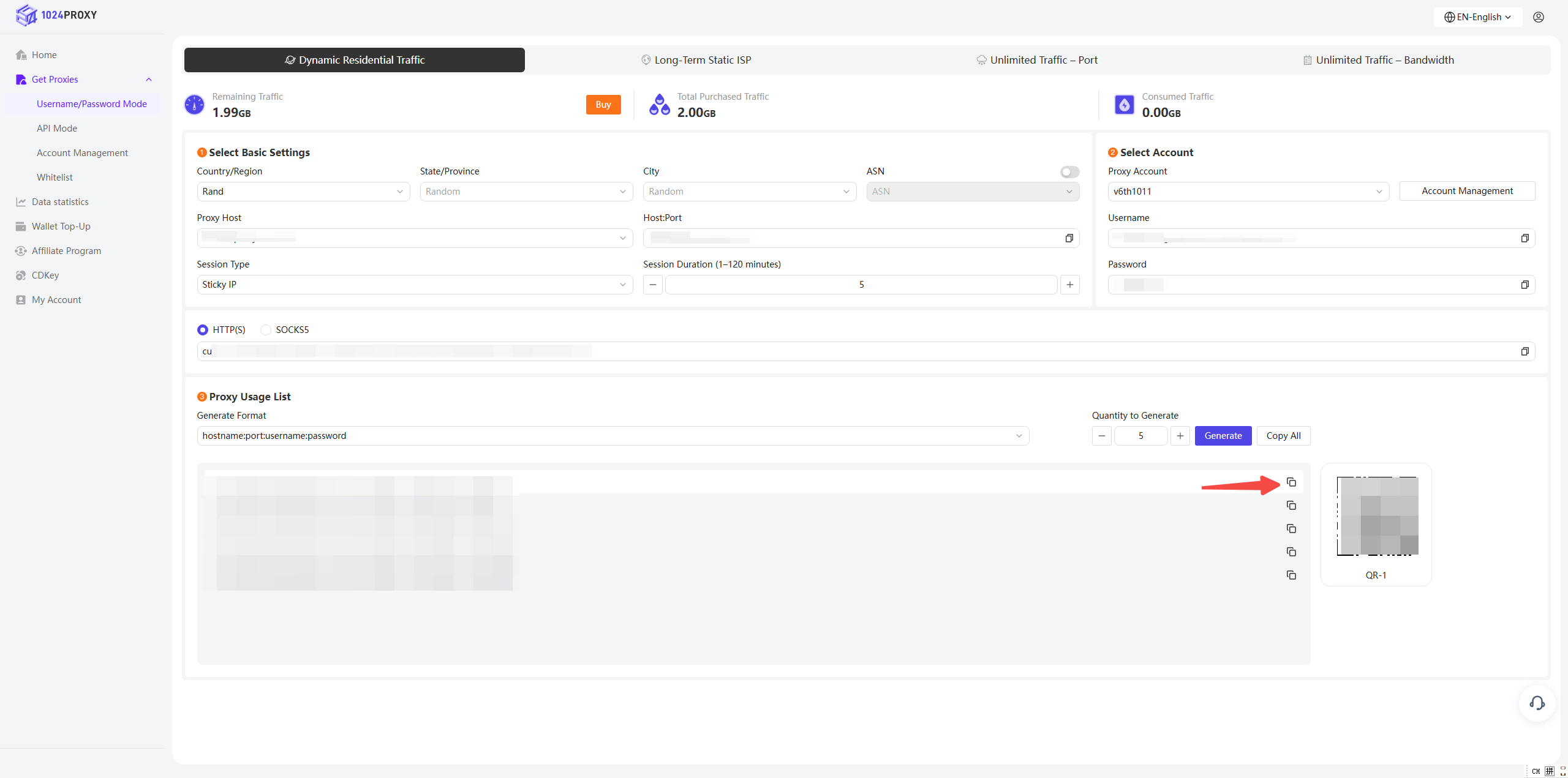
### Enter Proxy Credentials
Copy the username and password information from the 1024Proxy dashboard and paste them into Incogniton.
{% endstep %}
{% step %}
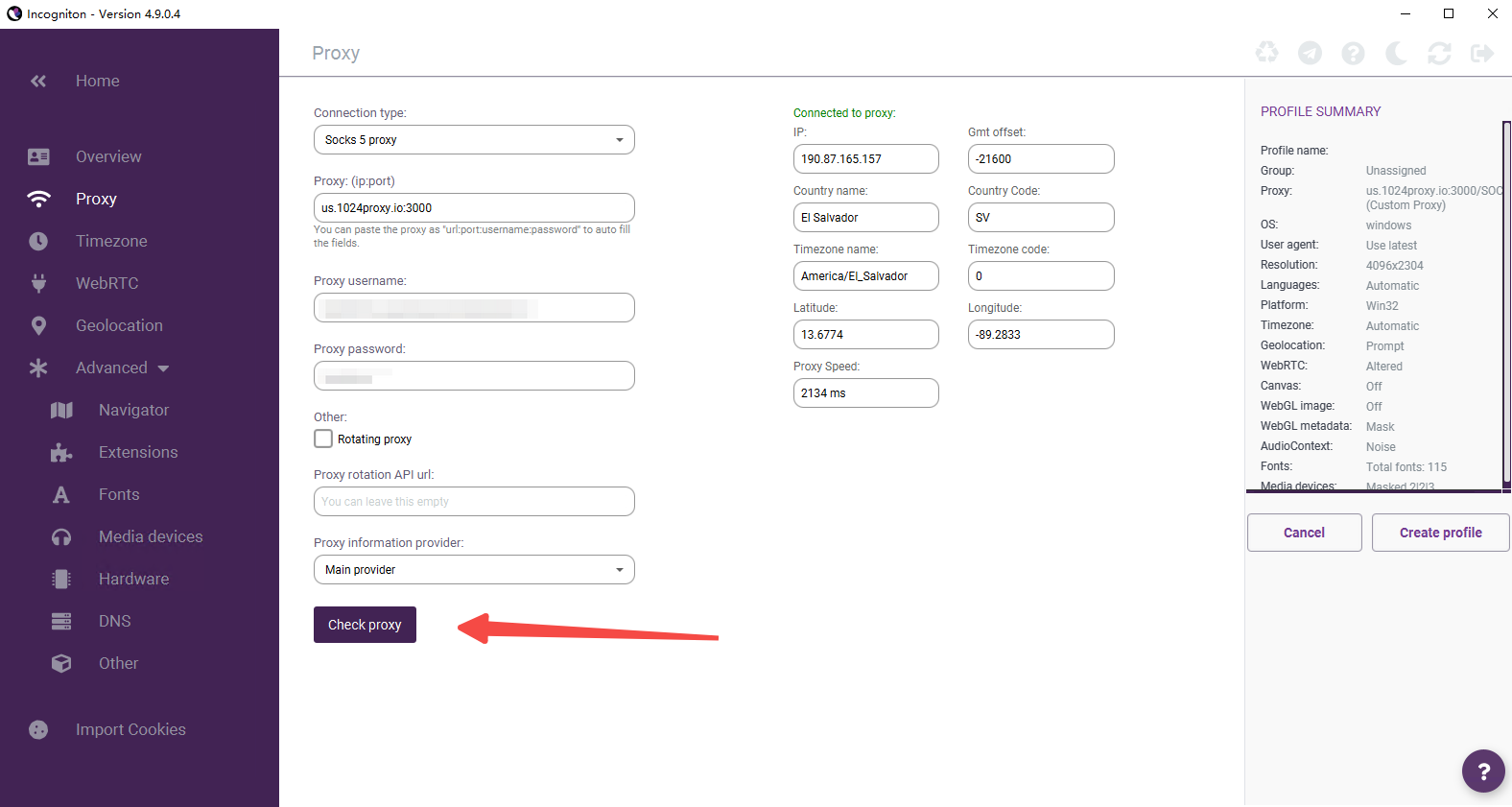
### Check Proxy Status
After entering the proxy credentials, click Check Proxy.\
If a green status result appears, it means the proxy connection is successful and can be used normally.
{% endstep %}
{% step %}
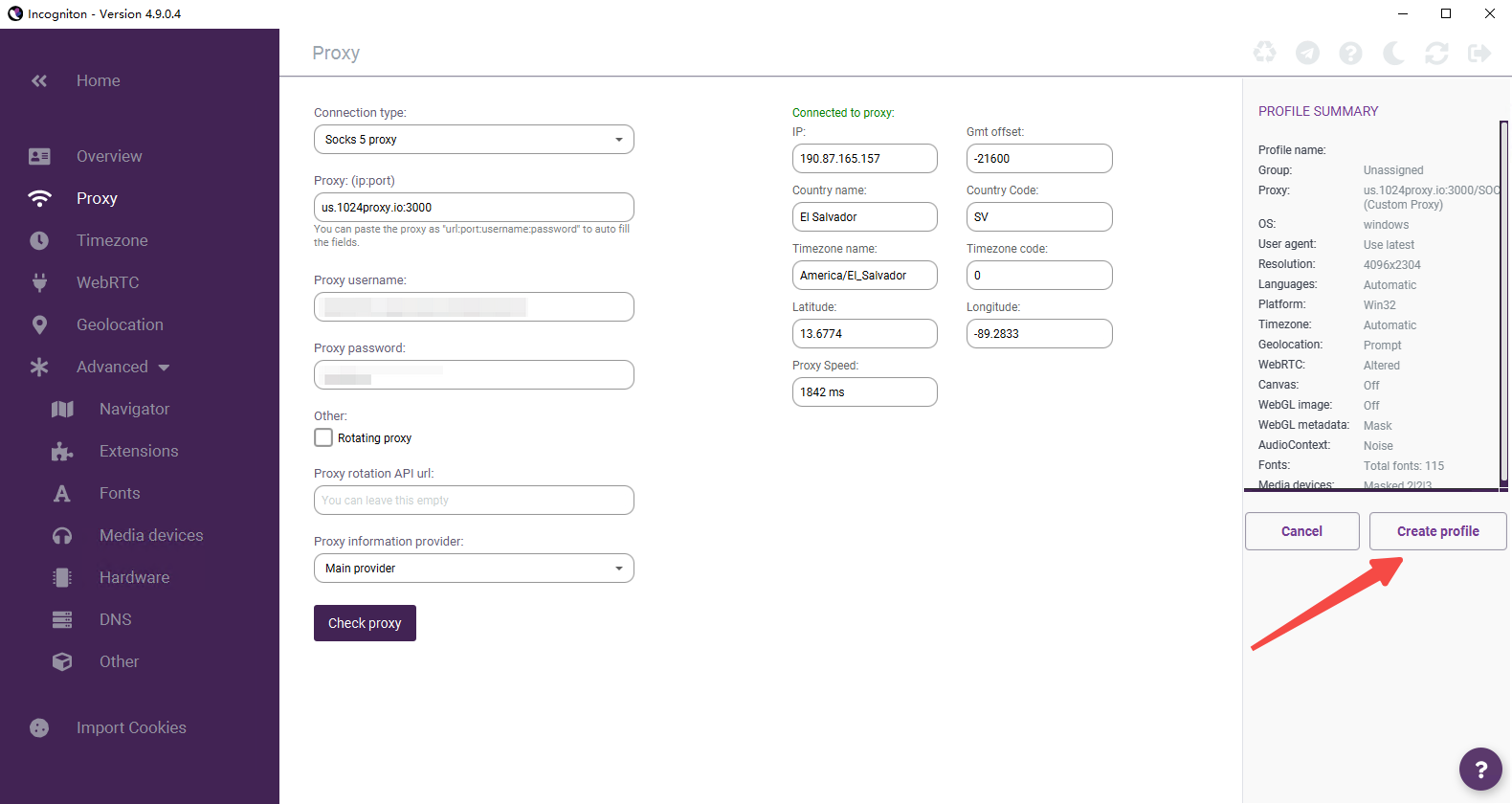
### Complete Proxy Setup for the Profile
Once the proxy check is successful and the IP is confirmed to be working properly, click Create Profile on the far right to complete the browser profile creation.
{% endstep %}
{% step %}
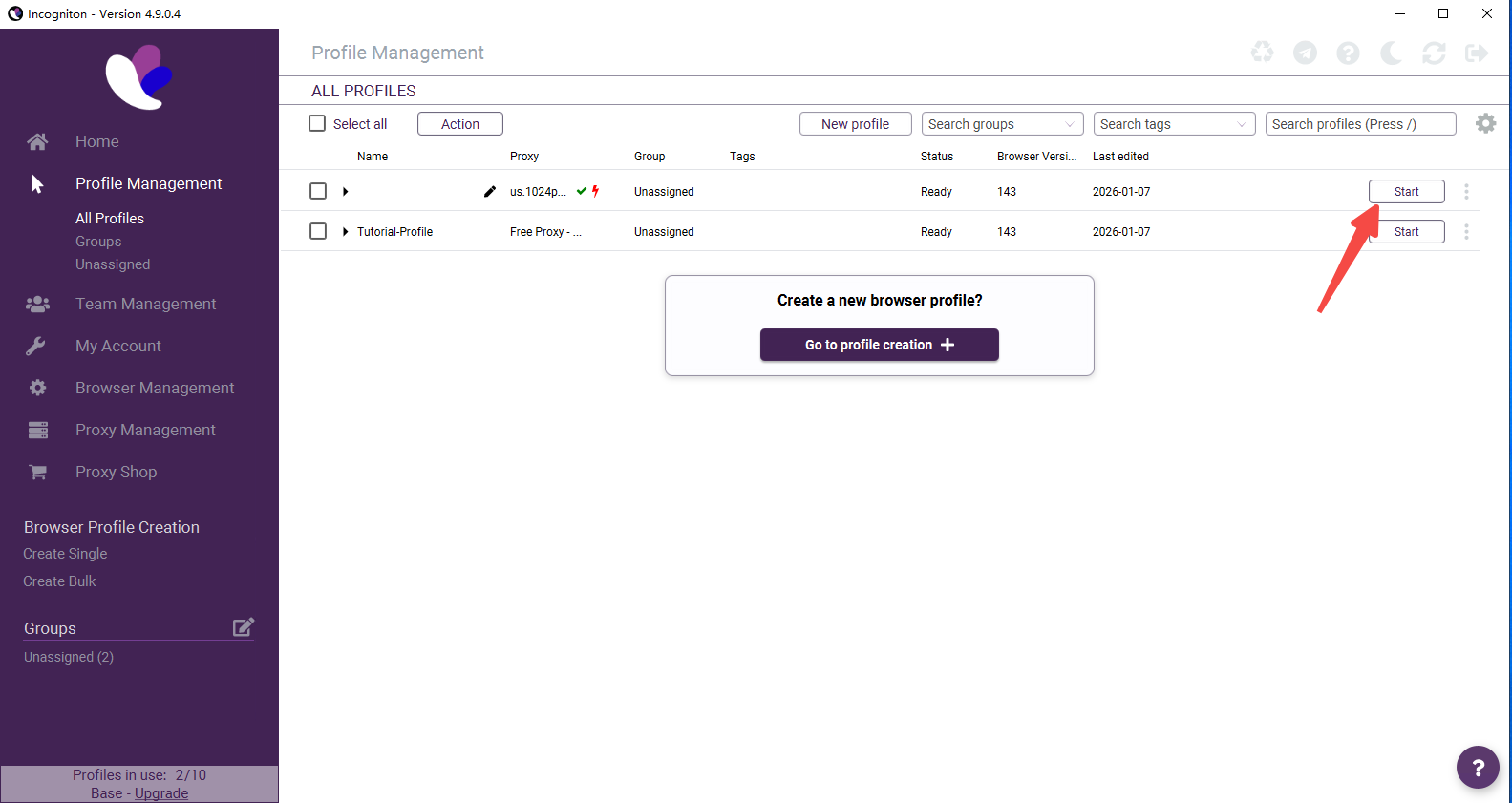
### Start the Profile
Finally, click Start to access the target website using the configured proxy settings.
{% endstep %}
{% endstepper %}