> For the complete documentation index, see [llms.txt](https://help.1024proxy.com/llms.txt). Markdown versions of documentation pages are available by appending `.md` to page URLs; this page is available as [Markdown](https://help.1024proxy.com/integrationtutorial/how-to-set-up-proxy-on-mobile/how-to-set-up-a-proxy-on-an-android-phone.md).
# How to Set Up a Proxy on an Android Phone
In scenarios such as cross-border internet access, overseas business operations, social media management, account logins, or data access, setting up a proxy IP on an Android phone is a very common and efficient solution. The Android system supports manual proxy configuration at the Wi-Fi network level, allowing users to set up a proxy without installing any third-party applications. The process is simple, stable, and secure.
{% hint style="info" %}
Note:\
Android proxy settings apply only to the currently connected Wi-Fi network. Once you switch Wi-Fi networks or use mobile data (4G / 5G), the proxy will be automatically disabled.
{% endhint %}
{% stepper %}
{% step %}
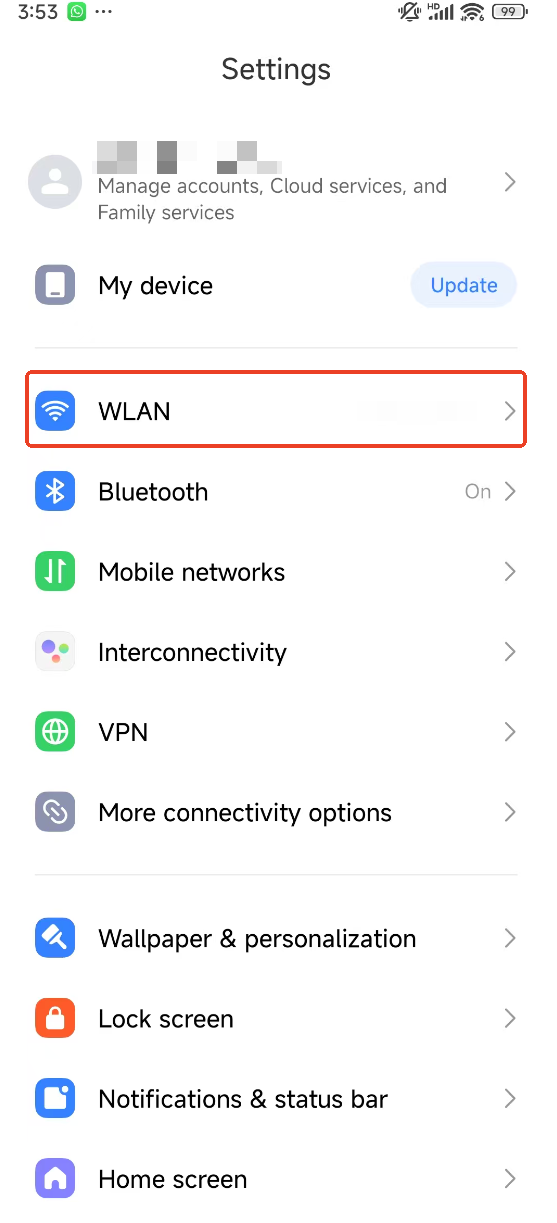
### Open Settings and Select WLAN
* Open Settings on your device.
* Tap WLAN
{% endstep %}
{% step %}
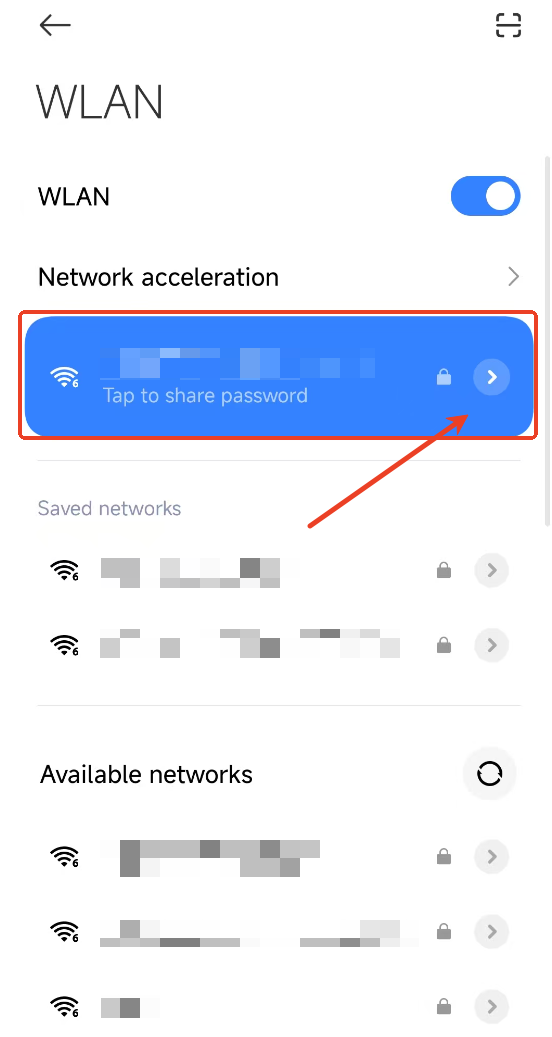
### Select the Current WLAN Network
* Find the WLAN network you are currently connected to.
* Tap the network to open the details page.
{% endstep %}
{% step %}
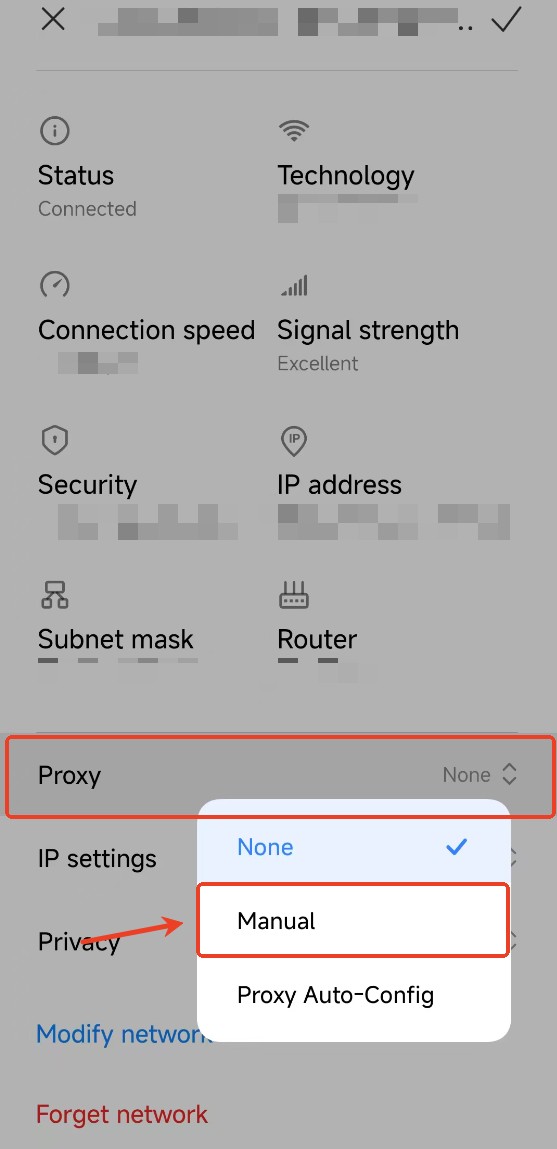
### Configure Proxy Settings
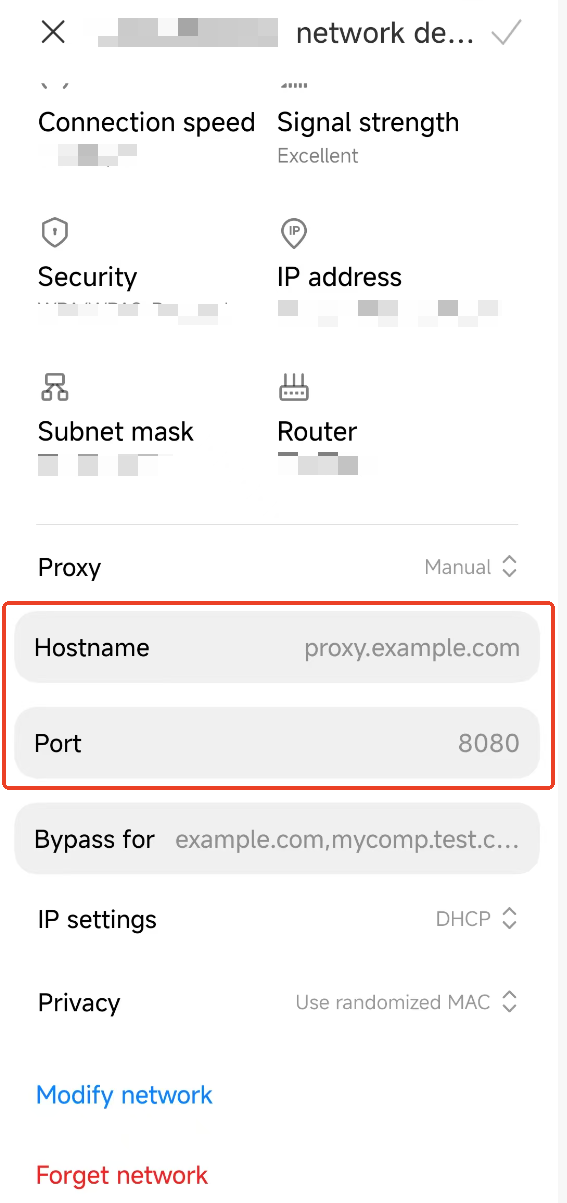
* Locate the Proxy section.
* Select “Manual.”
{% endstep %}
{% step %}
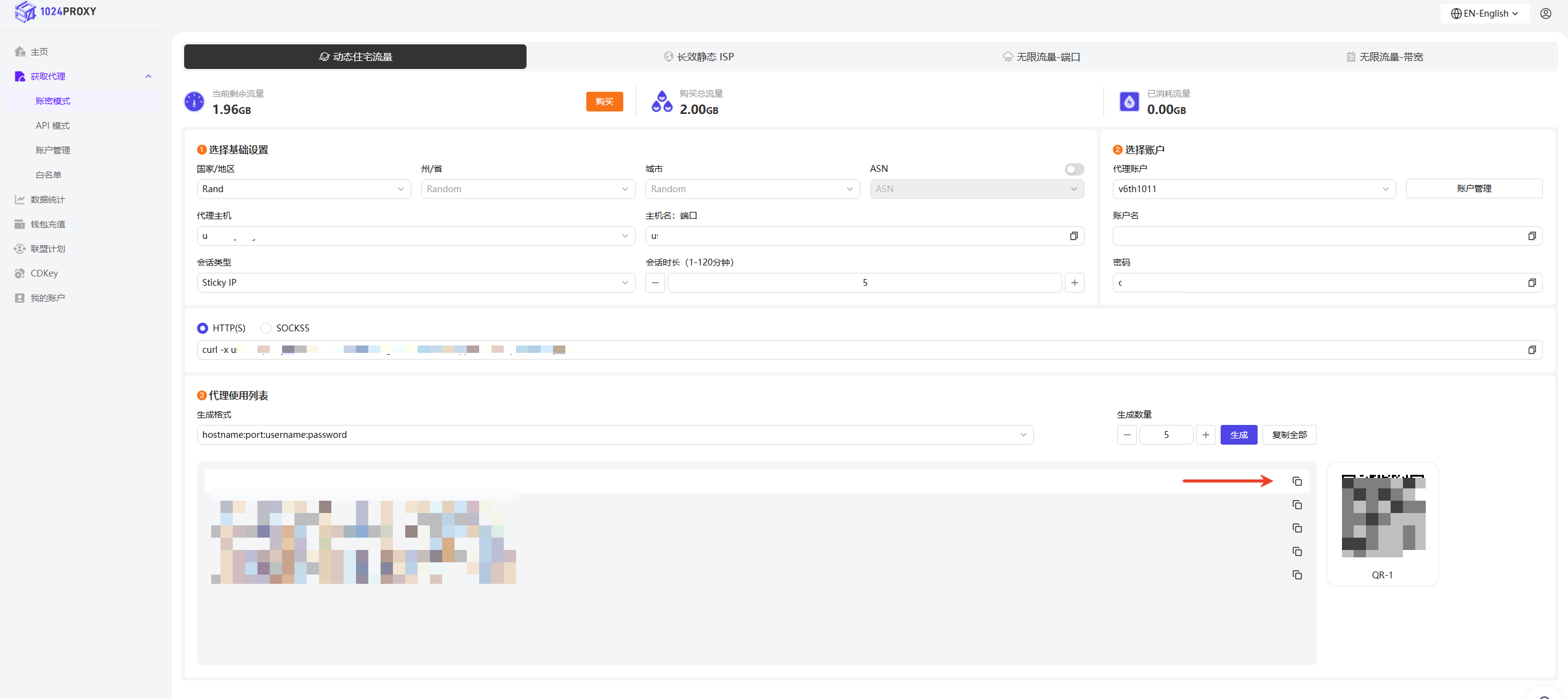
### Copy and Paste Proxy Information
* Copy the proxy IP information obtained from the 1024Proxy dashboard.
* Paste it into the corresponding fields on your Android device.
{% endstep %}
{% step %}
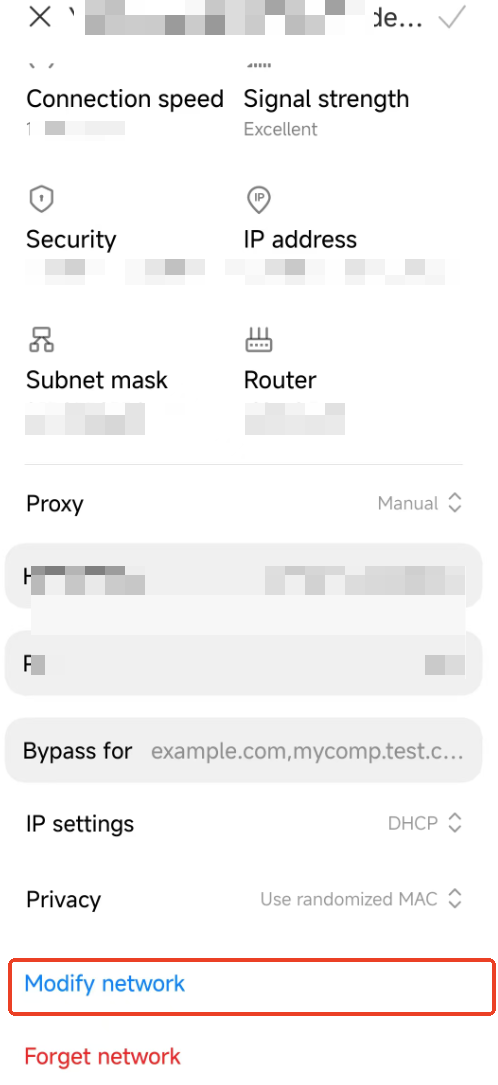
### Complete Proxy Configuration
After filling in the proxy IP information, tap “Modify Network” to complete the proxy setup.
{% endstep %}
{% endstepper %}
{% hint style="info" %}
Please note that this only applies to the Wi-Fi network on which you have configured the proxy. Once you disconnect from that network or connect to a different Wi-Fi network, the proxy server will no longer be in use.
{% endhint %}