> For the complete documentation index, see [llms.txt](https://help.1024proxy.com/llms.txt). Markdown versions of documentation pages are available by appending `.md` to page URLs; this page is available as [Markdown](https://help.1024proxy.com/integrationtutorial/how-to-set-up-proxy-on-mobile/how-to-set-up-a-proxy-on-an-apple-device-iphone-or-ipad.md).
# How to Set Up a Proxy on an Apple Device (iPhone or iPad)
In scenarios such as cross-border internet access, overseas business operations, account management, or data access, setting up a proxy IP on an iPhone or iPad is a common and efficient solution. The iOS system supports manual proxy configuration at the Wi-Fi network level, allowing users to set up a proxy without installing any third-party applications. The process is simple, secure, and stable.
{% hint style="info" %}
Note:\
iOS proxy settings apply only to the currently connected Wi-Fi network. Once you switch Wi-Fi networks or use cellular data (4G / 5G), the proxy will be automatically disabled.
{% endhint %}
{% stepper %}
{% step %}
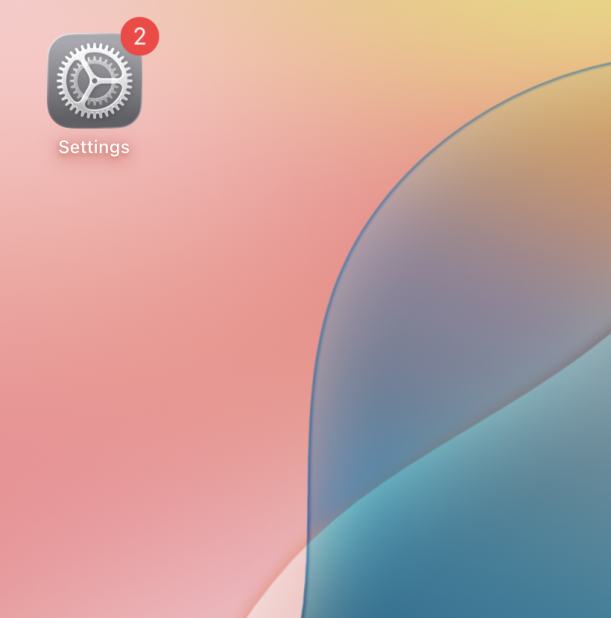
### Open iPhone Settings
Open Settings on your iPhone.
{% endstep %}
{% step %}
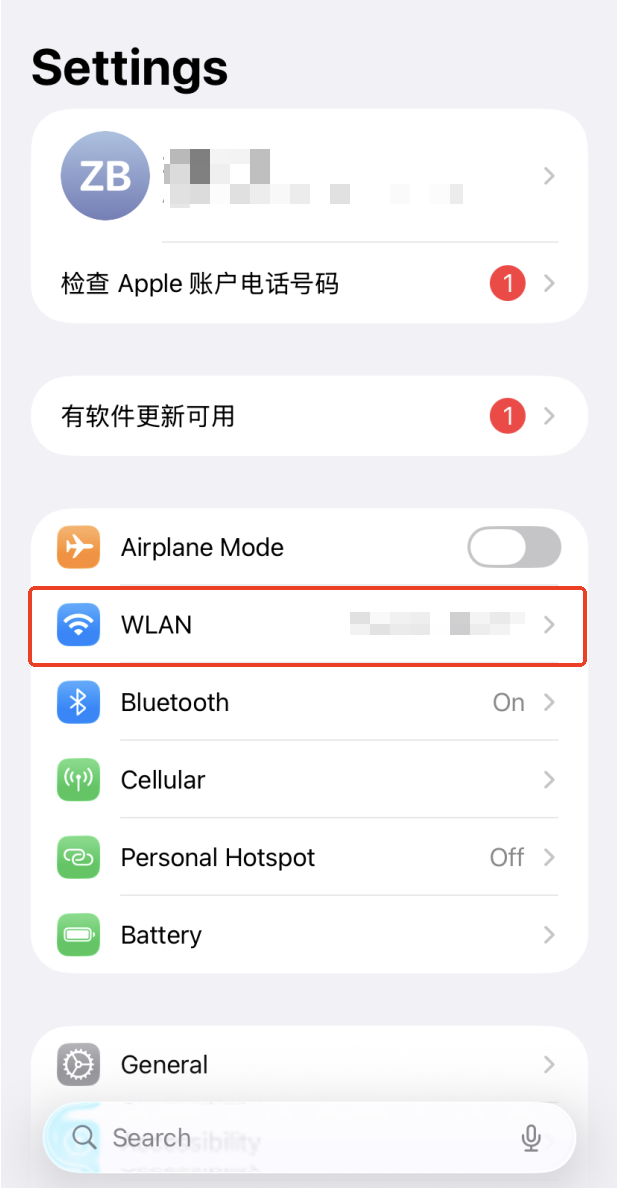
### Find the Currently Connected Wi-Fi Network
Locate the Wi-Fi network you are currently connected to.
{% endstep %}
{% step %}
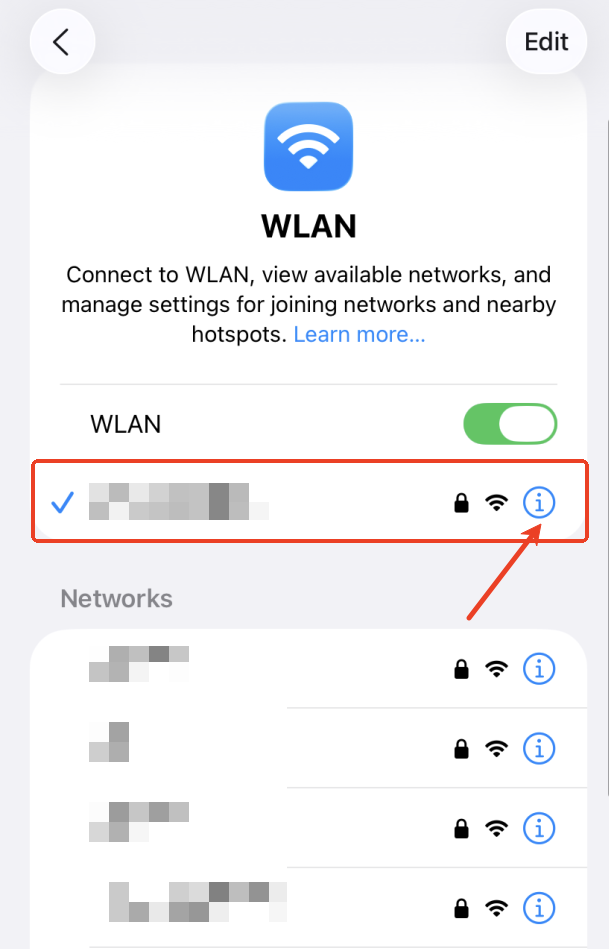
### Open Wi-Fi Details
Select the connected Wi-Fi network and tap the information (ⓘ) icon to view its details.
{% endstep %}
{% step %}
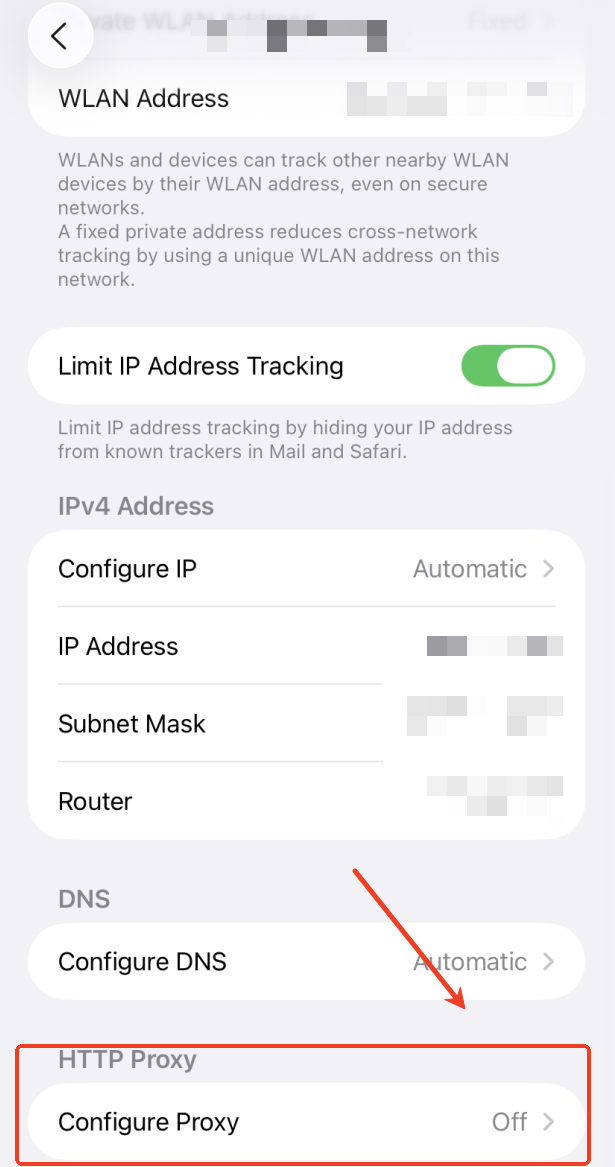
### Enable Proxy Configuration
Scroll down and find the HTTP Proxy section.
{% endstep %}
{% step %}
### Select Manual and Enter Proxy Information
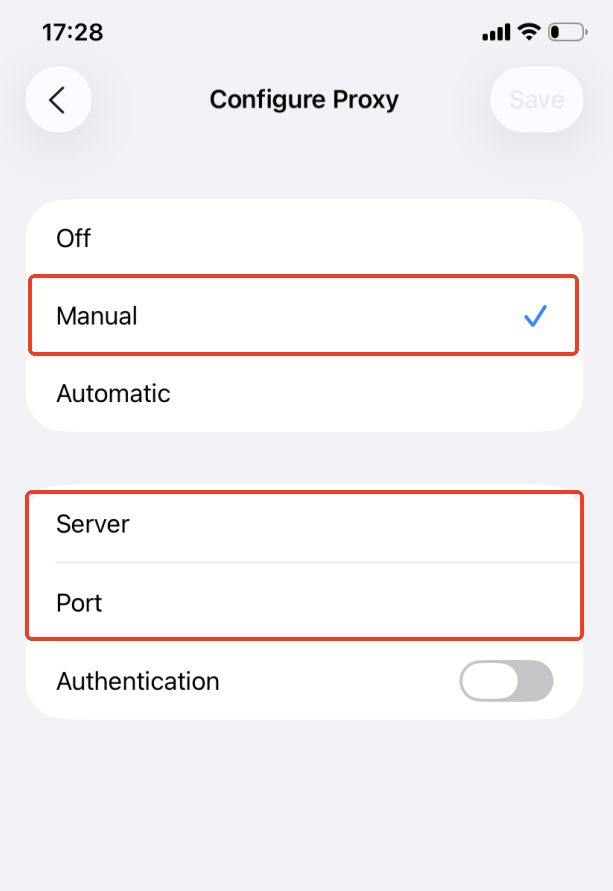
Choose “Manual.”
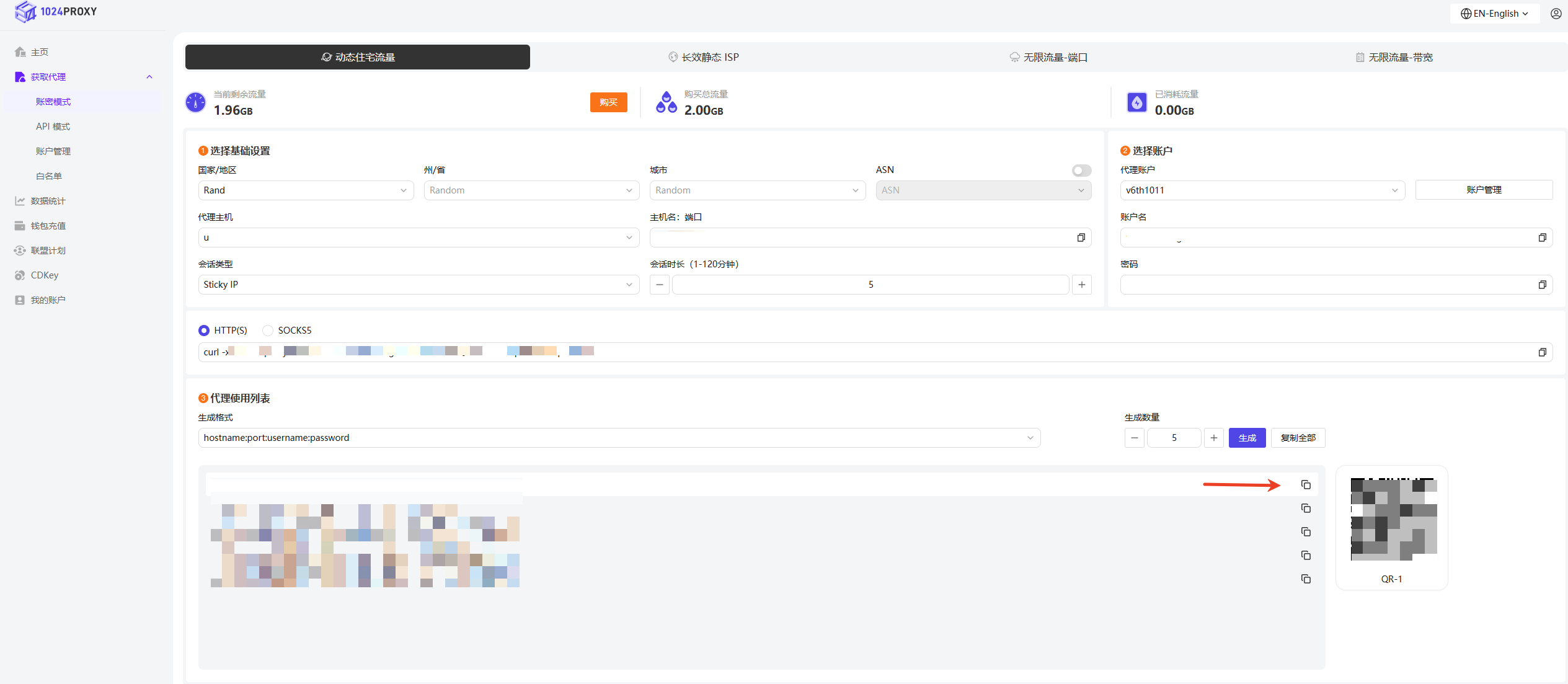
Copy the proxy information from the 1024Proxy dashboard and paste it into the Server and Port fields.
Tap “Save” to complete the proxy configuration.
{% endstep %}
{% endstepper %}