> For the complete documentation index, see [llms.txt](https://help.1024proxy.com/llms.txt). Markdown versions of documentation pages are available by appending `.md` to page URLs; this page is available as [Markdown](https://help.1024proxy.com/integrationtutorial/use-other-third-party-tools/how-to-set-up-1024-proxy-in-sstap-beta.md).
# How to Set Up 1024 Proxy in SSTap-beta
### SSTap-beta Overview
SSTap-beta allows users to route the network traffic of specific applications through SOCKS5, SOCKS4, or Shadowsocks proxies. It is especially popular in gaming scenarios, where it is used to reduce network latency or access game servers.
SSTap-beta, also known as Sockscap64, is a tool designed to enable applications that do not natively support the SOCKS protocol to communicate through a SOCKS proxy server. It is primarily used to bypass network restrictions and enhance privacy by forwarding traffic through a proxy server. This guide will help you understand how to use SSTap-beta to configure a SOCKS5 proxy.
### Download and Installation
Download link:\
### Proxy Configuration
{% stepper %}
{% step %}
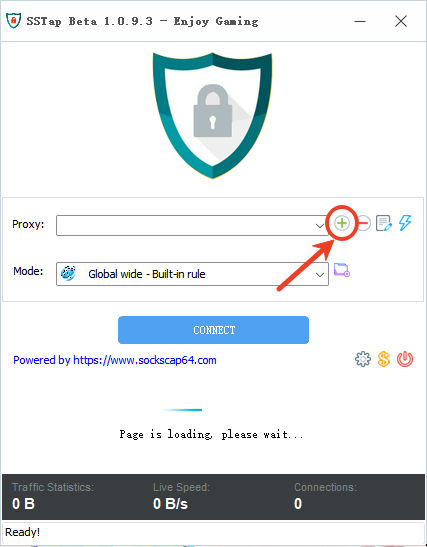
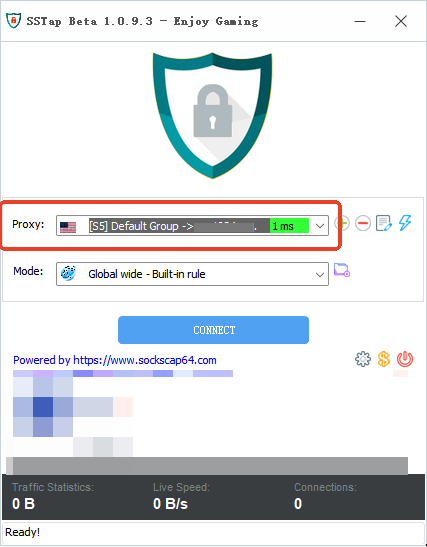
### Click the green plus (+) icon to create a new proxy.
{% endstep %}
{% step %}
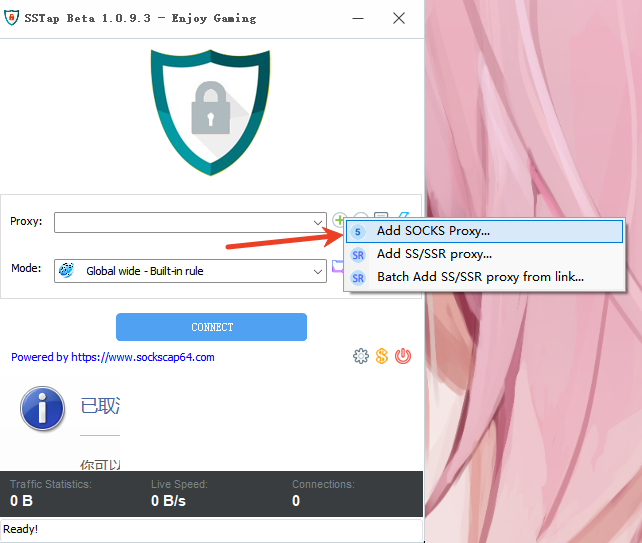
### Select “Add SOCKS Proxy.”
{% endstep %}
{% step %}
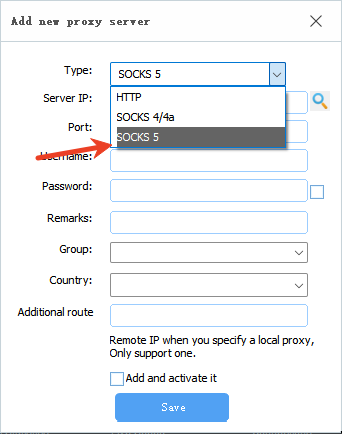
### Choose SOCKS5 as the proxy type.
{% endstep %}
{% step %}
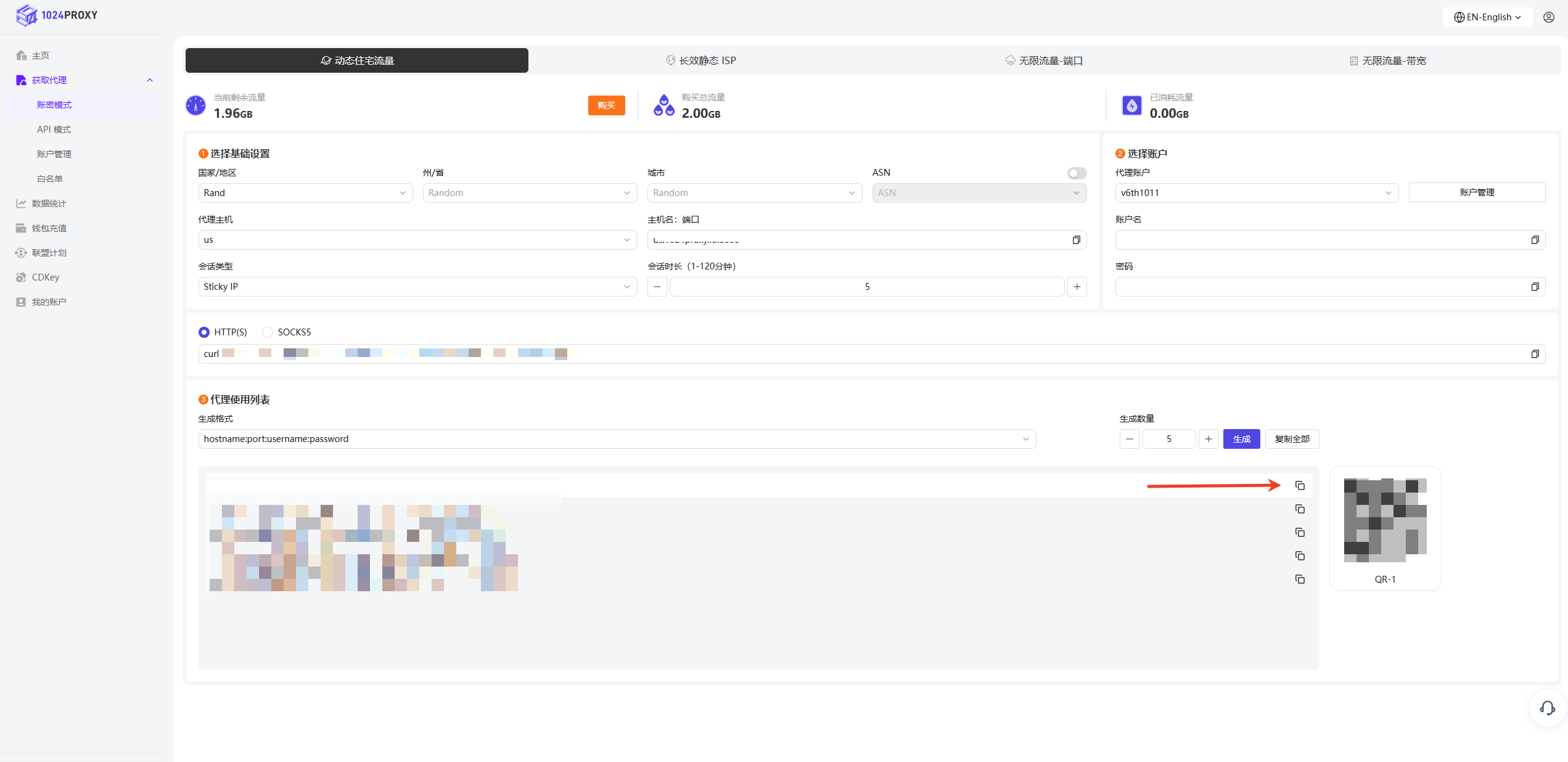
### Copy the proxy credentials from the 1024Proxy dashboard and paste them into the corresponding fields:
* Server IP
* Port
* Username
* Password
{% endstep %}
{% step %}
### Click “Save” to complete the proxy configuration.
{% endstep %}
{% step %}
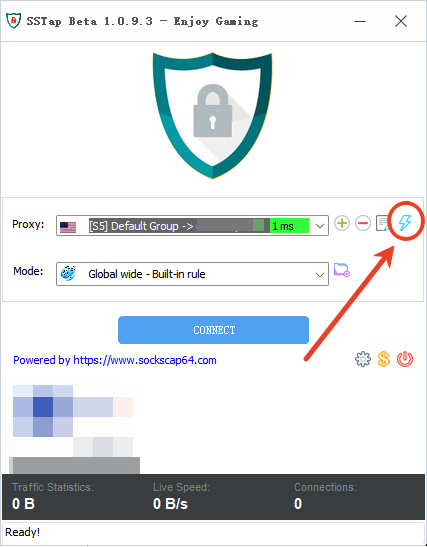
### Test the Proxy
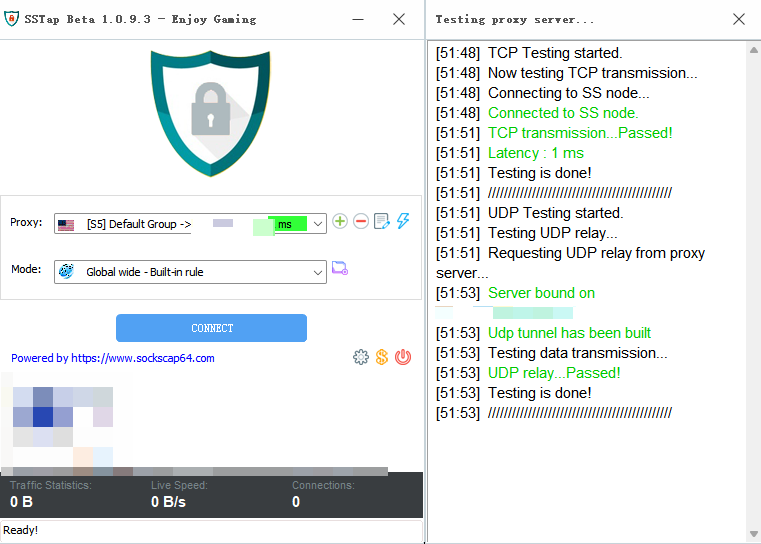
Click the lightning icon to test whether the proxy connection is successful.
If the test result displays green status indicators along with detailed IP information, it means the current proxy IP is working properly.
{% endstep %}
{% step %}
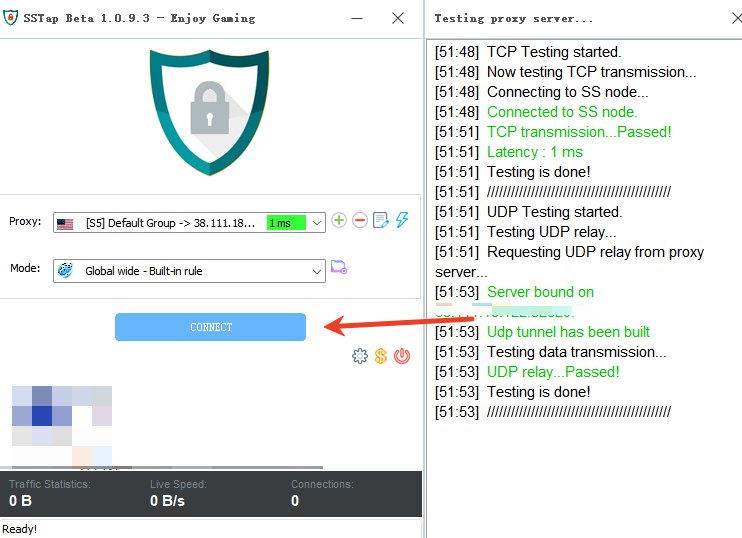
### Complete Configuration and Start Using
Click “CONNECT” to activate the proxy and test the connection, then use your browser to access the target business website.
{% endstep %}
{% endstepper %}