> For the complete documentation index, see [llms.txt](https://help.1024proxy.com/llms.txt). Markdown versions of documentation pages are available by appending `.md` to page URLs; this page is available as [Markdown](https://help.1024proxy.com/unlimited-residential-traffic-port/ip-whitelist.md).
# IP Whitelist
### What Is the 1024Proxy IP Whitelist Feature?
The IP Whitelist is an authentication method provided by 1024Proxy that allows proxy usage without username and password authentication.
In addition to the standard Username & Password Authentication method, the IP whitelist offers a more convenient and efficient authorization solution. By adding trusted public outbound IP addresses to the whitelist, the system can automatically identify the request source. As long as the request originates from a whitelisted IP, users can directly call the API and use proxy IPs without including a username or password in the request, greatly simplifying the configuration process.
### Core Advantages of IP Whitelisting
* ✅ No username/password required\
Eliminates the need to expose credentials in code or tools
* ✅ Simpler configuration\
Ideal for environments with fixed servers or cloud instances
* ✅ Secure and controlled access\
Only whitelisted IPs are allowed to access proxy resources
* ✅ More suitable for automation\
Fewer parameters, lower risk of configuration errors
For users with a fixed outbound IP address, the IP whitelist is a more stable and secure authentication method.
### Applicable Use Cases
The IP whitelist mode is particularly suitable for the following scenarios:
#### Automated Scripts & Web Crawlers
* Avoid hardcoding usernames and passwords in code
* Improve overall security
#### Enterprise-Level or Multi-Project Usage
* Multiple services can access proxies through the same outbound IP
* Easier centralized management
#### High-Concurrency API Calls
* Reduce authentication steps
* Improve request efficiency and stability
#### Security-Sensitive Businesses
* Prevent credential leakage or misuse
### How to Use the IP Whitelist
{% stepper %}
{% step %}
### Obtain Your Public Outbound IP
Before using the IP whitelist, confirm the public outbound IP of your device or server.\
You can obtain it by visiting an IP lookup website or by running relevant commands on your server.
{% endstep %}
{% step %}
### Add the IP to the Whitelist
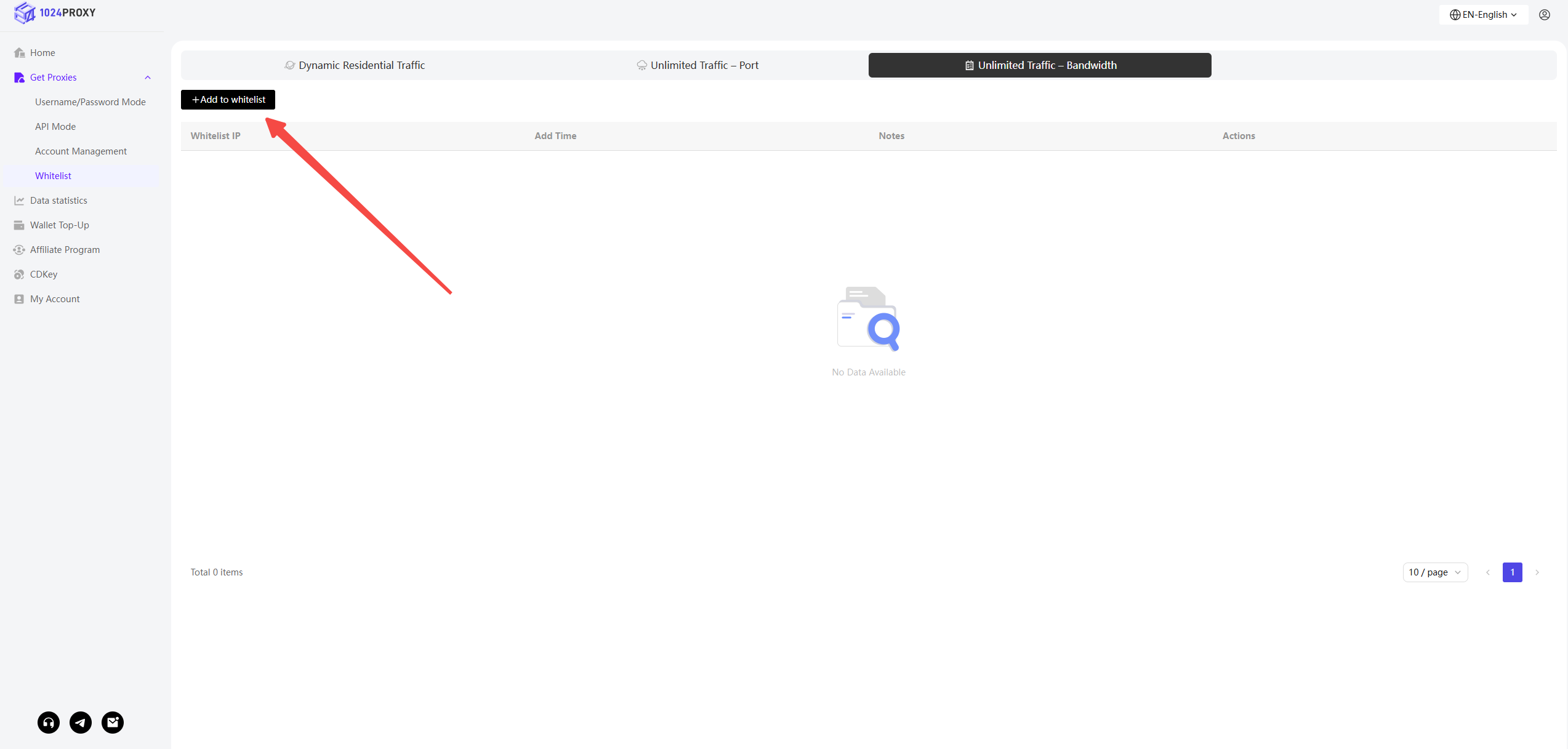
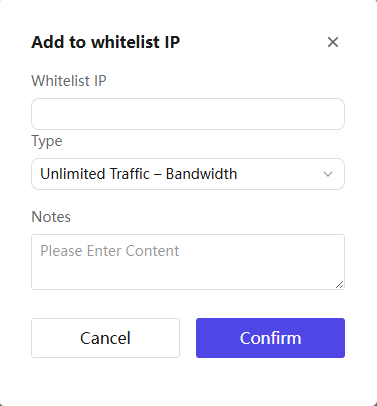
Log in to the 1024Proxy user dashboard, go to the IP Whitelist page, add your public IP address to the whitelist, and save the settings.
{% hint style="warning" %}
Notes:
* Only public IP addresses are supported
* If your IP changes, be sure to update the whitelist in time; otherwise, the proxy will not work properly
{% endhint %}
{% endstep %}
{% step %}
### Directly Call the Proxy or API
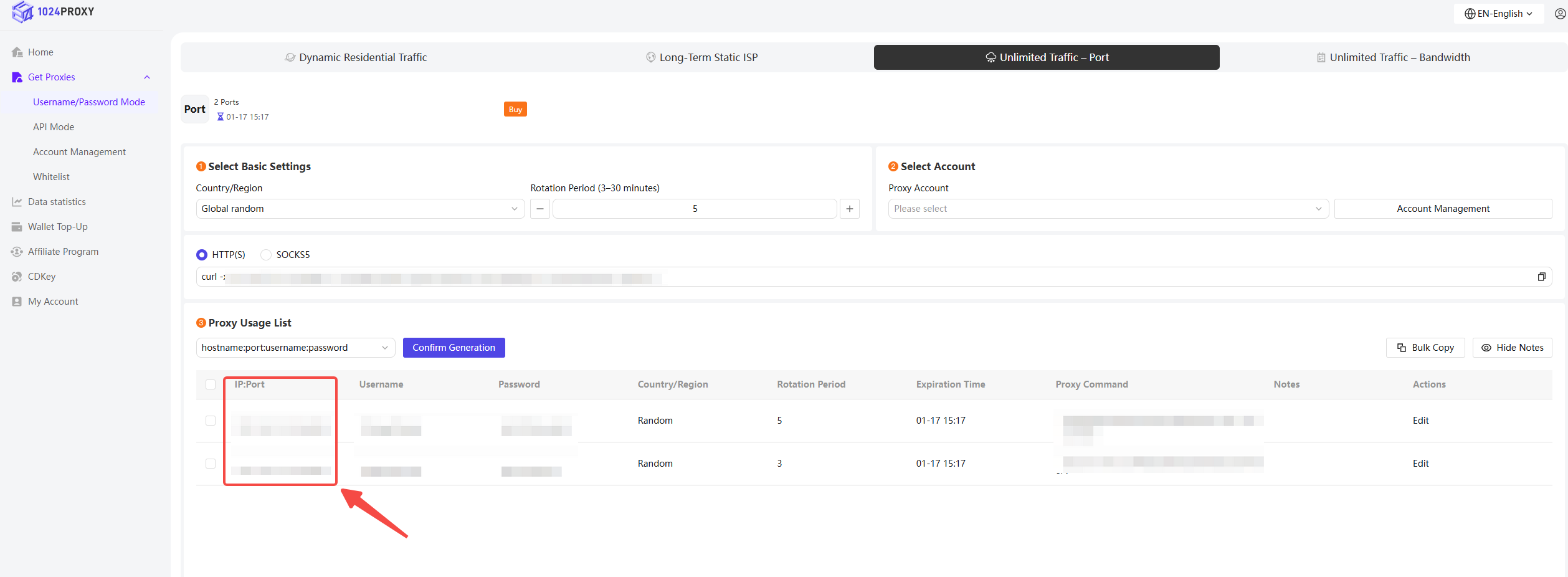
After successfully adding an IP to the whitelist, you can configure the proxy in third-party tools such as anti-detect fingerprint browsers by simply entering the hostname and port. There is no need to provide a username or password, as the system will automatically authenticate the request based on the source IP.
{% endstep %}
{% endstepper %}
### Best Practices & Precautions
* Only add trusted, fixed IP addresses to the whitelist
* Avoid adding dynamic IPs or public network IPs
* Regularly review and remove unused whitelisted IPs
* If using multiple servers, add each corresponding outbound IP separately