> For the complete documentation index, see [llms.txt](https://help.1024proxy.com/llms.txt). Markdown versions of documentation pages are available by appending `.md` to page URLs; this page is available as [Markdown](https://help.1024proxy.com/unlimited-residential-traffic-port/username-and-password-authentication.md).
# Username & Password Authentication
### What Is Username & Password Authentication?
Username & Password Authentication is a common and basic authentication method. When using a proxy, users are required to enter a username and password in the connection request. The proxy server first verifies the credentials, and only after successful authentication is access to network resources granted.
Key Features:
* ✅ No fixed local IP required; can be used in any network environment
* ✅ Flexible configuration, suitable for multiple users, multiple devices, or automated program calls
* ✅ Secure and controllable; passwords can be changed or accounts can be disabled at any time
### Quick Overview
### How to Use 1024Proxy’s Username & Password Authentication to Extract IPs
Below is a step-by-step guide with detailed instructions.
{% stepper %}
{% step %}
### Register and Log in to 1024Proxy
{% embed url="" %}
{% endstep %}
{% step %}
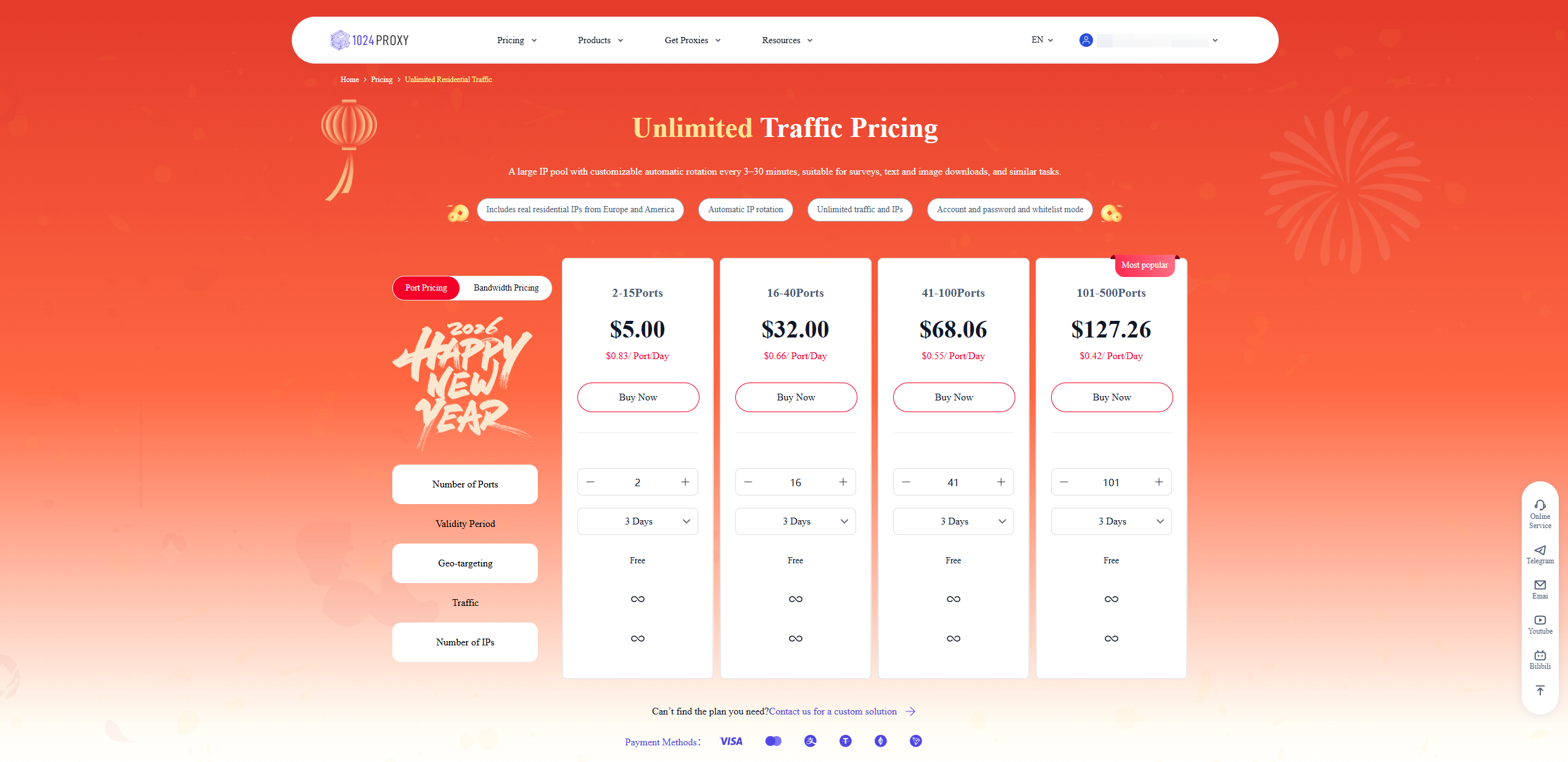
### Purchase Unlimited Residential Proxies (Port-Based)
{% endstep %}
{% step %}
### Create a Sub-Account
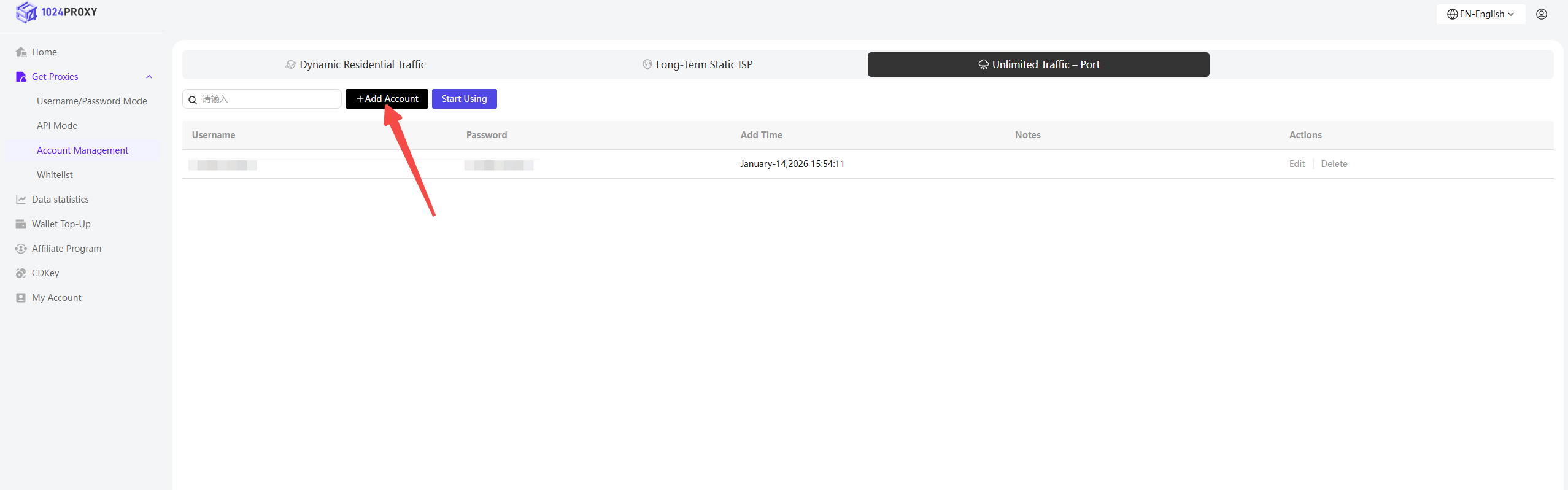
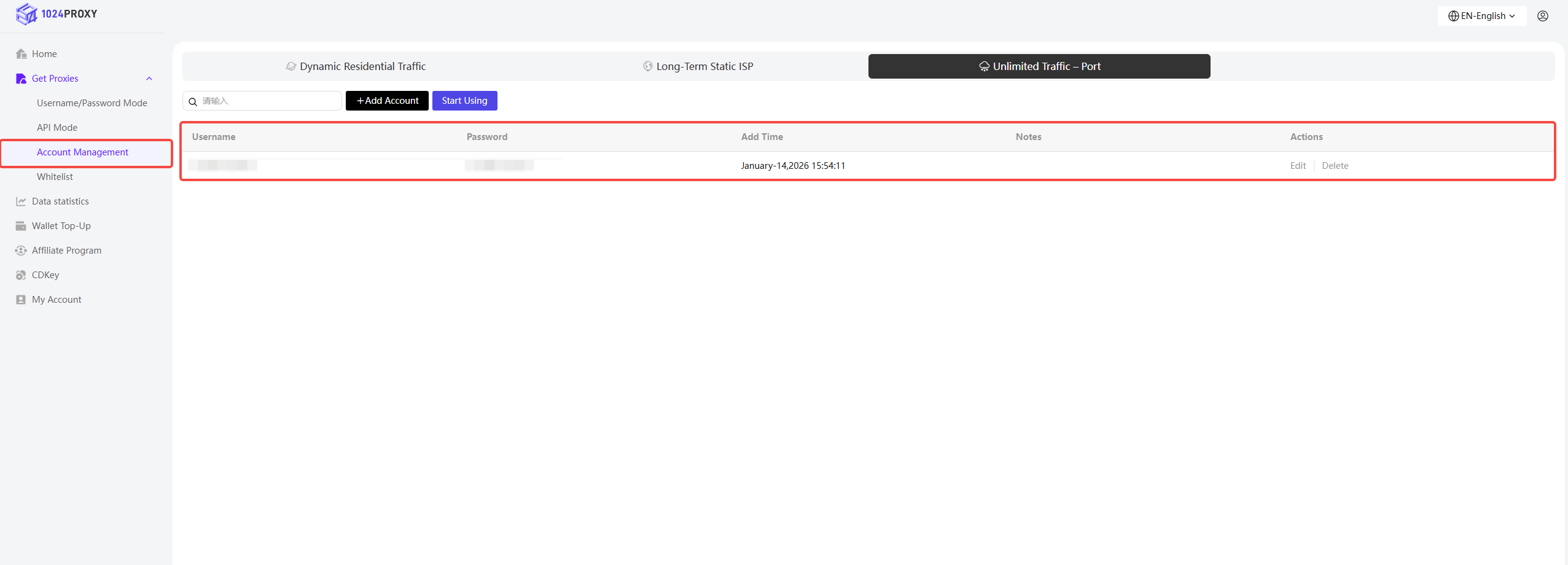
After purchasing, enter the Dashboard. In the Username & Password Authentication section, go to Account Management → Unlimited Traffic – Port, and click Add Account.
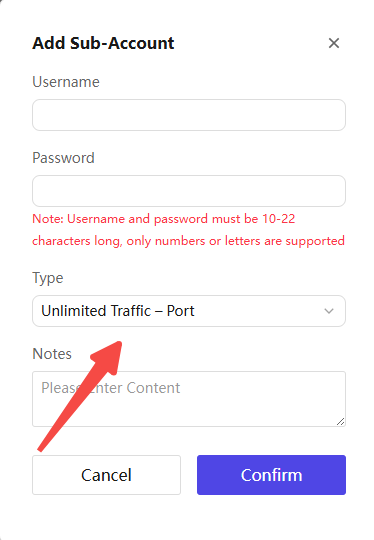
1024Proxy does not support default account creation. Therefore, users must manually create an account before using the service.\
In the Add Sub-Account pop-up window, select Unlimited Traffic – Port as the plan type.
In the pop-up window, you can:
* Set a username
* Set a password
* Add remarks
The sub-account feature enables multi-account management and precise traffic control, making it ideal for studios or enterprises with multi-user collaboration needs.
Click Confirm to view the newly created account details on the sub-account page.
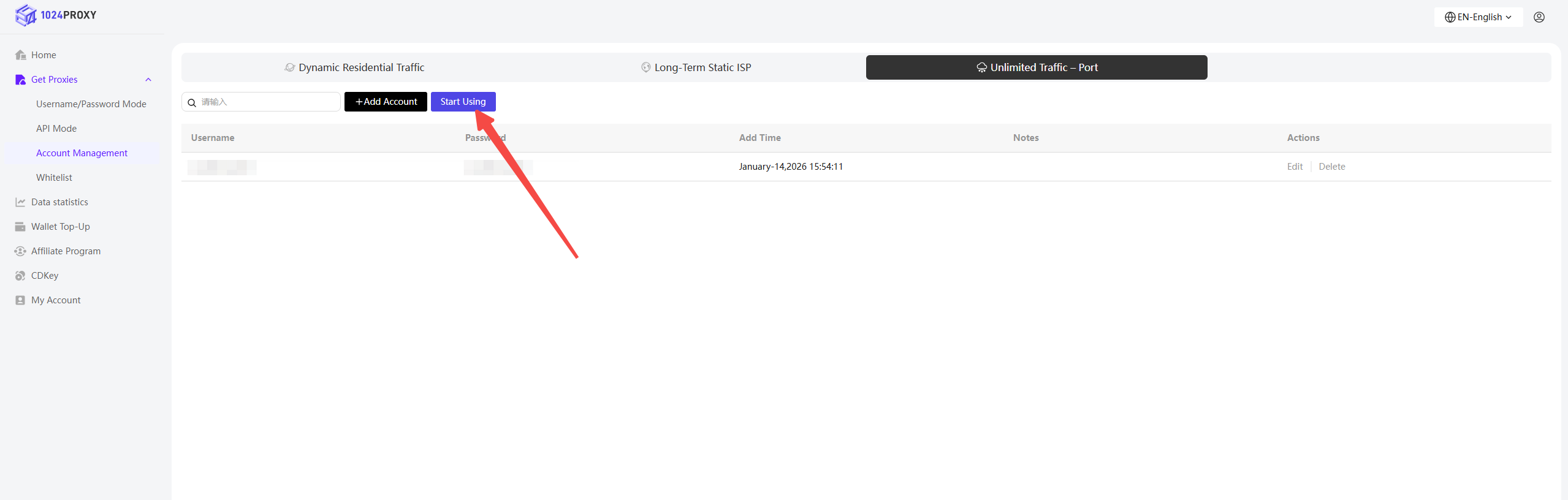
Then click Starting Using to return to the Username & Password Authentication page under the Unlimited Traffic – Port section.
{% endstep %}
{% step %}
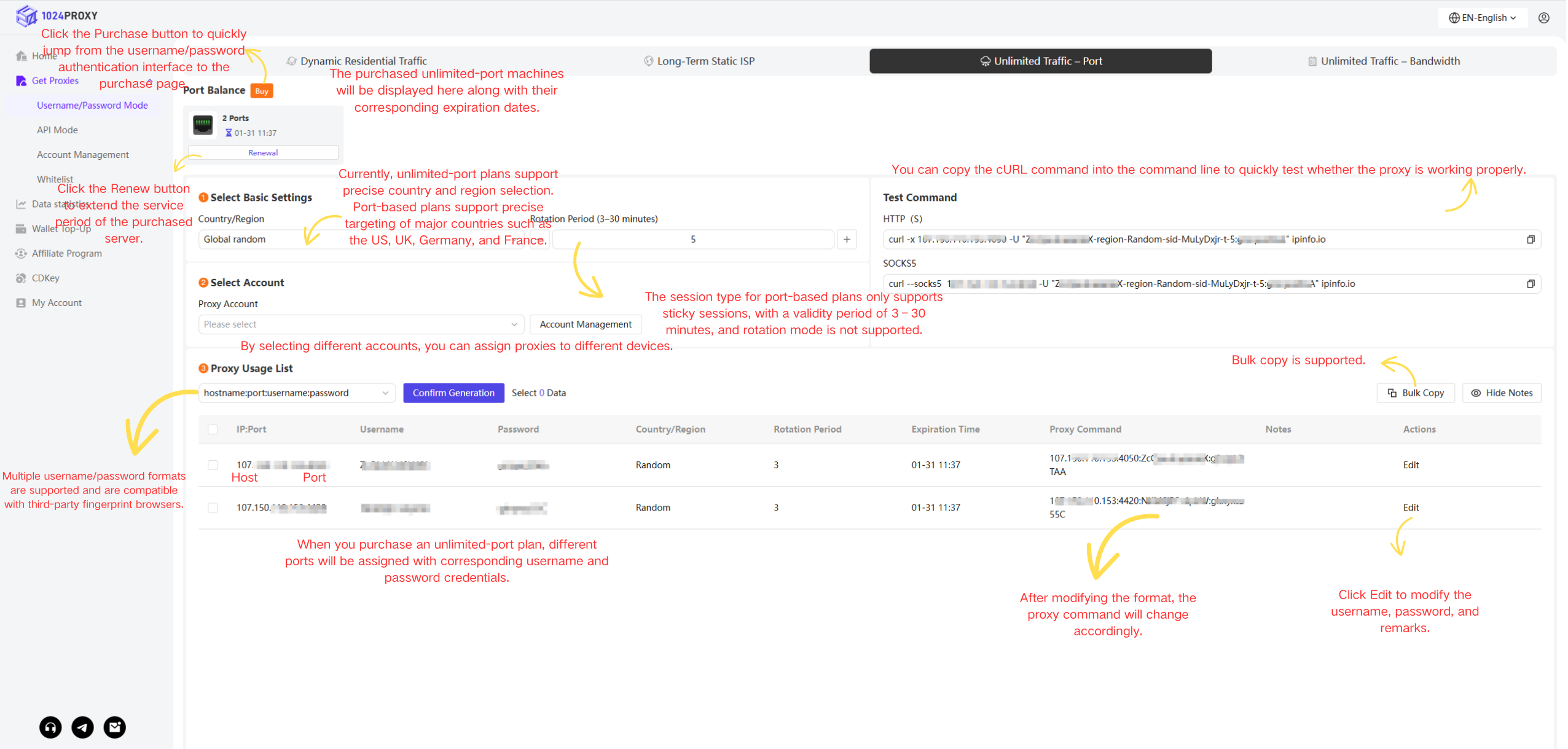
### Filter and Extract IPs
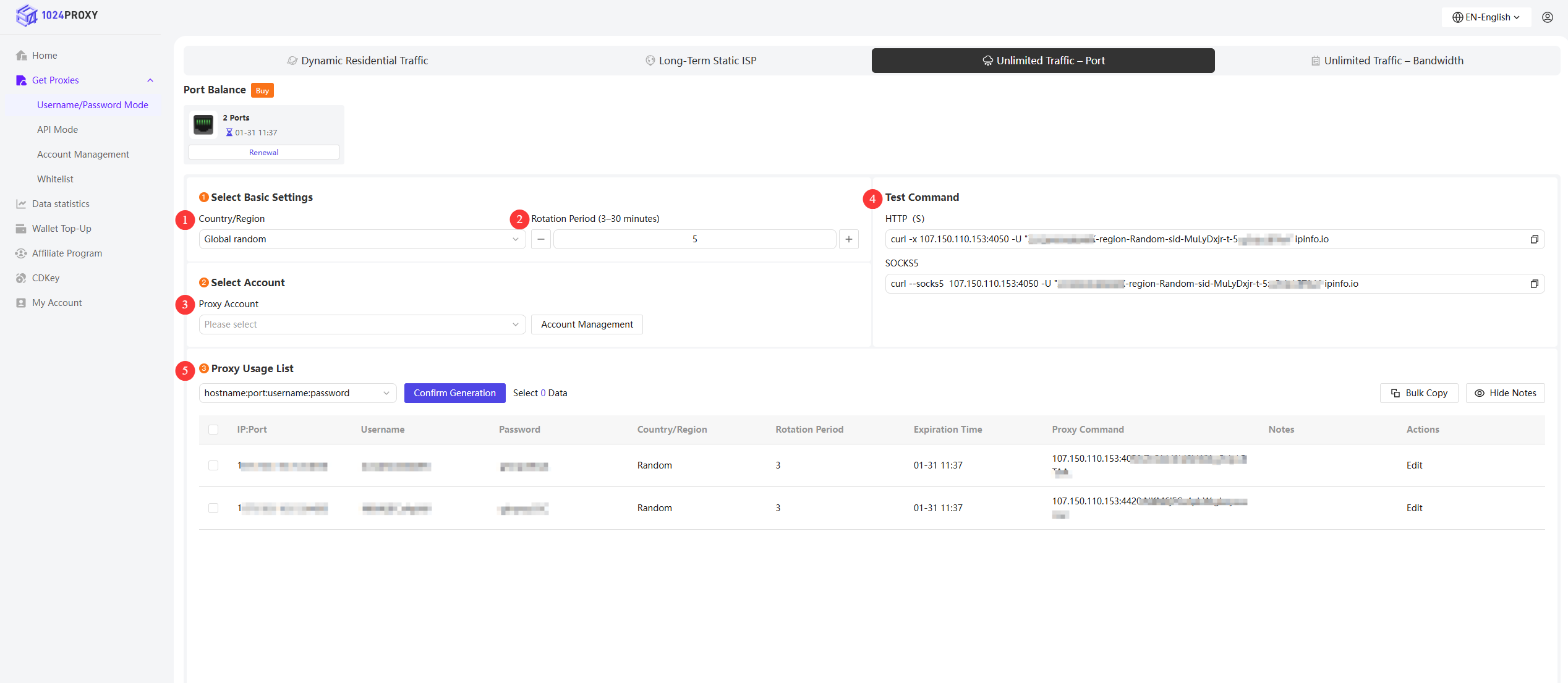
1. Set Country/Region\
1024Proxy supports filtering proxy IP resources by specific countries or regions.
2. Set Rotation Interval (Sticky Session)\
The IP will remain fixed during the selected sticky session duration, which ranges from 3 to 30 minutes.
3. Select Proxy Account\
Choose the sub-account to be used, enabling multi-user collaboration and improved efficiency.
4. Test cURL Command\
Select HTTP(S) or SOCKS5 protocol, copy the generated cURL command, and paste it into the command line to quickly test proxy connectivity.
5. Supported Proxy Formats\
1024Proxy proxy formats are compatible with most anti-detect fingerprint browsers and third-party proxy tools, helping users save time and streamline operations.
{% endstep %}
{% endstepper %}
Click Generate, then copy the generated proxy command and paste it into your third-party proxy tool to start using the proxy.